Feeds:
Posts
Comments

Archive for October, 2012

I received a question from a blog reader “how to convert varbinary to numeric & vice versa & How SQL Server keeps the structure of numeric data type in varbinary format ?”

First lets take an example to convert from varbinary to numeric & vice versa”

Example :

--Convert from varbinary to numeric
Declare @varbinary2 as varbinary(max)
Set @varbinary2=0x08040001B471BC00
Select Convert(numeric(8,4),@varbinary2) as [Varbinary to Numeric]

--Convert from numeric to varbinary
Declare @Numeric2 as numeric(8,4)
Set @Numeric2 =1234.9876
Select Convert(varbinary(max),@Numeric2) as [Numeric to Varbinary]
--RESULT

Varbinary to Numeric
—————————————
1234.9876

(1 row(s) affected)

Numeric to Varbinary
—————————————
0x08040001B471BC00

(1 row(s) affected)

Explanation :
It is a simple conversion, but one thing you need to remember is, whenever you convert from varbinary to numeric, you must be exact in the Precision & Scale. If Precision & Scale are wrong, it will give you wrong result. But the question is how ascertain that the Precision & Scale are in varbinary format ?

Lets take an example from above and first get the Precision & Scale and then convert it into numeric data type.

--Convert from varbinary to numeric
Declare @varbinary1 as varbinary(max)
Set @varbinary1=0x08040001B471BC00

Select Convert(int,0x08) as [Precision]
Select Convert(int,0x04) as [Scale]

Select @varbinary1 as [Varbinary]
,Convert(numeric(18,4),@varbinary1) as [Varbinary to Numeric]
--RESULT

Precision
———–
8

(1 row(s) affected)

Scale
———–
4

(1 row(s) affected)

Varbinary | Varbinary to Numeric
———————– | —————————————
0x08040001B471BC00 | 1234.9876

(1 row(s) affected)

Given below is the screen image that will show how SQL keeps numeric data type in varbinary format.

Read Full Post »

Contained databases are isolated / independent databases from the other databases and from the instance it is hosted on.

Before in SQL Server 2012, SQL server maintained user authentication at server level. So once the user logged in either via Windows or SQL Authentication, user could access server objects.

Currently in SQL Server 2012, we have a concept of “partial contained databases” meaning it allows to access few elements from outside its boundary as well. Now you can directly access the database with the contained database user, you don’t need the server authentication for partial contained databases.

This feature is very handy especially when it comes to database authentication or to avoid server authentication. The administrator can directly assign the user to the contained database.

It is also important for “Always On High Availability” because once an SQL server instance is down the user can easily connect on other instance database as the database is not dependent on instance.

Let’s proceed step by step.

Step 1:
In the first step, we must activate the ‘contained database authentication’ on the instance.

Using Script

sp_configure 'show advanced options', 1
GO
RECONFIGURE
GO
sp_configure 'contained database authentication', 1
GO
RECONFIGURE
GO
sp_configure 'show advanced options', 0
GO
RECONFIGURE
GO

Using SSMS
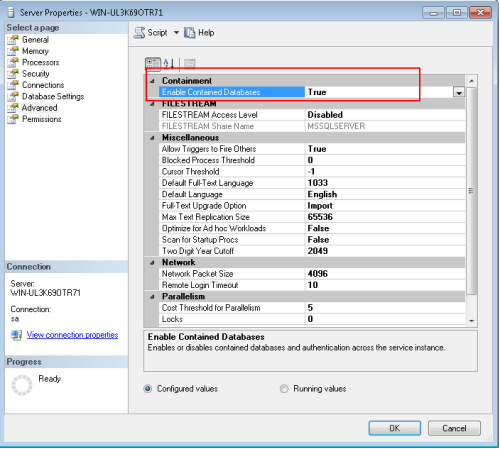
Right click on Instance \ Properties \ Advance. You can find a property on top namely “Enabled Contained Databases”. By default it is “False” you need to change it to “True”.

Step 2 :

In this step, we need to create or alter a database to make it contained database.

Using Script

ALTER DATABASE [AdventureWorks2012] SET CONTAINMENT = PARTIAL WITH NO_WAIT
--OR
CREATE DATABASE [Contained_DB]
CONTAINMENT = PARTIAL;

After enabling partial contained in the database, we can execute this query to view that it is enabled or not.

Select containment,[containment_desc]   from sys.databases Where [name]='AdventureWorks2012'

Step 3:
In this step, we need to create a user having “contained database” rights (Rights can vary from reader to owner)
Using Script

Use Contained_DB
GO
CREATE USER imran
WITH PASSWORD = 'imran1234';

ALTER ROLE [db_owner] ADD MEMBER [imran]

Using SSMS
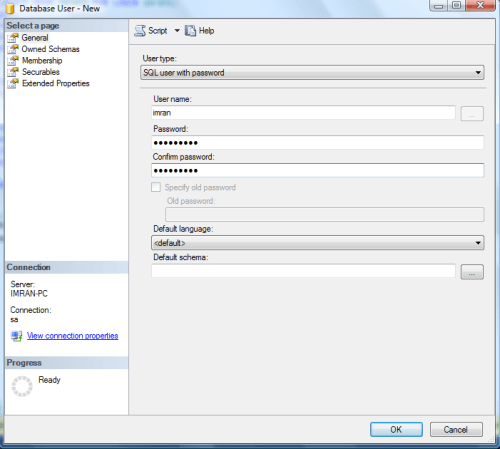
Right click on “contained database” \ Security \users\ New User …


Step 4:
Now, we have already created a user inside the “contained database”. In this step, we need to log in from this user.

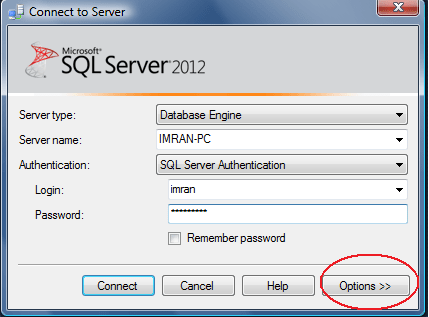
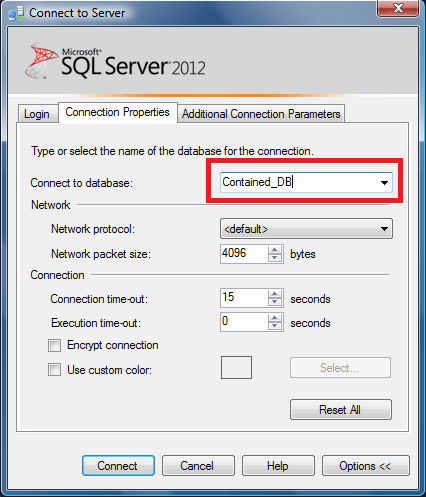
Once you are in the log in screen, enter the credential but “don’t click on Connect”. Click on Options >> connection properties and select the “Contained_DB” from the “Connect to database” option after that you can click on connect.

Step 5:
Now, you are logged in successfully. Lets try to create one table and access it.

Use Contained_DB
GO
Create Table [Test_Table]
([SNo] int,
[Designation] varchar(50))

GO

Insert into [Test_Table] Values (1,'Director'),(2,'Manager'),(3,'Staff')
GO
Use Contained_DB
Select * from [Test_Table]

And you can create / view the table successfully.

Conclusion :

This is a very handy and important feature from the perspective of database migration, “Always On High Availability”, Server Authentication. But it also doesn’t allow us to do the replication, change data capture and change tracking.

Reference : MSDN

Read Full Post »

Today, I was searching one stored procedure in the entire SQL server databases. To find this, I need to go to each database right click on procedure and then filter the name. It is little bit time consuming and boring work if you have more  number of Databases and you need to repeat this process number of times. Given below is the solution designed with the help of  a sys.procedures(system table).

Note : This solution is compatible with SQL SERVER 2005 and above.

-- Script Name: Sp_Search_Procedure_Across_Databases
-- Script Type : Search Stored Procedure Across all SQL Server databases.
-- Develop By: Muhammad Imran
-- Date Created: 03 Oct 2012

Create Procedure Sp_Search_Procedure_Across_Databases
@ProcedureName nvarchar(Max)
As
BEGIN
DECLARE @SQL nvarchar(MAX)     --Declare variable to store dynamic query result
DECLARE @DB_NAME nvarchar(200) --Declare variable to store Database name

SET @SQL=''

--Create table to store the result of each database
CREATE TABLE #SearchResult
(
[DB_Name] nvarchar(max),
[Procedure Name] nvarchar(max),
[Status] varchar(50)
)

--Declare cusrsor to loop across all databases
DECLARE DB_Cursor CURSOR FOR
--Pick the list of all database
SELECT QUOTENAME([name]) from sys.databases order by [name]

OPEN DB_Cursor
FETCH NEXT FROM DB_Cursor INTO @DB_NAME

WHILE @@FETCH_STATUS = 0
BEGIN
--In this dynamic query, two select statements are built because
--one statement will check the unavailability and the
--second statement will check the availability of the
--procedure in the database and insert the result in the #SearchResult table

SET @SQL= 'Insert into #SearchResult
SELECT ''' + @DB_NAME + ''' as [Database Name],'''',''Not Available''
from ' + @DB_NAME + '. sys.procedures
Where [name] like ''%' + @ProcedureName + '%'' Having Count(*)=0
UNION ALL
SELECT ''' + @DB_NAME + ''' as [Database Name],[name],''Available''
from ' + @DB_NAME + '.sys.procedures
Where [name] like ''%' + @ProcedureName + '%'' Group By [name]
Having Count(*)>0'

EXEC(@SQL)

FETCH NEXT FROM DB_Cursor INTO @DB_NAME
END
CLOSE DB_Cursor
DEALLOCATE DB_Cursor
--We can browse the table to view the results
Select * from #SearchResult Order by [DB_Name],[Procedure Name]
END
GO
--Syntax
--Sp_Search_Procedure_Across_Databases 'Stored Procedure Name'

--Example
Sp_Search_Procedure_Across_Databases 'SP_Employee'

Read Full Post »

Today, we will discuss the multiple ways to insert multiple records in the table using one insert statement. We have different ways to achieve it but there are pros and cons in each method that we will discuss later in this article. Lets create a table to demonstrate how it works.

Create Table Test_Table
(
[ID] int,
[Designation] varchar(50)
)

Let me explain this with different methods and simple examples.

Method -1 : Traditional Insert statement (Multiple records with Multiple Statements)

In this Method, we will discuss the usual method to insert multiple records with multiple statements. However, if you need to insert multiple records, you need to write multiple statements. And it is a little bit time consuming as well because you need to write statement on each line.

Insert into Test_Table ([ID],[Designation]) Values(1,'Officer')
Insert into Test_Table ([ID],[Designation]) Values(2,'Manager')
Insert into Test_Table ([ID],[Designation]) Values(3,'Director')

Method-2 : Insert statement – Table Value Constructor – (Multiple records with Single Statement)

In SQL server 2008, a solution came for multiple records insertion with a single statement namely “Table Value Constructor”.  Lets make an example and check how it works.

Insert into Test_Table Values (1,'Officer'),(2,'Manager'),(3,'Director')

Note : We can construct maximum 1000 rows using this method in a single statement. If it exceeds 1000, it will generate an error message.

Method-3 : Insert statement – Union ALL – (Multiple records with Single statement
In this example, we will insert multiple records with a single statement using “Union ALL”.

Insert into Test_Table
Select 1,'Officer'
UNION ALL
Select 2,'Manager'
UNION ALL
Select 3,'Director'

Note : In this method, the performance is inversely proportional to the length of the statement, ie., longer the UNION ALL statement grows, lesser the performance will be.

Conclusion : I discussed various ways to insert multiple records using single statement but before applying any method we need to review the requirement and should keep the pros and cons in mind.

Read Full Post »

« Newer Posts