Feeds:
Posts
Comments

Archive for November, 2022

All of us know that user defined functions may affect the query performance very badly, specially when we are dealing with a huge amount of data. Despite saying this, most of the time we are left with no choice but to use User Defined Function (UDF) and bear the cost of its performance.

In SQL Server 2019, a feature shipped namely Scalar UDF Inlining, which was a long awaited feature. The main goal of this feature is to improve the performance of UDF drastically. Excited ?

Let me create a sample User Defined Function (UDF) to use in my demonstration as shown below.

Sample:

USE WideWorldImporters;
GO

CREATE FUNCTION [dbo].[UDF_customer_Name]
(
 @CustomerID INT
)
RETURNS VARCHAR(250) 
AS
BEGIN

  DECLARE @CustomerName VARCHAR(250);

  SELECT  @CustomerName  = [CustomerName] 
  FROM    [Sales].[Customers] 
  WHERE  [CustomerID] = @CustomerID;

  RETURN  @CustomerName;
END
GO

Let me show you in the below example how we were using UDF in the earlier version of SQL Server and facing performance issues. Let me call the above created UDF in the below query and show you its performance. In this UDF, I will pass the Customer ID as a parameter and get Customer Name in return.

USE WideWorldImporters;
GO

SET STATISTICS TIME ON; 
GO

SELECT [CustomerID]
     , [dbo].[UDF_Customer_Name](CustomerID) AS [CustomerName]
     , [InvoiceID]
     , [TransactionDate]
FROM   [Sales].[CustomerTransactions];
GO

SET STATISTICS TIME OFF; 
GO
--OUTPUT

Performance:

As we can see below, I have 97147 records and it takes 5 seconds to execute the query as shown below.

Scalar UDF Inlining Feature:

As we can see in above example, it took time to execute above query even though we have few records, which means that the performance is not good and this was normal. Now let’s try Scalar UDF Inlining feature to see the performance impact.

Compatibility level:

The database compatibility MUST be 150 or higher to use this feature. Given below is the query to set the compatibility level.

ALTER DATABASE WideWorldImporters
SET COMPATIBILITY_LEVEL =150;
GO
--OUTPUT

Step 1:

Let’s enable Scalar UDF Inlining as shown below.

USE WideWorldImporters;
GO

ALTER DATABASE SCOPED CONFIGURATION 
SET TSQL_SCALAR_UDF_INLINING = ON;
GO

Step 2:

Let’s check the inlineable status of my above created UDF by using sys.sql_modules. It MUST be 1 to use this feature as shown below.

USE WideWorldImporters;
GO

SELECT object_id
     , definition
     , is_inlineable
FROM sys.sql_modules
WHERE definition LIKE '%UDF_CUSTOMER%';
GO

Step 3:

Now, let’s execute the same query and check the performance as shown below

USE WideWorldImporters;
GO

SET STATISTICS TIME ON; 
GO

SELECT [CustomerID]
     , [dbo].[UDF_Customer_Name](CustomerID) AS [CustomerName]
	 , [InvoiceID]
	 , [TransactionDate]
FROM   [SALES].[CustomerTransactions];
GO
--Output
SET STATISTICS TIME OFF; 
GO

Performance:

As we can see below that this feature has increased the performance tremendously and it hardly took 1 second to execute the query.

Clean Up:

Let’s drop the above created User Defined Function.

USE WideWorldImporters;
GO

DROP FUNCTION [dbo].[UDF_customer_Name]
GO

Limitations:

There are certain limitations for this feature, if those conditions are NOT met in your user defined function, then you can’t use this feature, please review it here.

Conclusion:

I found this new feature very useful since it improves the performance of User Defined Function a lot. Do let me know if you use this feature and how helpful you find it.

Read Full Post »

We all have been using RTRIM() function for ages, it helps us to removes the unwanted space(s) character char(32) from the end of any column(s) \ expression(s) in earlier version of SQL Server.

In SQL Server 2022, an enhancement came in RTRIM() function, which was a long awaited functionality. This enhancement will allow us to remove any specific character(s) from the RIGHT sides along with space(s) character char(32).

Let me show you in the below example, how we were using RTRIM() functions to remove space(s) character char(32) ONLY in the earlier version of SQL Server.

Example 1:

DECLARE @EMAIL VARCHAR(100) 
SET @EMAIL = 'KenSanchez@gmail.com   ';
SELECT  @EMAIL   AS [OriginalEmail]
, RTRIM(@EMAIL)  AS [RTrimEmail];
GO
--OUTPUT

Enhancement:

Now, let me demonstrate this enhancement by giving few examples but before demonstrating this enhancement, your database compatibility level MUST be 160 or higher. Given below is the query to change your database compatibility level.

 ALTER DATABASE AdventureWorks SET COMPATIBILITY_LEVEL = 160 

Example 2:

In this example, I will show you how to pass the newly introduced parameter in RTRIM() function. This parameter removes spaces(s) / character(s) from the RIGHT side of the column(s) / expression(s) which will be defined in single quotes after RTRIM() as shown below.

DECLARE @EMAIL VARCHAR(100) 
SET @EMAIL = 'KenSanchez@gmail.com;';
SELECT  @EMAIL       AS [OriginalEmail]
, RTRIM(@EMAIL,'; ')  AS [RTrimEmail];
GO
--OUTPUT

Example 3:

In this example, I will demonstrate that by default RTRIM() function takes spaces(s) as parameter, if you do not pass any parameter as shown in below example :

DECLARE @EMAIL VARCHAR(100) 
SET @EMAIL = '     KenSanchez@gmail.com';
SELECT  @EMAIL   AS [OriginalEmail]
, RTRIM(@EMAIL)  AS [RTrimEmail]
, RTRIM(@EMAIL,' ') AS [RTrimEmailWithParameter];
GO
--OUTPUT

Conclusion:

I found the new enhancement of RTRIM() function very useful, earlier we used multiple functions to find and remove any character(s) from the RIGHT side of the column(s) \ expression(s) but now we can easily achieve with the help of RTRIM() function. Do let me know if you use this function and how you find it.

Read Full Post »

We all have been using LTRIM() function for ages, it helps us to removes the unwanted space(s) character char(32) from the start of any column(s) \ expression(s) in earlier version of SQL Server.

In SQL Server 2022, an enhancement came in LTRIM() function, which was a long awaited functionality. This enhancement will allow us to remove any specific character(s) from the left sides along with space(s) character char(32).

Let me show you in the below example, how we were using LTRIM() functions to remove space(s) character char(32) ONLY in the earlier version of SQL Server.

Example 1:

DECLARE @EMAIL VARCHAR(100) 
SET @EMAIL = '     KenSanchez@gmail.com';
SELECT  @EMAIL   AS [OriginalEmail]
, LTRIM(@EMAIL)  AS [LTrimEmail];
GO
--OUTPUT

Enhancement:

Now, let me demonstrate this enhancement by giving few examples but before demonstrating this enhancement, your database compatibility level MUST be 160 or higher. Given below is the query to change your database compatibility level.

 ALTER DATABASE AdventureWorks SET COMPATIBILITY_LEVEL = 160 

Example 2:

In this example, I will show you how to pass the newly introduced parameter in LTRIM() function. This parameter removes spaces(s) / character(s) from the LEFT side of the column(s) / expression(s) which will be defined in single quotes after LTRIM() as shown below.

DECLARE @EMAIL VARCHAR(100) 
SET @EMAIL = '     ;KenSanchez@gmail.com';
SELECT  @EMAIL       AS [OriginalEmail]
, LTRIM(@EMAIL,'; ')  AS [LTrimEmail];
GO
--OUTPUT

Example 3:

In this example, I will demonstrate that by default LTRIM() function takes spaces(s) as parameter, if you do not pass any parameter as shown in below example:

DECLARE @EMAIL VARCHAR(100) 
SET @EMAIL = '     KenSanchez@gmail.com';
SELECT  @EMAIL   AS [OriginalEmail]
, LTRIM(@EMAIL)  AS [LTrimEmail]
, LTRIM(@EMAIL,' ') AS [LTrimEmailWithParameter];
GO
--OUTPUT

Conclusion:

I found the new enhancement of LTRIM() function very useful, earlier we used multiple functions to find and remove any character(s) from the LEFT side of the column(s) \ expression(s) but now we can easily achieve with the help of LTRIM() function. Do let me know if you use this function and how you find it.

Read Full Post »

As we all know, TRIM() function removes the extra space(s) character char(32) from the start & end of any column(s) \ expression(s) in earlier version of SQL Server.

In SQL Server 2022, an enhancement is available in TRIM() function, which was a long awaiting functionality. This enhancement will allow us to remove any specific character(s) from one of the sides (left, right) or both sides of the column(s) \ expression(s) along with space(s) character char(32).

Let me show you in the below example, how we were using TRIM() function to remove space(s) character char(32) ONLY in the earlier version of SQL Server.

DECLARE @EMAIL VARCHAR(100) 
SET @EMAIL = '     KenSanchez@gmail.com      ';

SELECT  @EMAIL   AS [OriginalEmail]
, TRIM (@EMAIL)  AS [TrimEmail];
GO
--OUTPUT

Enhancement:

Now, let me demonstrate this enhancement by giving few examples but before demonstrating this enhancement, your database compatibility level MUST be 160 or higher. Given below is the query to change your database compatibility level.


ALTER DATABASE AdventureWorks
SET COMPATIBILITY_LEVEL = 160 

The enhancement in TRIM() function provides three new options as shown below.

  • Leading
  • Trailing
  • Both

Let me explain these options in detail.

  • Leading

I will demonstrate to you how to use LEADING option in TRIM() function. This option removes space(s) / character(s) from the LEFT side of the column(s) / expression(s) which will be defined in single quotes after LEADING option, as shown in given below example.


DECLARE @EMAIL VARCHAR(100) 
SET @EMAIL = '  ;KenSanchez@gmail.com';

SELECT @EMAIL  AS [OriginalEmail]
     , TRIM(LEADING' ; ' FROM @EMAIL) AS  [AfterTrimEmail];
GO
--OUTPUT

  • Trailing

In this example, I will show you how to use TRAILING option in TRIM() function. This option removes space(s) / character(s) from the RIGHT side of the column(s) / expression(s) which will be defined in single quotes after TRAILING option, as shown below.


DECLARE @EMAIL VARCHAR(100) 
SET @EMAIL = 'KenSanchez@gmail.com;   ';

SELECT @EMAIL  AS [OriginalEmail]
     , TRIM(TRAILING' ; ' FROM @EMAIL) AS  [AfterTrimEmail];

GO
--OUTPUT

  • Both

In this example, I will show you how to use BOTH option in TRIM() function. This option removes space(s) / character(s) from BOTH (left & right) sides of the column(s) / expression(s) which will be defined in single quote after BOTH option, as shown below.


DECLARE @EMAIL VARCHAR(100) 
SET @EMAIL = '   ;KenSanchez@gmail.com;   ';

SELECT @EMAIL  AS [OriginalEmail]
     , TRIM(BOTH' ; ' FROM @EMAIL) AS  [AfterTrimEmail];

GO
--OUTPUT


DECLARE @EMAIL VARCHAR(100) 
SET @EMAIL = '   ;KenSanchez@gmail.com;   ';

SELECT @EMAIL  AS [OriginalEmail]
     , TRIM(' ; ' FROM @EMAIL) AS  [AfterTrimEmail];

GO
--OUTPUT

  • Note:

If you don’t write any option name (LEADING, TRAILING, BOTH) in the TRIM() function then by default BOTH option will be applied as shown below.

Conclusion:

I found the new enhancement very useful and handy, earlier we used multiple functions to find and remove any character(s) from the start or end of the column(s) \ expression(s) or both sides of the column(s) \ expression(s), now we can achieve it via TRIM() function ONLY. Do let me know if you use this enhancement and how helpful you find it.

Read Full Post »

We have been using REPLACE() function for ages in SQL Server whenever we need to replace any characters in a string but the problem arises when we need to replace multiple characters with multiple characters. In such cases we had to use REPLACE() function multiple times to achieve it till TRANSLATE() function came in picture in SQL Server 2017.

Compatibility Level:

Your database compatibility level MUST be 140 or higher to use TRANSLATE() function. Given below is the query to change your database compatibility level.

 ALTER DATABASE Northwind SET COMPATIBILITY_LEVEL = 140 

Let me demonstrate, how we were using REPLACE() function in earlier version of SQL Server:

Example 1: (Old approach using REPLACE() function)

In the given below Example, we used REPLACE() function twice in order to replace multiple characters in a string.


DECLARE @Number VARCHAR(25)
SET @Number='+92-3317892345'
SELECT @Number AS PhoneNumber
     , REPLACE(REPLACE(@Number,'+',' '),'-',' ') AS ReplacedPhoneNumber;

GO

--OUTPUT

Example 2: (New approach using TRANSLATE() function)

In new approach, we can achieve the same output using TRANSLATE() function and we do not need to write function twice.


DECLARE @Number AS VARCHAR(25)
SET @Number='+92-3317892345'
SELECT @Number AS PhoneNumber
     , TRANSLATE(@Number,'+-','  ') AS TranslatedPhoneNumber

GO

--OUTPUT

Now, we know how to use these functions (TRANSLATE() and REPLACE()). Let me show you how we can use it in query having tables.

Example 3: (Old approach using REPLACE() function)

In the given below example, we are going to replace ( , ),- with spaces using REPLACE() function.


USE Northwind
GO

SELECT FirstName
           , LastName
	   , Title
           , HomePhone
	   , REPLACE(REPLACE(REPLACE(HomePhone,'(',''),')',' '),'-',' ') AS ReplacedHomePhone
FROM [dbo].[Employees] ;
GO
--OUTPUT

Example 4: (New approach using TRANSLATE() function)

In the given below example, we are going to replace ( , ),- with spaces using TRANSLATE() function.


USE Northwind
GO

SELECT FirstName
           , LastName
	   , Title 
	   , HomePhone
	   , TRANSLATE(HomePhone,'()-','   ') AS TranslatedHomePhone  
FROM [dbo].[Employees] ;
GO
--OUTPUT

This image has an empty alt attribute; its file name is translate-ver-1.4.png

Conclusion:

I used TRANSLATE() function and found it very handy, the only limitation I can see is that the characters and translations should be the same size. If not it will generate error which we will discuss in upcoming articles. Do let know if you used this function and found it useful.

Read Full Post »

At times we come across some cases where we need to extract date and time for a certain period of time (year, month, day, hour, minutes, seconds etc.). In earlier version of SQL Server (earlier than 2022), we use multiple functions like DATEADD, DATEDIFF etc. to achieve it.

In SQL Server 2022, a new function namely DATETRUNC() shipped which solved this problem. Now, we can just use DATETRUNC() function to extract date and time till any date and time parts.

In the given below diagram, you can see the different date & time parts which can be easily extracted by DATETRUNC() function.

Example:

Let me demonstrate the functionality of DATETRUNC() function by giving below example.

DECLARE @DateTime DATETIME2
SET @DateTime = '2022-10-27 12:02:31.9033333';
SELECT @DateTime                    AS [Current Date]
      , DATETRUNC(YEAR,@DateTime)   AS [DateTrunc Function]
      ,'Extract Date Till The YEAR' AS [Description]
UNION
SELECT @DateTime                      AS [Current Date]
     , DATETRUNC(QUARTER,@DateTime)   AS [DateTrunc Function]
     ,'Extract Date Till The QUARTER' AS [Description]
UNION
SELECT @DateTime                    AS [Current Date]
     , DATETRUNC(MONTH,@DateTime)   AS [DateTrunc Function]
     ,'Extract Date Till The MONTH' AS [Description]
UNION
SELECT @DateTime                    AS [Current Date]
     , DATETRUNC(WEEK,@DateTime)    AS [DateTrunc Function]
     ,'Extract Date Till The WEEK'  AS [Description]
UNION
SELECT @DateTime                    AS [Current Date]
     , DATETRUNC(DAY,@DateTime)     AS [DateTrunc Function]
     , 'Extract Date Till The DAY'  AS [Description]
UNION
SELECT @DateTime                    AS [Current Date]
     , DATETRUNC(HOUR,@DateTime)    AS [DateTrunc  Function]
     , 'Extract Date Till The HOUR' AS [Description]
UNION
SELECT @DateTime                      AS [Current Date]
      , DATETRUNC(MINUTE,@DateTime)   AS [DateTrunc  Function]
      , 'Extract Date Till The MINUTE'AS [Description]
UNION 
SELECT @DateTime                       AS [Current Date]
      , DATETRUNC(SECOND,@DateTime)    AS [DateTrunc  Function]
      , 'Extract Date Till The SECOND' AS [Description]
UNION
SELECT @DateTime                            AS [Current Date]
      , DATETRUNC(MILLISECOND,@DateTime)    AS [DateTrunc  Function]
      , 'Extract Date Till The MILLISECOND' AS [Description]
UNION
SELECT @DateTime                            AS [Current Date]
      , DATETRUNC(MICROSECOND,@DateTime)    AS [DateTrunc  Function]
      , 'Extract Date Till The MICROSECOND' AS [Description];
GO
--OUTPUT

Conclusion:

I found the DATETRUNC() function very useful; earlier we used multiple functions to extract date and time till whichever time period we needed, but now we can achieve it with the help of this function.

Read Full Post »

History of query becomes very important when you really need the earlier version of your query, in case you do not have backups or you want to know which queries have been executed earlier in your respective database.

In SQL Server Management Studio, you can achieve it by running given below query but as per SQL Server documentation, the lifetime of the given below rows are tied to the plan itself. When a plan is removed from the cache, the corresponding rows are eliminated from this view and you cannot find the query in the history. Also, if your administrator restarts the server, you will lose the entire history. There is also a limitation that you can only get the queries executed successfully; failed queries will not be there in the history.

  • Query History in SQL Server Management Studio

USE AdventureWorks2019
GO

SELECT last_execution_time
     , text 
FROM sys.dm_exec_query_stats stats 
CROSS APPLY sys.dm_exec_sql_text(sql_handle)  
ORDER BY 
       last_execution_time DESC 
GO
--OUTPUT

  • Query History in Azure Data Studio

Fortunately, there is an extension available in Azure Data Studio to get the history of query and there is no limitation like I mentioned above.

Query History Extension Installation:

Let’s install the extension step by step.

Step 1: First of all, please click on View menu which is on the left top of the screen, then click on Extensions as shown below. You can also use the shortcut Ctrl+Shift+X to open Extensions window.


Step 2: Extensions window is now open. Let’s search the Query History extension as shown below and click on Install button.

Step 3: As you can see the Query History extension is installed as shown below.

Query History Extension Application:

Since, we have installed query history extension successfully, let’s use it step by step.

Step 1: Next step is to view the Output window, let’s go to View menu and then click on Output menu as shown below. Or you can also use the shortcut Ctrl+Shift+U.

Step 2: Output window has appeared as shown below.

Step 3: Now, let’s open a New Query window to run some queries and see the query history. To do this you need to go to File menu and then click on New Query, or you can use shortcut Ctrl+N.

Step 4: New Query window is opened as shown below. Please connect the respective database to run queries.

Step 5: Now, we need to execute some queries on Azure Data Studio to see the query history, as shown in the Query History window.

Sections of Query History window:

There are four sections in query history as shown below.

  1. Status icon: This section shows the status of query.
    If a query has executed successfully, we can see a green tick on it.
    If a query has error, we can see a cross sign in red which shows that the query has failed.
  2. Query Text: This section shows the actual query.
  3. Connection Info: This section shows the conection info like Server and Database name.
  4. TimeStamp: This section shows the timestamp when you executed the query.

Options in Query History:

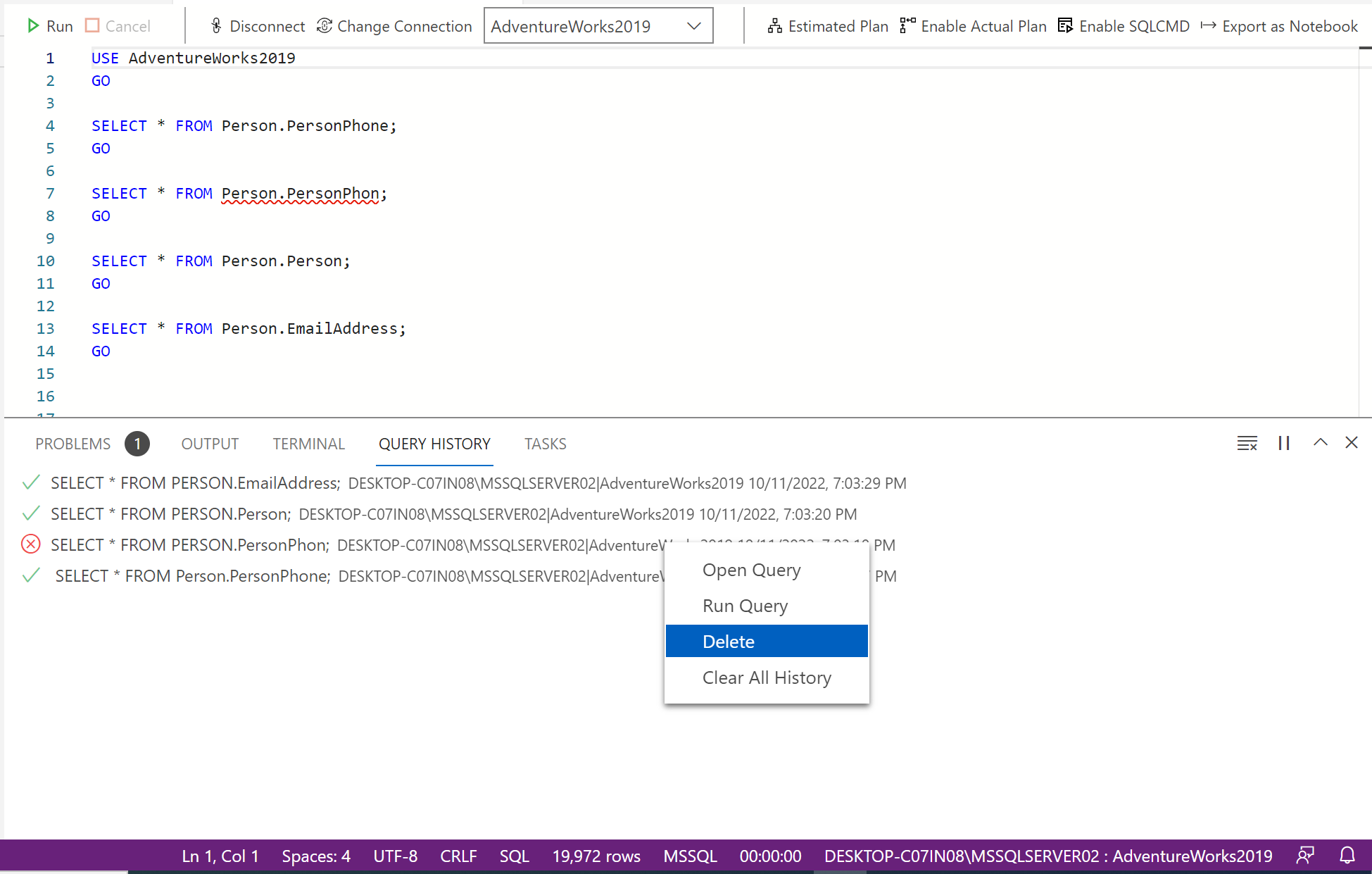
Query history provides multiple options when you right-click on the query. You get the following options on the context menu:

  • Open Query.
  • Run Query.
  • Delete.
  • Clear History.

    Let’s discuss these options in detail.
  • Open Query:

The Open Query option opens the selected query from query history in a new query widow using the same connection as shown below.

  • Run Query:

The Run Query option opens the selected query from query history in a new query widow using the same connection and execute it immediately as shown below.

  • Delete:

The Delete option permanently deletes the selected row from query history.

  • Clear History:

The Clear History option clears the entire query history.

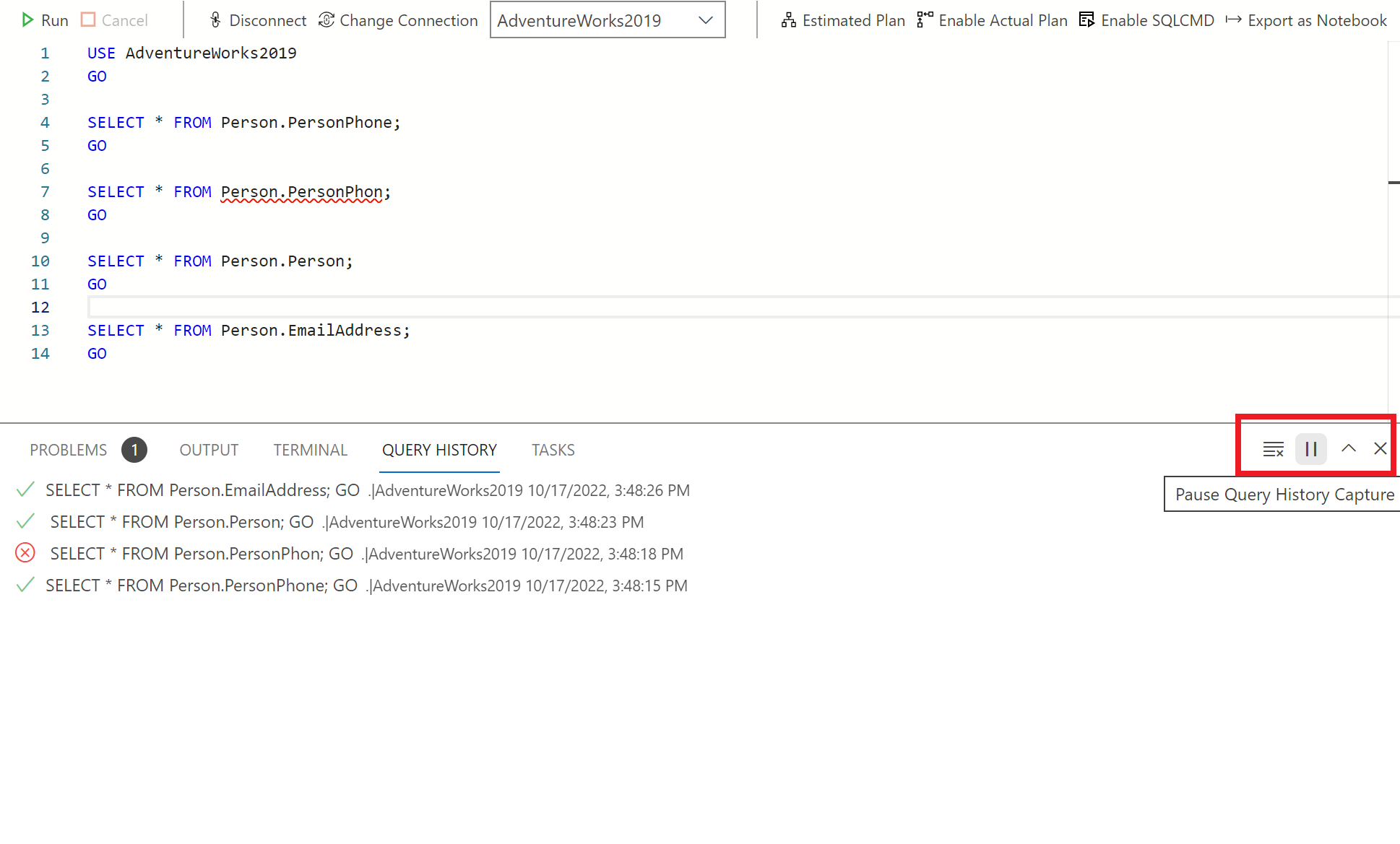
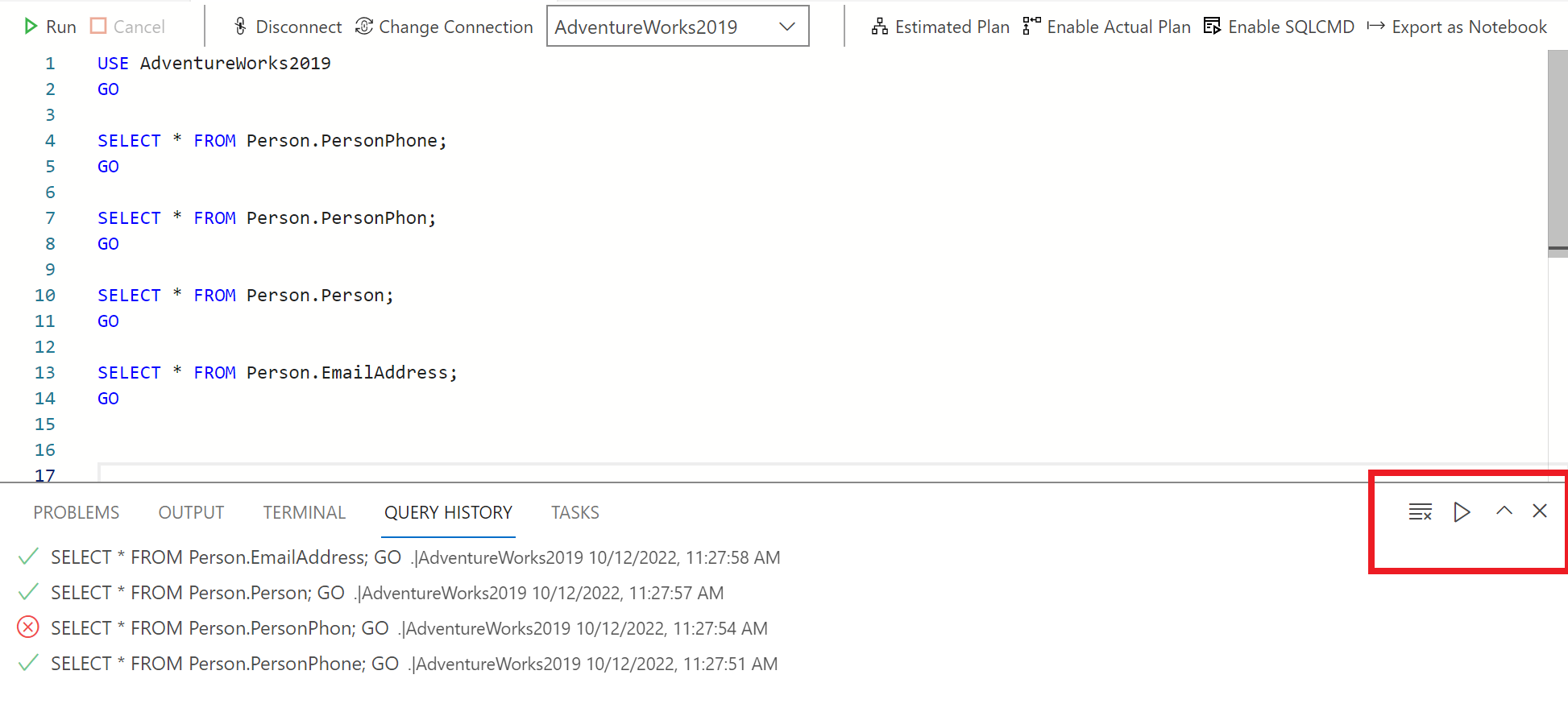
Query Window: Play / Pause options:

On the right top of the Query window, you can see a play / pause button. This feature gives us the flexibity to stop or start recording query history.

Conclusion:

Query History extension is very useful; you can view query history without much effort in Azure Data Studio.

Let me know if you use this extension and how user friendly you found it.

Read Full Post »

« Newer Posts