Feeds:
Posts
Comments

Today, I was reading Pinal Dave Blog and found “SQL SERVER – Recover the Accidentally Renamed Table” very interesting. I would like to add one more solution to recover accidentally renamed table via SQL Server Log.

Note : It will only recover the table name if you rename it through SSMS.

Lets create a table for example and rename it through SSMS.

Create Table Table_test
([SNO] int)
GO

After that, I renamed it to “Table_test2”, “Table_test3″,”Table_test4” respectively via SSMS.

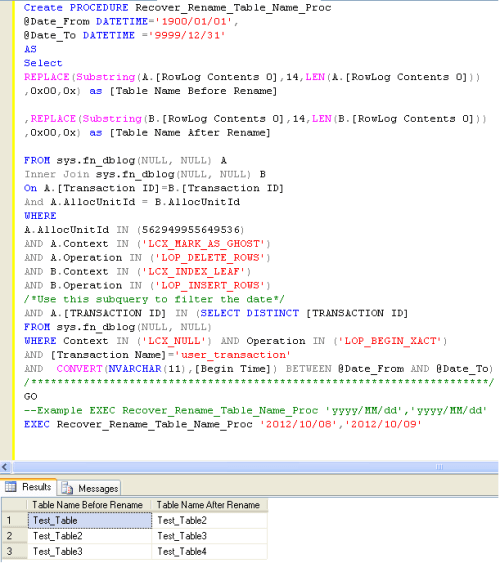
Lets create the procedure for recovery as given below:

CREATE PROCEDURE Recover_Rename_Table_Name_Proc
@Date_From DATETIME='1900/01/01',
@Date_To DATETIME ='9999/12/31'
AS
Select REPLACE(Substring(A.[RowLog Contents 0],14,LEN(A.[RowLog Contents 0])),0x00,0x) as [Table Name Before Rename]
,REPLACE(Substring(B.[RowLog Contents 0],14,LEN(B.[RowLog Contents 0])),0x00,0x) as [Table Name After Rename]
FROM sys.fn_dblog(NULL, NULL) A
Inner Join sys.fn_dblog(NULL, NULL) B On A.[Transaction ID]=B.[Transaction ID]
And A.AllocUnitId = B.AllocUnitId
WHERE
A.AllocUnitId IN (562949955649536)
AND A.Context IN ('LCX_MARK_AS_GHOST')
AND A.Operation IN ('LOP_DELETE_ROWS')
AND B.Context IN ('LCX_INDEX_LEAF')
AND B.Operation IN ('LOP_INSERT_ROWS')
/*Use this subquery to filter the date*/
AND A.[TRANSACTION ID] IN (SELECT DISTINCT [TRANSACTION ID] FROM    sys.fn_dblog(NULL, NULL)
WHERE Context IN ('LCX_NULL') AND Operation IN ('LOP_BEGIN_XACT')
AND [Transaction Name]='user_transaction'
AND  CONVERT(NVARCHAR(11),[Begin Time]) BETWEEN @Date_From AND @Date_To)
/**********************************************************************/
GO
--Example EXEC Recover_Rename_Table_Name_Proc 'yyyy/MM/dd','yyyy/MM/dd'
EXEC Recover_Rename_Table_Name_Proc '2012/10/08','2012/10/09'

In case, if you do not know the modified date & time of the table, you can write given below query and use [modify_date] column.

Select [Name],[modify_date] from sys.tables

I received a question from a blog reader “how to convert varbinary to numeric & vice versa & How SQL Server keeps the structure of numeric data type in varbinary format ?”

First lets take an example to convert from varbinary to numeric & vice versa”

Example :

--Convert from varbinary to numeric
Declare @varbinary2 as varbinary(max)
Set @varbinary2=0x08040001B471BC00
Select Convert(numeric(8,4),@varbinary2) as [Varbinary to Numeric]

--Convert from numeric to varbinary
Declare @Numeric2 as numeric(8,4)
Set @Numeric2 =1234.9876
Select Convert(varbinary(max),@Numeric2) as [Numeric to Varbinary]
--RESULT

Varbinary to Numeric
—————————————
1234.9876

(1 row(s) affected)

Numeric to Varbinary
—————————————
0x08040001B471BC00

(1 row(s) affected)

Explanation :
It is a simple conversion, but one thing you need to remember is, whenever you convert from varbinary to numeric, you must be exact in the Precision & Scale. If Precision & Scale are wrong, it will give you wrong result. But the question is how ascertain that the Precision & Scale are in varbinary format ?

Lets take an example from above and first get the Precision & Scale and then convert it into numeric data type.

--Convert from varbinary to numeric
Declare @varbinary1 as varbinary(max)
Set @varbinary1=0x08040001B471BC00

Select Convert(int,0x08) as [Precision]
Select Convert(int,0x04) as [Scale]

Select @varbinary1 as [Varbinary]
,Convert(numeric(18,4),@varbinary1) as [Varbinary to Numeric]
--RESULT

Precision
———–
8

(1 row(s) affected)

Scale
———–
4

(1 row(s) affected)

Varbinary | Varbinary to Numeric
———————– | —————————————
0x08040001B471BC00 | 1234.9876

(1 row(s) affected)

Given below is the screen image that will show how SQL keeps numeric data type in varbinary format.

Contained databases are isolated / independent databases from the other databases and from the instance it is hosted on.

Before in SQL Server 2012, SQL server maintained user authentication at server level. So once the user logged in either via Windows or SQL Authentication, user could access server objects.

Currently in SQL Server 2012, we have a concept of “partial contained databases” meaning it allows to access few elements from outside its boundary as well. Now you can directly access the database with the contained database user, you don’t need the server authentication for partial contained databases.

This feature is very handy especially when it comes to database authentication or to avoid server authentication. The administrator can directly assign the user to the contained database.

It is also important for “Always On High Availability” because once an SQL server instance is down the user can easily connect on other instance database as the database is not dependent on instance.

Let’s proceed step by step.

Step 1:
In the first step, we must activate the ‘contained database authentication’ on the instance.

Using Script

sp_configure 'show advanced options', 1
GO
RECONFIGURE
GO
sp_configure 'contained database authentication', 1
GO
RECONFIGURE
GO
sp_configure 'show advanced options', 0
GO
RECONFIGURE
GO

Using SSMS
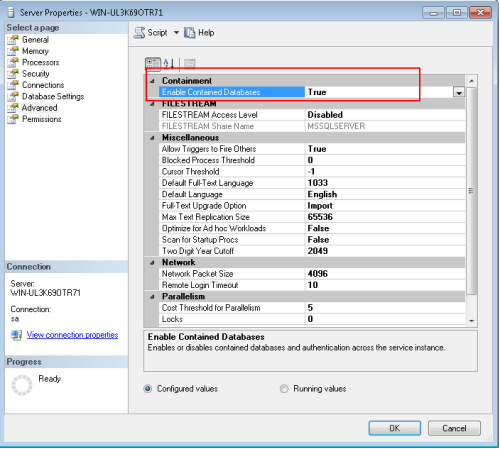
Right click on Instance \ Properties \ Advance. You can find a property on top namely “Enabled Contained Databases”. By default it is “False” you need to change it to “True”.

Step 2 :

In this step, we need to create or alter a database to make it contained database.

Using Script

ALTER DATABASE [AdventureWorks2012] SET CONTAINMENT = PARTIAL WITH NO_WAIT
--OR
CREATE DATABASE [Contained_DB]
CONTAINMENT = PARTIAL;

After enabling partial contained in the database, we can execute this query to view that it is enabled or not.

Select containment,[containment_desc]   from sys.databases Where [name]='AdventureWorks2012'

Step 3:
In this step, we need to create a user having “contained database” rights (Rights can vary from reader to owner)
Using Script

Use Contained_DB
GO
CREATE USER imran
WITH PASSWORD = 'imran1234';

ALTER ROLE [db_owner] ADD MEMBER [imran]

Using SSMS
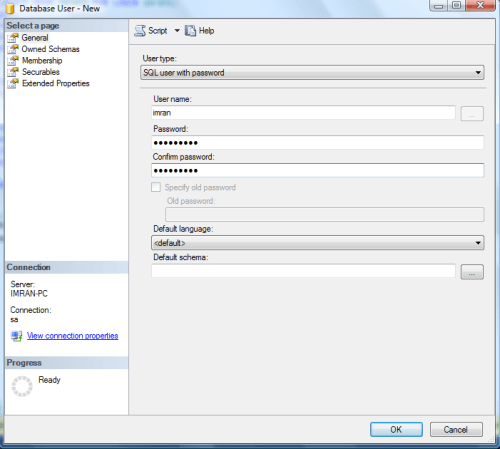
Right click on “contained database” \ Security \users\ New User …


Step 4:
Now, we have already created a user inside the “contained database”. In this step, we need to log in from this user.

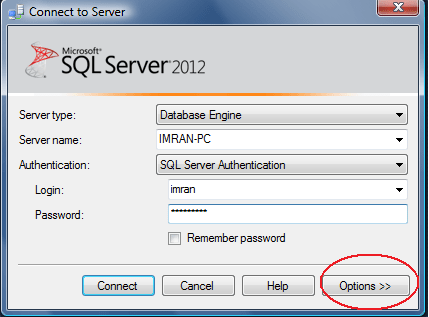
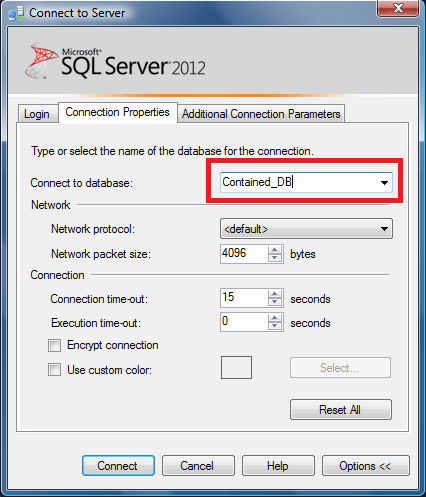
Once you are in the log in screen, enter the credential but “don’t click on Connect”. Click on Options >> connection properties and select the “Contained_DB” from the “Connect to database” option after that you can click on connect.

Step 5:
Now, you are logged in successfully. Lets try to create one table and access it.

Use Contained_DB
GO
Create Table [Test_Table]
([SNo] int,
[Designation] varchar(50))

GO

Insert into [Test_Table] Values (1,'Director'),(2,'Manager'),(3,'Staff')
GO
Use Contained_DB
Select * from [Test_Table]

And you can create / view the table successfully.

Conclusion :

This is a very handy and important feature from the perspective of database migration, “Always On High Availability”, Server Authentication. But it also doesn’t allow us to do the replication, change data capture and change tracking.

Reference : MSDN

Today, I was searching one stored procedure in the entire SQL server databases. To find this, I need to go to each database right click on procedure and then filter the name. It is little bit time consuming and boring work if you have more  number of Databases and you need to repeat this process number of times. Given below is the solution designed with the help of  a sys.procedures(system table).

Note : This solution is compatible with SQL SERVER 2005 and above.

-- Script Name: Sp_Search_Procedure_Across_Databases
-- Script Type : Search Stored Procedure Across all SQL Server databases.
-- Develop By: Muhammad Imran
-- Date Created: 03 Oct 2012

Create Procedure Sp_Search_Procedure_Across_Databases
@ProcedureName nvarchar(Max)
As
BEGIN
DECLARE @SQL nvarchar(MAX)     --Declare variable to store dynamic query result
DECLARE @DB_NAME nvarchar(200) --Declare variable to store Database name

SET @SQL=''

--Create table to store the result of each database
CREATE TABLE #SearchResult
(
[DB_Name] nvarchar(max),
[Procedure Name] nvarchar(max),
[Status] varchar(50)
)

--Declare cusrsor to loop across all databases
DECLARE DB_Cursor CURSOR FOR
--Pick the list of all database
SELECT QUOTENAME([name]) from sys.databases order by [name]

OPEN DB_Cursor
FETCH NEXT FROM DB_Cursor INTO @DB_NAME

WHILE @@FETCH_STATUS = 0
BEGIN
--In this dynamic query, two select statements are built because
--one statement will check the unavailability and the
--second statement will check the availability of the
--procedure in the database and insert the result in the #SearchResult table

SET @SQL= 'Insert into #SearchResult
SELECT ''' + @DB_NAME + ''' as [Database Name],'''',''Not Available''
from ' + @DB_NAME + '. sys.procedures
Where [name] like ''%' + @ProcedureName + '%'' Having Count(*)=0
UNION ALL
SELECT ''' + @DB_NAME + ''' as [Database Name],[name],''Available''
from ' + @DB_NAME + '.sys.procedures
Where [name] like ''%' + @ProcedureName + '%'' Group By [name]
Having Count(*)>0'

EXEC(@SQL)

FETCH NEXT FROM DB_Cursor INTO @DB_NAME
END
CLOSE DB_Cursor
DEALLOCATE DB_Cursor
--We can browse the table to view the results
Select * from #SearchResult Order by [DB_Name],[Procedure Name]
END
GO
--Syntax
--Sp_Search_Procedure_Across_Databases 'Stored Procedure Name'

--Example
Sp_Search_Procedure_Across_Databases 'SP_Employee'

Today, we will discuss the multiple ways to insert multiple records in the table using one insert statement. We have different ways to achieve it but there are pros and cons in each method that we will discuss later in this article. Lets create a table to demonstrate how it works.

Create Table Test_Table
(
[ID] int,
[Designation] varchar(50)
)

Let me explain this with different methods and simple examples.

Method -1 : Traditional Insert statement (Multiple records with Multiple Statements)

In this Method, we will discuss the usual method to insert multiple records with multiple statements. However, if you need to insert multiple records, you need to write multiple statements. And it is a little bit time consuming as well because you need to write statement on each line.

Insert into Test_Table ([ID],[Designation]) Values(1,'Officer')
Insert into Test_Table ([ID],[Designation]) Values(2,'Manager')
Insert into Test_Table ([ID],[Designation]) Values(3,'Director')

Method-2 : Insert statement – Table Value Constructor – (Multiple records with Single Statement)

In SQL server 2008, a solution came for multiple records insertion with a single statement namely “Table Value Constructor”.  Lets make an example and check how it works.

Insert into Test_Table Values (1,'Officer'),(2,'Manager'),(3,'Director')

Note : We can construct maximum 1000 rows using this method in a single statement. If it exceeds 1000, it will generate an error message.

Method-3 : Insert statement – Union ALL – (Multiple records with Single statement
In this example, we will insert multiple records with a single statement using “Union ALL”.

Insert into Test_Table
Select 1,'Officer'
UNION ALL
Select 2,'Manager'
UNION ALL
Select 3,'Director'

Note : In this method, the performance is inversely proportional to the length of the statement, ie., longer the UNION ALL statement grows, lesser the performance will be.

Conclusion : I discussed various ways to insert multiple records using single statement but before applying any method we need to review the requirement and should keep the pros and cons in mind.

I have been asked this question “How to get hour, minute and second from date time?” from a developer last week.

Let me explain it with a simple example.

Declare @DateTime As Datetime
Set @DateTime = Getdate()
Select @DateTime as [DateTime]

Select DatePart(Hour,@Datetime) as [Hour]
Select DatePart(Minute,@Datetime) as [Minutes]
Select DatePart(Second,@Datetime) as [Seconds]

--Result
DateTime
-----------------------
2012-09-25 18:12:45.420

(1 row(s) affected)

Hour
-----------
18

(1 row(s) affected)

Minute
-----------
12

(1 row(s) affected)

Second
-----------
45

(1 row(s) affected)

Recently, I wrote an article on “Generating Insert statements, data & schema using SQL Server Publishing Wizard”. It is a very nice tool to generate insert into statement from table data.

In SQL server 2012, the feature of this tool plus additional features are provided. Lets proceed step by step to generate insert into statement from table data in SQL server 2012.

Step 1 :

In the first step, you need to right click on Databases >> Tasks >> Generate Scripts…

Step 2 :

This is the welcome screen. If you don’t need this screen again and again you can check on “Do not show this page again”.

Step 3 :

In this step, you need to generate the script for one object or all objects available in the database. You can further drill down if you need to generate any table. For example :

Setup 4 :

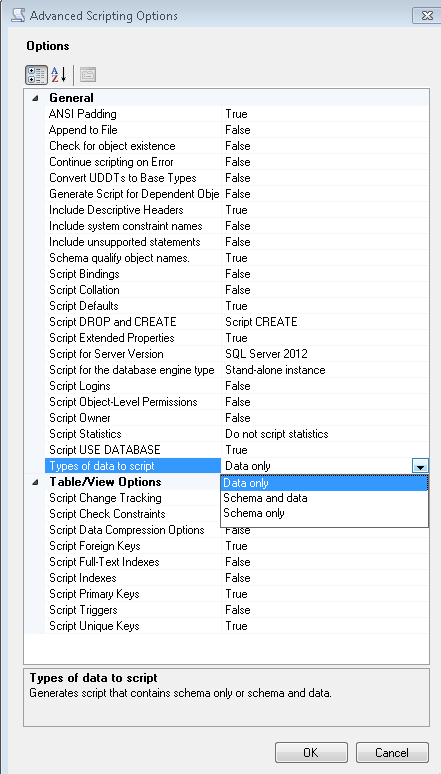
The next step is to define the script location, clip board or in a new window. In the same step, if you click on Advanced button, it will give you further control on scripting.

This is the advance screen, in this screen you can choose whether you need data, schema or data and schema scripts.’

But if you need only Insert into statement from table data, you must select data only. By default it is schema only.

It also allows you to select the SQL version.

Step 5 :

In this step it will display the summary of your selection. If you need you can go back and change the settings.

Step 6 :

In this step, it will display the result.

Few months back, I published an article namely How to generate Insert Statements from Table Data using SQL Server. In this article, I have developed a tool that can help you to generate insert into statement from table data.

Today, we will discuss one more tool namely “Microsoft SQL Server Database Publishing Wizard” that will help you not only to generate the insert into statement but also you can generate script for all objects in SQL server. You can download this tool from here

Lets proceed step by step to generate it.

Step 1 :

Run this utility and this will be the welcome screen.

Step 2 :

Once you click on next, you need to give the server name and its credentials. You can also provide it as a connection string.

Step 3 :
In this step you need to select the database. There is no multi selection option, so you need to select one database at a time.
Also, if you check “script all objects in the selected database” then in the next step it will not give you the option to select the objects.

Step 4 :
If you did not check “script all objects in the selected database” then this tool will allow you to select multiple object of the SQL server. ‘Select All’ option is also available.

Step 5 :
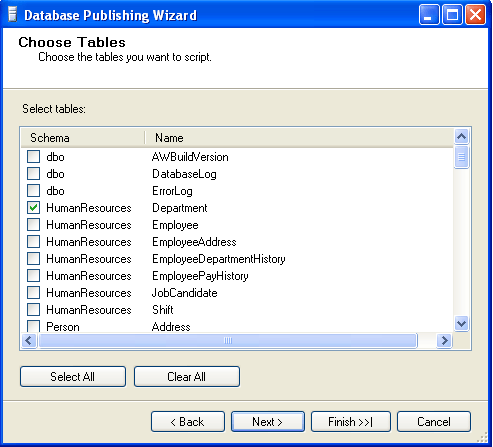
In the previous step, I selected the ‘Tables’ so in this step, I need to define which table(s) should be scripted.
Step 6 :
In this step , you can define the path where the script should be generated or you can define the server where the script should be deployed.

Step 7 :
In this step, you need to define your requirement. Select one of the options ‘Data only’ or ‘Schema only’ or ‘Schema & data’.

Step 8 :
In this step, you can see the summary of your selection. If it is not correct, you can go back and change the selection.

Step 9 :
In this step, you can view the result of process, whether it is executed successfully or not.

Step 10 :
Now, the script has been generated successfully and you can get the file from your defined location.
For Example:

/****** Object:  Table [HumanResources].[Department]    Script Date: 09/24/2012 10:48:11 ******/
DELETE FROM [HumanResources].[Department]
GO
/****** Object:  Table [HumanResources].[Department]    Script Date: 09/24/2012 10:48:11 ******/
SET IDENTITY_INSERT [HumanResources].[Department] ON
INSERT [HumanResources].[Department] ([DepartmentID], [Name], [GroupName], [ModifiedDate])
VALUES (1, N'Engineering', N'Research and Development', CAST(0x00008C6900000000 AS DateTime))

INSERT [HumanResources].[Department] ([DepartmentID], [Name], [GroupName], [ModifiedDate])
VALUES (2, N'Tool Design', N'Research and Development', CAST(0x00008C6900000000 AS DateTime))

INSERT [HumanResources].[Department] ([DepartmentID], [Name], [GroupName], [ModifiedDate])
VALUES (3, N'Sales', N'Sales and Marketing', CAST(0x00008C6900000000 AS DateTime))

INSERT [HumanResources].[Department] ([DepartmentID], [Name], [GroupName], [ModifiedDate])
VALUES (4, N'Marketing', N'Sales and Marketing', CAST(0x00008C6900000000 AS DateTime))

INSERT [HumanResources].[Department] ([DepartmentID], [Name], [GroupName], [ModifiedDate])
VALUES (5, N'Purchasing', N'Inventory Management', CAST(0x00008C6900000000 AS DateTime))

INSERT [HumanResources].[Department] ([DepartmentID], [Name], [GroupName], [ModifiedDate])
VALUES (6, N'Research and Development', N'Research and Development', CAST(0x00008C6900000000 AS DateTime))

INSERT [HumanResources].[Department] ([DepartmentID], [Name], [GroupName], [ModifiedDate])
VALUES (7, N'Production', N'Manufacturing', CAST(0x00008C6900000000 AS DateTime))

INSERT [HumanResources].[Department] ([DepartmentID], [Name], [GroupName], [ModifiedDate])
VALUES (8, N'Production Control', N'Manufacturing', CAST(0x00008C6900000000 AS DateTime))

INSERT [HumanResources].[Department] ([DepartmentID], [Name], [GroupName], [ModifiedDate])
VALUES (9, N'Human Resources', N'Executive General and Administration', CAST(0x00008C6900000000 AS DateTime))

INSERT [HumanResources].[Department] ([DepartmentID], [Name], [GroupName], [ModifiedDate])
VALUES (10, N'Finance', N'Executive General and Administration', CAST(0x00008C6900000000 AS DateTime))

INSERT [HumanResources].[Department] ([DepartmentID], [Name], [GroupName], [ModifiedDate])
VALUES (11, N'Information Services', N'Executive General and Administration', CAST(0x00008C6900000000 AS DateTime))

INSERT [HumanResources].[Department] ([DepartmentID], [Name], [GroupName], [ModifiedDate])
VALUES (12, N'Document Control', N'Quality Assurance', CAST(0x00008C6900000000 AS DateTime))

INSERT [HumanResources].[Department] ([DepartmentID], [Name], [GroupName], [ModifiedDate])
VALUES (13, N'Quality Assurance', N'Quality Assurance', CAST(0x00008C6900000000 AS DateTime))

INSERT [HumanResources].[Department] ([DepartmentID], [Name], [GroupName], [ModifiedDate])
VALUES (14, N'Facilities and Maintenance', N'Executive General and Administration', CAST(0x00008C6900000000 AS DateTime))

INSERT [HumanResources].[Department] ([DepartmentID], [Name], [GroupName], [ModifiedDate])
VALUES (15, N'Shipping and Receiving', N'Inventory Management', CAST(0x00008C6900000000 AS DateTime))

INSERT [HumanResources].[Department] ([DepartmentID], [Name], [GroupName], [ModifiedDate])
VALUES (16, N'Executive', N'Executive General and Administration', CAST(0x00008C6900000000 AS DateTime))

SET IDENTITY_INSERT [HumanResources].[Department] OFF
Format function is one the important functions in SQL Server 2012. This function is very useful to format data in a specified format.

Today, we will discuss each and every aspect of this function. Also we will discuss the need/importance of this function in SQL server.

By using this function, we do not need to do a lot of scripting to format the data.

Let me explain its syntax, parameters, purpose and examples in detail.
Syntax :

FORMAT ( value, format [, culture ] )

Parameters :

@value : Data to be converted in other format. (Mandatory)
@format : To define a format in nvarchar datatype. (Mandatory)
@culture : To define a culture. By default, it picks up culture from session. (Optional)

Purpose :
This function converts value from one format to another format by using culture. If culture is not available it will pick up the culture from the session. It will return value either in nvarchar data type or NULL.

Let me explain this with simple examples.

Example-1 : FORMAT – DATE WITH DEFAULT CULTURE

DECLARE @Date AS datetime=Getdate()

Select @Date AS [DATE]
SELECT FORMAT (@Date, 'dd/MM/yyyy') as [Result (dd/MM/yyyy)]
SELECT FORMAT (@Date, 'MM/dd/yyyy') as [Result (MM/dd/yyyy)]
SELECT FORMAT (@Date, 'yyyy/MM/dd') as [Result (yyyy/MM/dd)]

Example-2 : FORMAT – TIME WITH DEFAULT CULTURE

DECLARE @TIME AS DATETIME=Getdate()

Select @TIME AS [TIME]
SELECT FORMAT (@TIME, 'h:mm:ss tt') as [Result (h:mm:ss tt)]
SELECT FORMAT (@TIME, 'hh:mm:ss tt') as [Result (hh:mm:ss tt)]
SELECT FORMAT (@TIME, 'h:mm:ss') as [Result (h:mm:ss)]
SELECT FORMAT (@TIME, 'hh:mm:ss') as [Result (hh:mm:ss)]

Example-3 : FORMAT – NUMBER WITH DEFAULT CULTURE

DECLARE @NUMBER AS NUMERIC(18,4)=12345.789

Select @NUMBER as [NUMBER]
SELECT FORMAT (@NUMBER, '####0.00') as [Result (####0.00)]
SELECT FORMAT (@NUMBER, '####0.000') as [Result (####0.000)]
SELECT FORMAT (@NUMBER, '##,##0.00') as [Result (##,##0.00)]
SELECT FORMAT (@NUMBER, '#') as [Result (#)]

Example-4 : FORMAT – CURRENCY WITH DEFAULT CULTURE

DECLARE @CURRENCY MONEY = '24500.50';
SELECT FORMAT (@CURRENCY, 'C') AS  [RESULT]

Example-5 : FORMAT – DATE & TIME WITH MULTIPLE CULTURE

DECLARE @Date AS datetime=Getdate()

Select @Date as [DATE]
SELECT FORMAT ( @Date,'dddd, MMMM dd, yyyy hh:mm:ss tt','en-US')
AS [English Culture]

SELECT FORMAT ( @Date,'dddd, MMMM dd, yyyy hh:mm:ss tt','de-DE')
AS [German Culture]

SELECT FORMAT ( @Date,'dddd, MMMM dd, yyyy hh:mm:ss tt','ja-JP')
AS [Japanese Culture]

SELECT FORMAT ( @Date,'dddd, MMMM dd, yyyy hh:mm:ss tt','ar-SA')
AS [Arabic Culture]

SELECT FORMAT ( @Date,'dddd, MMMM dd, yyyy hh:mm:ss tt','ur-PK')
AS [Urdu Culture]

Example-6 : FORMAT – CURRENCY WITH MULTIPLE CULTURE

DECLARE @CURRENCY MONEY = '24500.50';
SELECT FORMAT (@CURRENCY, 'C','en-US' ) AS [English Culture]
SELECT FORMAT (@CURRENCY, 'C','de-DE' ) AS [German Culture]
SELECT FORMAT (@CURRENCY, 'C','ja-JP' ) AS [Japanese Culture]
SELECT FORMAT (@CURRENCY, 'C','ar-SA' ) AS [Arabic Culture]
SELECT FORMAT (@CURRENCY, 'C', 'ur-PK' ) AS [Urdu Culture]

Example-7 : FORMAT – VALUE BY USING LANGUAGE INSTEAD OF CULTURE

SET LANGUAGE 'ENGLISH'

SELECT FORMAT (245000, 'C') AS [Currency]
SELECT FORMAT (GETDATE(),'D') AS [DATE]
SELECT FORMAT (24500.282, '#,###,###0.00') AS [Currency]

Reference : MSDN

SQL Server 2012 has introduced a new string function namely “CONCAT”. It is a very handy & important function to deal with the string concatenation.

Let me explain its syntax, parameters, purpose and examples in detail.
Syntax :

CONCAT ( string_value1, string_value2 [, string_valueN ] )

Parameters :
@string_value1 : First string value to concatenate with other strings.
@string_value2 : Second string value to concatenate with other strings.
It will go up to (n) Numbers of strings.

Purpose :
It concatenates two or more than two strings and returns as a single string value. Minimum we need to pass two strings to concatenate otherwise it will generate an error. It implicitly converts parameters to string. If The parameters are NULL it treats it as empty string of varchar(1).

Let me explain this with simple examples.

Example-1 : CONCAT – String values

Select Concat('SQL Server ','2012') as [Result]

Result
---------------
SQL Server 2012

(1 row(s) affected)

Example-2 : CONCAT – Integer values
In this example, “CONCAT” function will implicitly convert integer data type to string data type and concatenate it.

Select CONCAT(1,2) as [Result]

Result
------------------------
12

(1 row(s) affected)

Example-3 : CONCAT – Numeric values
In this example, “CONCAT” function will implicitly convert numeric data type to string data type and concatenate it.

Select CONCAT(12.34,56.78) as [Result]

Result
----------------------------------------------------------------------------------
12.3456.78

(1 row(s) affected)

Example-4 : CONCAT – Less than 2 strings

Select Concat('SQL Server ') as [Result]

Msg 189, Level 15, State 1, Line 1
The concat function requires 2 to 254 arguments.

Example-5 : CONCAT – Passed NULL as parameter
It converts NULL to empty string of varchar(1) and return it.

Select Concat('SQL Server ',NULL) as [Result]

Result
---------------
SQL Server

(1 row(s) affected)

Example-6 : CONCAT – Passed NULL Values from Database
Before in SQL server 2012, we had to use ISNULL to convert NULL to empty string & concatenate.
But this function resolves this issue. It automatically converts NULL to empty string. Lets use Adventure database to test it.

Select top 10 [FirstName] ,  [MiddleName] , [LastName]
,[FirstName] +  [MiddleName] + [LastName] as [Full Name]
from [Person].[Person]

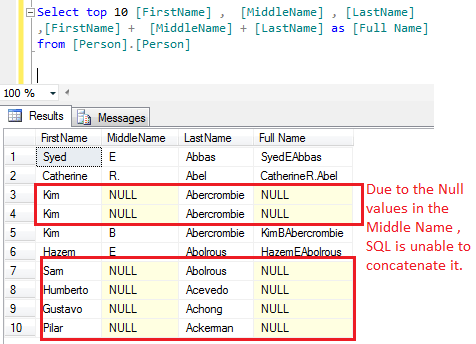
In the above example, due to the NULL values in the middle name column SQL failed to concatenate it and return NULL as [Full Name]

Lets try to do the same with “CONCAT” function.

Select top 10 [FirstName] ,  [MiddleName] , [LastName]
,Concat([FirstName] , [MiddleName] , [LastName]) as [Full Name]
from [Person].[Person]

In the above example, CONCAT function replaced NULL with emprty string and concatenates the FULL Name successfully.

Reference : MSDN