Feeds:
Posts
Comments

Archive for February, 2013

I received a request to add a column in the entire table of the database for a customer. It was so simple that I made the script as given below and told them to run it first and then again run its result set in SQL server, so all tables would be altered. It appeared that the Job was done but unfortunately it was not. One thing I forgot to mention is that the client environment in SQL Server 2012. If you look at the query it will perform alter table in all user table.

Select 'Alter Table ' + quotename(schema_name([schema_id])) +'.' + quotename([name])
+ ' ADD [GUID] uniqueidentifier default newid()' from sys.tables

filetableidentify1.1

Ooops… it generated an error.

Msg 33422, Level 16, State 1, Line 4
The column ‘GUID’ cannot be added to table ‘dbo.DataBank’ as it is a FileTable.
Adding columns to the fixed schema of a FileTable object is not permitted.
filetableidentify1.2

The reason behind this error is that I made an alter statement for even the File Table, while you cannot add any column in the File Table.

I, therefore, need to remove the file table from the query result set. So I did a little research and found that if you use the column is_filetable (data type bit) in sys.tables, you can easily identify whether it as a file table  or not . If is_filetable  is 1, then the table is a File Table else not.
So, I changed the query and it worked perfectly. Now you can see that the query will only generate the script for normal table (not file tables).

Select 'Alter Table ' + quotename(schema_name([schema_id])) +'.' + quotename([name])
+ ' ADD [GUID] uniqueidentifier default newid()' from sys.tables where is_filetable =0

filetableidentify1.3

Let me know if you know other ways to find file table as well.

Read Full Post »

In my previous post, I discussed how we could apply different Data Definition Language (DDL) Statements on File Table. Today, we will discuss how to apply Data Manipulation Language (DML) Statements on a File Table.

  • Insert record in File Table :

There are two ways to do it.

  1. Via SQL Server Management Studio (GUI)
  2. Via Transact SQL

1-Via SQL Server Management Studio (GUI)
This is the simplest way of insertion of any record in the File Table.
Lets do it step by step :

Step 1:
First copy the file that you want to place in the file table. For example abc.txt (text file).

Step 2:
Then go to the database, where you have created a file table and then select the file table and right click on it.

filetable3.1.1
Step 3:
Click on the Explore File Table Directory

Step 4:
It will open the directory pointing to this file table. Just paste the file (abc.txt) in it.
filetable3.1.2

Step 5:
After that just execute the select statement to verify whether the file is there or not.

Use MyFileTableDB
GO
select * from databank

filetable3.1.3

2-Via Transact SQL

Given below is the method to insert data into file table. But make sure the file is more than 0 KB.

INSERT INTO [dbo].[databank] ([name],[file_stream])
SELECT'Test file',
* FROM OPENROWSET(BULK N'C:\abc-2.txt', SINGLE_BLOB) AS FileData
GO
  • Select records from File Table :

The select statement of a file table is same like a normal table. Given below is the script to browse file table :

Select * from dbo.DataBank

filetable2.1.4

  • Update records in File Table :

Given below is the script to update file table.

Update Databank set [name]='test file-2' where [name]='test file'

Once you update the file table and change the name of the file, execute the select statement to verify whether the update is successfully done or not.

Select * from dbo.DataBank

filetable2.1.5

  • Delete records in File Table :

Given below is the script to delete files from the file table. Make sure you select the correct file name, because it will not only delete record from the file table but also physically delete the file from the directory as well.

Delete from DataBank where [name]='test file-2'

Once you delete the file from file table, execute the select statement to verify whether the delete is successfully done or not.

Select * from dbo.DataBank

filetable2.1.6

Read Full Post »

In my previous article, we discussed about how to enable FileStream and File table in SQL Server 2012. Today, we will learn how to perform Data Definition Language (DDL) Statements in file table.

  • Create File table :

Given below is the script to create file table :

USE MyFileTableDB
GO
CREATE TABLE DataBank AS FileTable
WITH (
FileTable_Directory = 'MyFileTable_Dir'
);

Once file table is created successfully, you can execute given below script to check whether the file table is created or not.

select * from sys.filetables where object_id=object_ID('databank')

filetable2.1.1

  • Alter File table:

In the above file table, I wrongly spelled the FileTable_Directory name. So, can we alter file table and correct FileTable_Directory name?
Given below is the script to alter file table.

ALTER TABLE DataBank SET ( FILETABLE_DIRECTORY = N'MyFileTable_Directory');

Once file table is altered, you can execute the given below script to verify.

select * from sys.filetables where object_id=object_ID('databank')

filetable2.1.2

  • Truncate File table:

If you want to truncate the file table, given below is the script but it will delete all data files in the file table (be careful).

TRUNCATE TABLE databank
  • Drop File table:

If you want to drop the file table, given below is the script but it will also drop all the data files associated with this files table (be careful).

DROP TABLE databank

Tomorrow I shall post how to perform Data Manipulation Language (DML) Statements to file table.

Read Full Post »

File table is one of the excellent features introduced in SQL Server 2012. This feature provides the compatibility between windows application and file data stored in SQL Server and gives the support of windows file names space (Windows API) as well. In simple words you can say, from File table you can handle windows files and directories via SQL server 2012. This nice feature is a build on top of file stream technology. In other words, you must enable file stream to use File Table.

In this article, we will learn how to enable File Stream and create File Table in sql server.

Let’s do it step by step to view how it works.

Step 1: Enable File Stream in SQL server 2012:
There are 2 ways to enable file stream in SQL server 2012.

  1. Via T-SQL
  2. Via Configuration Manager

1- Via T-SQL
Given below is the script to enable file stream in SQL server 2012. Execute the given below code and don’t forget to restart the SQL Server Service.

EXEC sp_configure filestream_access_level, 2
RECONFIGURE

2- Via Configuration Manager
Through configuration manager, we need to follow certain steps to enable file stream in sql server:
Step I
Open SQL Server configuration Manager.
Step II
Then locate the sql server instance on which, you need to enable file stream on it.
Step III
Then select the instance and right click on it and select properties.
Enablefilestream1.1
Step IV
Select Filestream Tab and Enable FILESTREM for transact SQL access and give windows share name as well. By default it is instance name. If remote users need the access of file stream then you should also allow remote client access to file stream data.
Enablefilestream1.2
Step V
Click apply

Step 2: Create File table enabled Database in SQL server 2012:
There are 2 ways to create file table enabled database in SQL server 2012.

  1. Via T-SQL
  2. Via SSMS GUI Interface

1- Via T-SQL
Execute the given below script to create a file table enabled database.

CREATE DATABASE [MyFileTableDB]
ON PRIMARY
( NAME = N'MyFileTableDB', FILENAME = N'C:\DATA\MyFileTableDB.mdf'),
FILEGROUP MyFileGroup CONTAINS FILESTREAM (NAME = MyFileTableFS,FILENAME='C:\Data\MyFileTable')
LOG ON
( NAME = N'MyFileTableDB_log', FILENAME = N'C:\DATA\MyFileTableDB_log.ldf')
WITH FILESTREAM ( NON_TRANSACTED_ACCESS = FULL, DIRECTORY_NAME = N'MyFileTableDB' )
GO

2- Via SSMS GUI Interface
Right click on the databases and create a new database in SSMS and enter all the information required to create a simple database, then go to options and set two properties.

  •   Enter FILESTREAM Directory name = MyFileTableDB
  •   Make FILESTEAM Non-Transacted Access = FULL

Enablefilestream1.3

Lets check that file table enabled database is whether created or not.

SELECT DB_NAME(database_id) as [Database Name],
non_transacted_access,
non_transacted_access_desc
,directory_name
FROM sys.database_filestream_options

Enablefilestream1.4

Step 2.1: Enable a file table in an existing Database in SQL server 2012:
There are 2 ways to enable file table in an existing database in SQL server 2012.

  1. Via T-SQL
  2. Via SSMS GUI Interface

1- Via T-SQL
Execute the given below script to enable a file table in an existing database.

ALTER DATABASE test
SET FILESTREAM ( NON_TRANSACTED_ACCESS = FULL, DIRECTORY_NAME = N'testfiletable' )
GO

2- Via SSMS GUI Interface
Right click on the databases goto options and set two properties.

  • Enter FILESTREAM Directory name = MyFileTableDB
  • Make FILESTEAM Non-Transacted Access = FULL

Enablefilestream1.3

Will discuss another nice features of file table in up coming posts.

Read Full Post »

sp_describe_undeclared_parameters is one of the featured system stored procedures introduced in SQL Server 2012. In this article we will discuss this stored procedure syntax, purpose & examples.

Syntax:

sp_describe_undeclared_parameters
[ @tsql = ] 'Transact-SQL_batch'
[ , [ @params = ] N'parameters' data type ] [, ...n]

Purpose :
This function gives us details about all undeclared parameters of any t-sql query. Lets say if I give you a dynamic sql and tell you to execute it. You will definitely ask me two main questions :

  • How many parameters are required to execute this dynamic sql ?
  • What are the data types of these parameters ?

Without having answers to above questions you cannot execute a dynamic t-sql query ? The beauty of sp_describe_undeclared_parameters stored procedure is, it will give you the answers to above questions and once you have the parameters & its data type, you can easily execute any dynamic sql.

Lets do it step by step.

Step 1 :
In the given below example, we have a t-sql but we don’t know how many parameters are required and its data type, nevertheless we will try to execute it.

Use AdventureWorks2012
GO
DECLARE @SQL NVARCHAR(500);
DECLARE @ParameterDefinition NVARCHAR(500);
DECLARE @BusinessEntityID INT;

SET @SQL =N'SELECT @BusinessID=[BusinessEntityID] from [HumanResources].[vEmployee]
Where [FirstName]=@FName';

EXECUTE sp_executesql @SQL
--OUTPUT

Msg 137, Level 15, State 1, Line 1
Must declare the scalar variable “@BusinessID

Oops ! error because we did not pass the parameters and we don’t know about it either.

Step 2 :
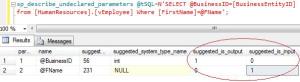
Lets pass the same t-sql to sp_describe_undeclared_parameters to get parameters details including segregation of input and output parameters.

sp_describe_undeclared_parameters @tSQL=N'SELECT @BusinessID=[BusinessEntityID]
from [HumanResources].[vEmployee] Where [FirstName]=@FName';
undeclared_parameters1.1

Step 3 :
Now, you have the parameters details including which one is input and output parameter. Lets pass it and view the results.

Example-1 :

use AdventureWorks2012
GO
DECLARE @SQL NVARCHAR(500);
DECLARE @ParameterDefinition NVARCHAR(500);
DECLARE @BusinessEntityID INT;
DECLARE @FirstName as NVARCHAR(50)

SET @FirstName='Ken'
SET @SQL =N'SELECT @BusinessID=[BusinessEntityID] from [HumanResources].[vEmployee]
Where [FirstName]=@FName';

SET @ParameterDefinition = N'@FName nvarchar(50), @BusinessID INT OUTPUT';

EXECUTE sp_executesql @SQL
,@ParameterDefinition,
@FName=@FirstName,
@BusinessID =@BusinessEntityID OUTPUT;

SELECT @BusinessEntityID as [BusinessEntityID]
GO
--OUTPUT

BusinessEntityID
———————
1
(1 row(s) affected)

Example-2 :
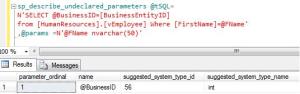
In this example we know only one parameter and the rest of the parameters we don’t. Simply we need to pass t-sql and the known parameter to sp_describe_undeclared_parameters, and it will give you the unknown / undeclared parameter information.

sp_describe_undeclared_parameters @tSQL=N'SELECT @BusinessID=[BusinessEntityID]
from [HumanResources].[vEmployee] Where [FirstName]=@FName'
,@params =N'@FName nvarchar(50)'
--OUTPUT
undeclared_parameters1.2

Example-3 :
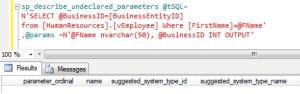
Sometimes, we know all the parameters but to make sure none of the parameters is missing, simply we need to pass t-sql and the all parameters to sp_describe_undeclared_parameters, it will give you the  missing parameters (if any), otherwise Nil result set.

sp_describe_undeclared_parameters @tSQL=
N'SELECT @BusinessID=[BusinessEntityID]
from [HumanResources].[vEmployee] Where [FirstName]=@FName'
,@params =N'@FName nvarchar(50), @BusinessID INT OUTPUT'
undeclared_parameters1.3

Will post some real world examples in the upcoming posts.

Read Full Post »

« Newer Posts