Feeds:
Posts
Comments

Archive for the ‘Solutions’ Category

In one of my earlier articles I wrote about  How to convert seconds to Day(s), Hour(s), Minute(s), Second(s) . Today I am going to talk about creating a simple script to convert the Minutes to Day(s), Hour(s) & Minute(s). Generally, to achieve this result, you need to perform lots of divisions and remainders and then convert Minutes to Day, Hour, Minute. Given below is the simple script to convert Minutes without doing any divisions and remainders, but using only built-in SQL functions DateAdd, DatePart, DateDiff

--This script will work on SQL Server 2005 and above.
DECLARE @Minutes AS INT
DECLARE @SubtractDate AS DATETIME
--Enter Minutes here
SET @Minutes=2990
SET @SubtractDate=DATEADD(mi,@Minutes,GETDATE()) - GETDATE()

SELECT CONVERT(VARCHAR(10),DATEDIFF(DAY,'1900-01-01',@SubtractDate))
+ ' Day(s) ' +
CONVERT(VARCHAR(10),DATEPART(hh,@SubtractDate))
+ ' Hour(s) ' +
CONVERT(VARCHAR(10),DATEPART(mi,@SubtractDate))
+ ' Minute(s) ' AS [Result]
--OUTPUT

Result
———————————
2 Day(s) 1 Hour(s) 50 Minute(s)

(1 row(s) affected)

Read Full Post »

LTRIM and RTRIM are very useful functions when it comes to trim the left side or right side of the string spaces respectively but if you need to trim spaces from both sides , you need to create a user defined function. Here is the script of user defined function. I have been using these built-in and user defined functions for a long time. But a  few days ago, when I was migrating the data from legacy system to our new system, I came across with an issue i.e., I had to trim not only the spaces but also the characters as well.

Given below is the solution :

Left Trim :
Given below is the solution that can help you to trim(remove) the spaces and characters from the LEFT side of the string.

CREATE FUNCTION dbo.L_TRIM(@String VARCHAR(MAX), @Char varchar(5))
RETURNS VARCHAR(MAX)
BEGIN
RETURN SUBSTRING(@String,PATINDEX('%[^' + @Char + ' ]%'
,@String),DATALENGTH(@String))
END
GO
--In this example, the user defined function will remove spaces
--and * from the left side of the string
SELECT '  **  THIS IS A TEST STRING  ***  '
AS [String before Left trim]
, dbo.L_TRIM('  **  THIS IS A TEST STRING  ***  ','*')
AS [String After Left trim]
GO
--In this example, the user defined function will remove spaces
--and 0 from the left side of the string
SELECT ' 0001234' AS [String before Left trim]
, dbo.L_TRIM(' 0001234','0')  [String After Left trim]
GO
--OUTPUT

lefttrim1.1

Right Trim :
Given below is the solution that can help you to trim(remove) the spaces and characters from the RIGHT side of the string.

CREATE FUNCTION dbo.R_TRIM(@String VARCHAR(MAX), @Char varchar(5))
RETURNS VARCHAR(MAX)
BEGIN
RETURN REVERSE(SUBSTRING(REVERSE(@String)
,PATINDEX('%[^' + @Char + ' ]%'
,REVERSE(@String)),DATALENGTH(@String)))
END
GO
SELECT '  **  THIS IS A TEST STRING  ***'
AS [String before Right trim]
, dbo.R_TRIM('  **  THIS IS A TEST STRING  ***  ','*')
AS [String after Right trim]
GO
SELECT '12340000 ' AS [String before Right trim]
, dbo.R_TRIM('12340000 ','0') AS [String after Right trim]
GO
--OUTPUT

righttrim1.2

Trim :
Given below is the solution that can help you to trim(remove) the spaces and characters from the BOTH sides of the string.

CREATE FUNCTION dbo.TRIM(@String VARCHAR(MAX), @Char varchar(5))
RETURNS VARCHAR(MAX)
BEGIN
RETURN SUBSTRING(@String,PATINDEX('%[^' + @Char + ' ]%',@String)
,(DATALENGTH(@String)+2 - (PATINDEX('%[^' + @Char + ' ]%'
,REVERSE(@String)) + PATINDEX('%[^' + @Char + ' ]%',@String)
)))
END
GO
SELECT '  **  THIS IS A TEST STRING  ***  '
AS [String before trim]
, dbo.TRIM('  **  THIS IS A TEST STRING  ***  ','*')
AS [String after trim]
GO
SELECT ' 000012340000 ' AS [String before trim]
, dbo.TRIM(' 000012340000 ','0') AS [String after trim]
GO
--OUTPUT

trim1.3

Read Full Post »

A few days ago, I wrote an article about Multiple ways to convert month number to month name. Recently, I received a query inquiring how to convert Month name to Month number.

Let me create a sample to demonstrate this solution.

USE tempdb
GO
CREATE TABLE tbl_MonthName
(
[ID] INT,
[MONTH_NAME] VARCHAR(50)
)
GO

INSERT INTO tbl_MonthName
SELECT 1, N'January' UNION ALL
SELECT 2, N'February' UNION ALL
SELECT 3, N'March' UNION ALL
SELECT 4, N'April' UNION ALL
SELECT 5, N'May' UNION ALL
SELECT 6, N'June' UNION ALL
SELECT 7, N'July' UNION ALL
SELECT 8, N'August' UNION ALL
SELECT 9, N'September' UNION ALL
SELECT 10, N'October' UNION ALL
SELECT 11, N'November' UNION ALL
SELECT 12, N'December'
GO

SELECT * FROM tbl_MonthName
GO
--OUTPUT

monthnametono1.1

Method 1 :
In this method, we will use the Old approach. In this approach, we need to manually concatenate day with month name and year to make a complete date of that particular month using additional single quotes and then get the Month number from this concatenate date using MONTH function. Given below is the script.

--This script is compatible with SQL Server 2005 and above.
USE tempdb
GO
SELECT
[ID]
,[MONTH_NAME]
,MONTH('1' + [MONTH_NAME] +'00') AS [MONTH_NUMBER]
FROM tbl_MonthName
GO
--OUTPUT

monthnametono1.2

Method 2 :
In this method, we will use the New approach. In this approach, we need to automatically concatenate day with month name and year to make a complete date of that particular month using CONCAT function (without any single quotes) and then get the Month number from this concatenate date using MONTH function. Given below is the script.

--This script is compatible with SQL Server 2012 and above.
USE tempdb
GO
SELECT
[ID]
,[MONTH_NAME]
,MONTH(CONCAT(1,[MONTH_NAME],0)) AS [MONTH_NUMBER]
FROM tbl_MonthName
GO
--OUTPUT

monthnametono1.3

Conclusion :
In both methods, we used different approaches using manual concatenation and automatic concatenation using CONCAT function. I would recommend Method 2 because in my earlier article I found that  CONCAT function is much faster than the normal concatenations.

Read Full Post »

‘Dynamically order by’ clause of any query result set is an old topic and has been discussed on multiple forums. Mostly the solution is being achieved using CASE statement. But what encourages me to write this article is that we can achieve the same with shorter code using  IIF CHOOSE logical functions shipped with SQL Server 2012.

Method 1 :

In this method we will use the traditional approach and dynamically order by the query result set using CASE statement. Given below is the script.

USE AdventureWorks2012
GO
DECLARE @ORDERBY INT
SET @ORDERBY=3

SELECT
BusinessEntityID
, FirstName
, LastName
, JobTitle
FROM HumanResources.vEmployee
ORDER BY
CASE
WHEN @ORDERBY=1 THEN FirstName
WHEN @ORDERBY=2 THEN LastName
WHEN @ORDERBY=3 THEN JobTitle
END
GO
--OUTPUT

dynamicorderby1.1

Method 2 :
In this method we will use a NEW approach and dynamically order by the query result set using IIF logical function shipped in SQL Server 2012. Given below is the script.

USE AdventureWorks2012
GO
DECLARE @ORDERBY INT
SET @ORDERBY=3

SELECT
BusinessEntityID
, FirstName
, LastName
, JobTitle
FROM HumanResources.vEmployee
ORDER BY
IIF(@ORDERBY=1,FirstName,IIF(@ORDERBY=2,LastName,JobTitle))
--OUTPUT

dynamicorderby1.1

Method 3 :
In this method we will use yet another NEW approach and dynamically order by the query result set using CHOOSE logical function shipped in SQL Server 2012. Given below is the script.

USE AdventureWorks2012
GO
DECLARE @ORDERBY INT
SET @ORDERBY=3

SELECT
BusinessEntityID
, FirstName
, LastName
, JobTitle
FROM HumanResources.vEmployee
ORDER BY
CHOOSE(@ORDERBY,FirstName,LastName,JobTitle)
GO
--OUTPUT

dynamicorderby1.1

Conclusion :
In all of the above methods we used different methods, functions, approaches but the output will remain same and also it will not impact performance. It just reduces the line of code.

Read Full Post »

Bit (Boolean) data type keeps result in 1 or 0 form in the SQL Server database. But most of the time we need to display 0 as FALSE and 1 as TRUE in front end applications. Given below is the shortest possible solution using IIF function in SQL Server 2012.

You can also convert it using CASE statement but the syntax will be longer.

Given below are the two methods you can use to convert Boolean(bit) data type into string.

Method 1:
In this method, we will use IIF function to convert boolean(bit) to string. IIF function is a new logical function shipped with SQL Server 2012.

--This script is compatible with SQL Server 2012 and above.
USE AdventureWorks2012
GO
SELECT
[BusinessEntityID]
, [Name]
, [ActiveFlag]
, IIF([ActiveFlag]=1,'TRUE','FALSE') AS [ActiveFlag As String]
FROM [Purchasing].[Vendor]
GO
--OUTPUT

boolean_to_string1.1

Method 2:
In this method, we will use CASE statement to convert boolean(bit) to string.

--This script is compatible with SQL Server 2005 and above.
USE AdventureWorks2012
GO
SELECT
[BusinessEntityID]
, [Name]
, [ActiveFlag]
, CASE WHEN [ActiveFlag]=1 THEN 'TRUE'
WHEN [ActiveFlag]=0 THEN 'FALSE'
END AS  [ActiveFlag As String]
FROM [Purchasing].[Vendor]
GO
--OUTPUT

boolean_to_string1.2

Conclusion :
The only difference between the above two methods is the Syntax. Apart from this, each and every activity, including the performance, will be the same. As per MSDN, IIF is a shorthand form for writing a CASE expression.

Read Full Post »

In my earlier article, I wrote about the new feature of SQL Server 2012 namely Insert Snippet. This is quite a handy feature which can save a lot of your time. This feature is shipped with a lot of standard objects snippet with the customization options.

But there were two big questions in front of me. 1) Why do we need to customize it? 2) How can this save our time ?
Answer :The reason for customization is that, each and every company follows some standards to create standard object (Table, view etc.) of SQL Server. For example the name of the table should start with tbl_ or there might be some additional fixed column with some default values in each table etc etc. Therefore, once you customize the snippet as per your requirements, then you can use it every time.

Prerequisite: How to insert the Snippet in SQL Server 2012.

Solution :
Let me explain, how to customize the standard object table snippet Step by Step :

Step 1 :

First of all, I will take you to the path where snippet of the standard objects resides in the SQL Server 2012.

To find the path you need to go to Tools and select Code Snippets Manager as shown in the picture below.

customizesnippet1.1

Once you open the Code Snippets Manager, select the appropriate object and you can see the path of that particular object as shown in the picture below.
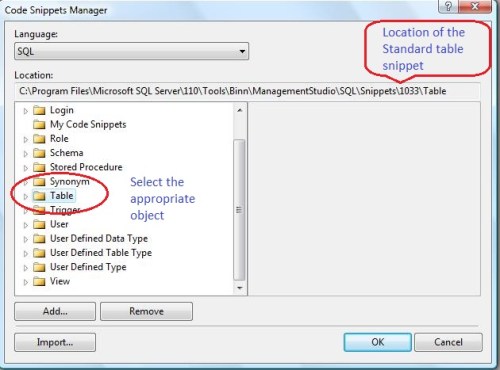
customizesnippet1.2

Step 2 :
As you can see the path of table snippet in the above picture, the next step is to browse the table path and find the standard table snippet namely Create Table.snippet.

customizesnippet1.3.1

Step 3 :

Now, you are in the standard table snippet folder,  so you need to make a copy of the standard table object namely “Create Table.snippet” and rename it to “Create Sample Table.snippet”  as shown in the picture below.
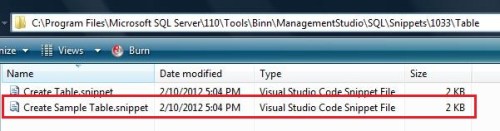
customizesnippet1.3.2

Step 4 :

Open the newly created file Create Sample Table.snippet, first and foremost, change the title as highlighted in the given below picture.

customizesnippet1.4

Step 5 :

Once you change the title copy the selected area as shown in the picture below and paste twice after <Literal> because we need to add two additional columns of the table in the snippet.
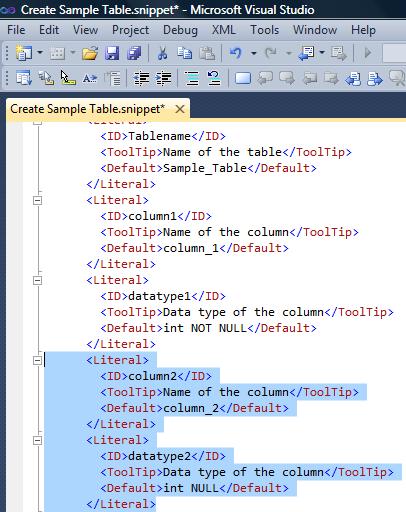
customizesnippet1.5

Step 6 :

Lets rename the column name and data type of the columns ([Creation_Datetime] & [Created_By] having data type datetime and nvarchar(50) respectively as shown in the picture below.

 customizesnippet1.6

Step 7 :

Once you create the additional column, do not close the file, just scroll down a little bit in the same file and copy the selected area ($Column2$ $datatpe2$) and paste it twice and then rename it to $column3$ & 4$ and $datatype 3$ & 4$ respectively as shown in the picture below.

customizesnippet1.7

Step 8 :

Once all the changes are done in Create Sample Table.snippet save and close the file and open SQL Server Management Studio.

Step 9 :

Lets insert the customized table snippet in Query window as shown below.

customizesnippet1.8

customizesnippet1.9


Read Full Post »

How to convert Gregorian date format to simple Hijri date format? Doesn’t it sound a very simple question? Yes,  because in the earlier versions of SQL Server you could convert Gregorian dates to simple Hijri date format (dd mon yyyy hh:mi:ss:mmmAM). But if you need to convert Gregorian dates to any specific Hijri date format, then comes the problem. Basically, the earlier version of SQL Server supports very limited type of Hijri date formats but in SQL Server 2012, you can convert Gregorian dates to ANY Hijri date format using FORMAT function.

Let me convert it using different methods :

Method 1 : Using Convert Function

--This script is compatible with SQL Server 2005 and above.
--This Method can convert into very limited format of Hijri dates.
DECLARE @DateTime AS DATETIME
SET @DateTime=GETDATE()
SELECT @DateTime AS [Gregorian Date]
, CONVERT(VARCHAR(11),@DateTime,131) AS [Gregorian date to Hijri date]
GO
--OUTPUT

gregorian dates1.0

Method 2 : Using Format Function

--This script is compatible with SQL Server 2012 and above.
DECLARE @DateTime AS DATETIME
SET @DateTime=GETDATE()

SELECT @DateTime AS [Gregorian Date]
,FORMAT(@DateTime,'dd-MM-yyyy','ar')
AS [Gregorian date to Hijri date]

UNION ALL

SELECT @DateTime AS [Gregorian Date]
,FORMAT(@DateTime,'dd/MM/yyyy','ar')
AS [Gregorian date to Hijri date]

UNION ALL

SELECT @DateTime AS [Gregorian Date]
,FORMAT(@DateTime,'yyyy-MM-dd','ar')
AS [Gregorian date to Hijri date]

UNION ALL

SELECT @DateTime AS [Gregorian Date]
,FORMAT(@DateTime,'dddd/MMMM/yyyy','ar')
AS [Gregorian date to Hijri date]

UNION ALL

SELECT @DateTime AS [Gregorian Date]
,FORMAT(@DateTime,'dd-MM-yyyy','ar')
AS [Gregorian date to Hijri date]
GO
--OUTPUT

gregorian dates1.1

Let me know if you know any better way.

Read Full Post »

“How to find outdated Statistics ?” is an old topic being discussed on different forums but what encourages me to write this article is the way we usually find outdated statistics using sys.sysindexes will be obsolete soon.
As per MSDN sys.sysindexes will be removed in the future version of Microsoft SQL Server. Avoid using this feature in new development work.

Given below are both approaches.

Old Approach using sys.sysindexes :
Given below is an old approach using sys.sysindexes to find the outdated statistics of tables.
In the given below script, I filtered all the statistics those are updated the previous day or the day before and their actual data is being modified.

--This script is compatible with SQL Server 2005 and above.
SELECT
id			        AS [Table ID]
, OBJECT_NAME(id)		AS [Table Name]
, name			        AS [Index Name]
, STATS_DATE(id, indid)	AS [LastUpdated]
, rowmodctr				AS [Rows Modified]
FROM sys.sysindexes
WHERE STATS_DATE(id, indid)<=DATEADD(DAY,-1,GETDATE())
AND rowmodctr>0 AND (OBJECTPROPERTY(id,'IsUserTable'))=1
GO
--OUTPUT

outdatedstats1.1

New Approach Using sys.dm_db_stats_properties :
Given below is the new approach using sys.dm_db_stats_properties and sys.stats to find the outdated statistics of tables.
In the given below script, I filtered all the statistics those are updated the previous day or the day before  and their actual data is being modified.

--This script is compatible with SQL Server 2008 R2 and above.
USE AdventureWorks2012
GO
SELECT
st.object_id				            AS [Table ID]
, OBJECT_NAME(st.object_id)	            AS [Table Name]
, st.name		                        AS [Index Name]
, STATS_DATE(st.object_id, st.stats_id) AS [LastUpdated]
, modification_counter			        AS [Rows Modified]
FROM
sys.stats st
CROSS APPLY
sys.dm_db_stats_properties(st.object_id, st.stats_id) AS sp
WHERE
STATS_DATE(st.object_id, st.stats_id)<=DATEADD(DAY,-1,GETDATE())
AND modification_counter > 0
AND OBJECTPROPERTY(st.object_id,'IsUserTable')=1
GO
--OUTPUT

outdatedstats1.2

Conclusion :
As you can see that both approaches give the same result but Old approach will be removed from the future version of SQL Server. So, it is recommended to use the new approach.

Reference: MSDN

Read Full Post »

I came across this issue, how to get month name while only month number is stored in the database ?

Given below are the different solutions to the above concern.

Let me create a sample to demonstrate it.

USE tempdb
GO
CREATE TABLE tbl_MonthNumber
(
[ID] INT IDENTITY(1,1),
[MONTH_NUMBER] INT
)
GO

INSERT INTO tbl_MonthNumber
SELECT 1 UNION ALL
SELECT 2 UNION ALL
SELECT 3 UNION ALL
SELECT 4 UNION ALL
SELECT 5 UNION ALL
SELECT 6 UNION ALL
SELECT 7 UNION ALL
SELECT 8 UNION ALL
SELECT 9 UNION ALL
SELECT 10 UNION ALL
SELECT 11 UNION ALL
SELECT 12

GO
SELECT * FROM tbl_MonthNumber
GO
--OUTPUT

Convert_Month_no_to_Name.1.1

Given below are two different methods to convert month number to month name.

Method 1:
This method is compatible with SQL Server 2005 and above.

USE tempdb
GO
SELECT [MONTH_NUMBER]
,DATENAME(MONTH,DATEADD(MONTH, [MONTH_NUMBER] , 0 )-1)
AS [MONTH_NAME]
FROM tbl_MonthNumber
GO
--OUTPUT

Convert_Month_no_to_Name.1.2

Method 2:
This method is compatible with SQL Server 2012 and above.

USE tempdb
GO
SELECT [MONTH_NUMBER]
,DATENAME(MONTH,DATEFROMPARTS(1900, [MONTH_NUMBER] , 1 ))
AS [MONTH_NAME]
FROM tbl_MonthNumber
--OUTPUT

convert_monthno_to_name1.3

Read Full Post »

Problem :
Maintaining format is sometimes very critical when data is copied from one source to another. Yesterday when I was working on an excel report I faced this problem.  When I copied a formatted ID (“0001“) with leading zeros from MS SQL Server and pasted it in MS Excel it became 1 only.

Solution :

Lets Fix it step by step :

Step 1 :
Let me create a sample to demonstrate the error.

USE tempdb
GO
CREATE TABLE [dbo].[tbl_Employee](
[Employee ID] [varchar](5) NULL,
[Employee Name] [varchar](50) NOT NULL
) ON [PRIMARY]

GO
INSERT [dbo].[tbl_Employee] ([Employee ID], [Employee Name])
VALUES (N'00001', N'A. Scott')

INSERT [dbo].[tbl_Employee] ([Employee ID], [Employee Name])
VALUES (N'00002', N'Alan')

INSERT [dbo].[tbl_Employee] ([Employee ID], [Employee Name])
VALUES (N'00003', N'Alejandro')

INSERT [dbo].[tbl_Employee] ([Employee ID], [Employee Name])
VALUES (N'00004', N'Alex')

INSERT [dbo].[tbl_Employee] ([Employee ID], [Employee Name])
VALUES (N'00005', N'Alice')
GO
SELECT [Employee ID], [Employee Name] FROM [tbl_Employee]
GO
--OUTPUT

Remove_zeros_in_excel.1.1

Step 2 :
Open an excel sheet and copy the data from SQL Server and paste it in excel and view the result. This step is just to demonstrate the problem.
Remove_zeros_in_excel.1.2

Can you observe that leading zeros has been removed and only numbers are left ?  Lets fix it.

Step 3 :
Open a new excel sheet and right click on the column where you want to paste (place) leading zeros column and select format cell.
Remove_zeros_in_excel.1.3

It will open ‘Format Cells’ window. Select Text in it and Press OK to close it.
Remove_zeros_in_excel.1.4

Step 4 :
Now, copy the data from SQL Server and paste it in the excel.

Remove_zeros_in_excel.1.5

Let me know if you know any better solution.

Read Full Post »

« Newer Posts - Older Posts »