Feeds:
Posts
Comments

Posts Tagged ‘raresql’

Conversion of Select statement result set into Insert statement is a very frequent activity that a DBA/Developer needs to create, mostly when they need to migrate small amount of data from one instance to another or from one environment to another. I recently created one of my customer’s new branch database from other branches database and came across this scenario. Fortunately, we do have a solution since SQL Server 2005 but it was very complicated specially when you need to do it for the tables as they have numerous columns. The reason I am writing this solution is that you can do it in few clicks in SQL Server 2012 and above.
Before proceeding with the solution, I would like to create a sample to demonstrate the solution.

Sample :
Given below is a select statement in which I modified the result set to demonstrate.

USE [AdventureWorks2012]
GO
SELECT [DepartmentID]
,[Name] + ' Department' As [Name]
,[GroupName]
,Getdate() As [ModifiedDate]
FROM [HumanResources].[Department]
GO

Convert select.1.1

Given below are the two solutions, one of them is traditional solution and another one you can use it in SQL Server 2012 and above.

Solution 1 : Using String concatenation (Traditional Method)
In this solution, you need to concatenate the result set of the Select statement in order to convert into Insert statement (with some modifications in the data). You need to make sure that single quotes(‘) are in proper locations. In addition, if the data in the result set does not belong to string data type you must convert into string data type to concatenate. In case, the table is having identity column, you must pass the column name in the INSERT STATEMENT as well with SET IDENTITY_INSERT. The reason why I DO NOT recommend this solution is because if you have more number of columns in the table, it takes more time for the development and debug as well.

USE [AdventureWorks2012]
GO
SELECT
'INSERT INTO tbl_sample (
[DepartmentID],[Name],[GroupName],[ModifiedDate])
VALUES(' + CONVERT(VARCHAR(50),[DepartmentID])
+ ',''' + [Name] + ' Department'' ,'
+ ''''+ [GroupName] + ''','
+ ''''+ CONVERT(VARCHAR(50),GETDATE(),120) + ''')'
FROM [HumanResources].[Department]
GO

Convert select.1.2

Solution 2 : Using Generate Script (New Method)
This method is applicable to SQL Server 2012 and above and you will find it quite simple. Let me explain this method using two simple steps.

Step 1 :
First of all, you need to develop a select statement like I did it in the sample based on your requirements and INSERT INTO A TABLE as shown below.

USE [AdventureWorks2012]
GO
SELECT [DepartmentID]
,[Name] + ' Department' As [Name]
,[GroupName]
,Getdate() As [ModifiedDate]
INTO [tbl_Department_Sample]  -- Result set inserted in a table
FROM [HumanResources].[Department]
GO

Convert select.1.3

Step 2 :
Your select statement result set has been inserted into the table([tbl_Department_Sample]). Now, you just need to generate the script (data only) of the table ([tbl_Department_Sample]) using Generate Script feature in SQL Server 2012 and above.

Let me know if you come across these scenarios and their solutions.

Read Full Post »

Change Data Capture (CDC) is one of the frequently used features in SQL Server 2008 and above, it records any (CDC enabled) table’s changes and stores in audit tables. Recently, I upgraded one of my client’s database from SQL Server 2005 database to SQL Server 2012 and one of the key reasons to upgrade is to utilize the new features in the upgraded version. Once I started enabling CDC feature in few tables of the database it gave me given below error.

Message Number: 22939

Severity : 16

Error Message: The parameter @supports_net_changes is set to 1, but the source table does not have a primary key defined and no alternate unique index has been specified.

Error Generation:
I presume that CDC has been enabled on this particular database. Let me create a sample table to demonstrate this error.

USE AdventureWorks2012
GO
--Create Sample Table
CREATE TABLE tbl_Sample
(
[ID] INT NOT NULL,
[NAME] VARCHAR(50)
)
GO

-- Enable CDC feature on this table with net changes support parameter.
USE AdventureWorks2012
GO
EXEC sys.sp_cdc_enable_table
@source_schema = N'dbo',
@source_name = N'tbl_sample',
@role_name = NULL,
@supports_net_changes = 1
GO
--OUTPUT

Error Message 22939.1

Msg 22939, Level 16, State 1, Procedure sp_cdc_enable_table_internal, Line 194
The parameter @supports_net_changes is set to 1, but the source table does not have a primary key defined and no alternate unique index has been specified.

Ooopps…… I am NOT able to enable CDC on sample table.

Resolution:
The reason behind this error is that you do not have either primary key or unique index on the sample table and you want to enable net changes support in CDC. Before proceeding with the resolution, you should check whether you can create a Primary Key or Unique Index on the table to avoid such error.
Given below is the simple script to add Primary Key OR Unique Index in the sample table.

--Create Primary Key
USE AdventureWorks2012
GO
ALTER TABLE dbo.tbl_Sample ADD PRIMARY KEY (ID)
GO

-- Create Unique Index
USE AdventureWorks2012
GO
ALTER TABLE tbl_Sample
ADD CONSTRAINT UX_Constraint UNIQUE (ID)
GO
--OUTPUT

You can execute any one of the above scripts and can create Primary Key or Unique Index in the sample table.

Once you executed the above script, you can easily enabled the CDC with supports_net_changes as shown below.

USE AdventureWorks2012
GO
EXEC sys.sp_cdc_enable_table
@source_schema = N'dbo',
@source_name = N'tbl_sample',
@role_name = NULL,
@supports_net_changes = 1
GO
--OUTPUT

Command(s) completed successfully.

Error Message 22939.2

Conclusion :
Remember, whenever you need to enable CDC with supports_net_changes, make sure that the particular table HAS either Primary Key or Unique Index in order to avoid this error.

Read Full Post »

Database mail is one of the best features shipped in SQL Server 2005. It allows us to send mails without writing even a single line of script. However, there is a general perception that you must have your own mail server to configure Database Mail in the SQL Server and frankly speaking, to configure a mail server,  a good amount of expertise is required. Due to the lack of expertise in mail server configuration in new bie of SQL Server, they usually avoid learning, testing and implementing this nice feature.

However, one of the benefits of SQL Server Database mail is that,  it is NOT mandatory that you must have your own mail server, you can easily configure, test and implement it on any FREE mail servers like Gmail, Yahoo & Hotmail etc. and it is just a  matter of few clicks.

In this article, I will demonstrate step by step how to configure & test SQL Server database mail using Gmail, Yahoo & Hotmail accounts.
Before proceeding with the configuration, please make sure that you HAVE a valid email account in any of the FREE mail servers.

STEP 1  – Navigate to Database Mail:
First of all, you need to open SQL Server Management Studio (SSMS) and select Object Explorer followed by Management node and then Database Mail as shown below.

SQL Server Mail.0.1

STEP 2 – Configure Database Mail:
Once you select Database Mail, just right click on it and select Configure Database Mail as shown below.

SQL Server Mail.0.2

STEP 3  – Welcome Screen:
Now, you are in welcome screen. This screen tells you all about Database Mail. However, you can check “skip the page in the future” in order to avoid this screen next time. Just Press NEXT button to proceed as shown below.
SQL Server Mail.1.1

STEP 4 – Configuration Task:
Next step is to create a new profile and then you can add multiple Email accounts in it in the later steps. In order to create a new profile you should select Option 1 (Set up Database Mail by performing the following tasks ) and press NEXT button as shown below.

SQL Server Mail.1.2

STEP 5 – Enable Database Mail Feature:
Once you press Next button in the above step, it may ask you to Enable the Database Mail feature. It happens only when you configure the database mail for the first time. Click Yes and then Press NEXT to proceed.

SQL Server Mail.1.2.1

STEP 6 – Profile Creation:
Once you enable the database mail, it will take you to the profile creation screen, where you can create a new profile as shown below. In this screen you can enter a unique profile name and a description (NOT mandatory), which is just an explanation to your profile. Once you are done with this information, just click Add button in order to add an Email account in the profile.

SQL Server Mail.1.3

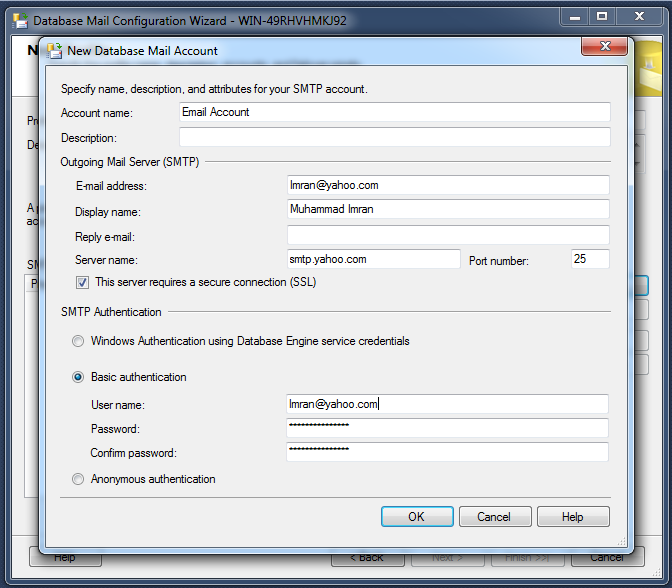
STEP 7 – Mail Account Creation:
Now you are in the Email account creation screen as shown below. You should be very careful to enter the data in this screen because your one typo mistake will STOP Database mail to send any email. The most important data that you must enter in this screen is its Server name (Actually SMTP Server name). In addition, you can use the Port No 25 but sometimes this port is blocked in your network. If you come across this situation, you can change the port number from 25 to 587.

Given below are the SMTP addresses of the FREE mail accounts.

  • Yahoo : smtp.mail.yahoo.com
  • Gmail : smtp.gmail.com
  • Hotmail : smtp.live.com

Below are the configurations for each mail account, however, you will use one/all of them. In addition, you need to make sure that your email credentials IS correct.

Yahoo account configuration :

SQL Server Mail.1.5

Gmail account configuration :

SQL Server Mail.1.4

Hotmail account configuration :

SQL Server Mail.1.4.2

STEP 8 – Profile Verification:
Once you are done with the email account press OK button and it will take you back to the profile screen and it adds the email account, you just configured it in STEP 7 in the profile as shown below. Press NEXT button to proceed.

SQL Server Mail.1.6

STEP 9 – Profile Security:
Now you entered into the manager profile security screen, you need to be very careful when configuring profile security. However, for testing purpose you can make it Public and default profile as well, as shown below and Press NEXT button.

SQL Server Mail.1.7
STEP 10 – System Parameters:
This screen will show the configuration of system parameters as shown below, you just need to press NEXT button to proceed.

SQL Server Mail.1.8

STEP 11  – Completion:
Now, you are in the database Mail complete wizard, this screen will show you a summary of all your configuration, if you find any mistake even in this step, you can press BACK button and correct. However, if each and every configuration is correct, press FINISH button to complete the database mail configurations.

SQL Server Mail.1.9

STEP 12 – Status:
Once you press FINISH button in the above step, it will show you the status of the database mail configuration as shown below. It can be either be a success or a failure.

SQL Server Mail.1.10

STEP 13  – Browse Send Test Email:
Lets test the database mail whether it is working fine or not. You need to again select the Database email and right click on it to further select the Send Test E-Mail.. as shown below.

SQL Server Mail.1.11
STEP 14 – Send Test Email:
Once you select the Send Test E-Mail.., it opens a test email creation screen, where you will find your default profile to be selected. You just need to type any valid email address in the  To where you want to send a test mail. In addition, you can change the subject and body as well and press the Send Test E-Mail button. The moment you press this button, you will receive (Depends upon the server configuration) the test email in that defined email address from your Gmail, Yahoo or Hotmail account whichever you configured above in the selected profile.

SQL Server Mail.1.12

Let me know if you configured Database and faced any particular issue in setting it up.

Read Full Post »

How to delete recent connection from Connect to Server window in SSMS is a very common issue and it becomes frustrated if you connect many servers on daily basis and SQL Server Management Studio (SSMS) pile up all the new server names in the list of Connect to Server window as shown below.

list of connection.1.1

I have been facing this common problem since SQL Server 2005 and it has been reported on Connect as well. Fortunately we do have a solution explained in this article that demonstrate step by step how to delete the recent connection list using mru.dat and SqlStudio.bin in SQL Server 2005  and SQL Server 2008 respectively. However, this is NOT smart solutions because it deletes all your recent connections including the active ones as well.

In SQL Server 2012, a proper solution came in the picture and I believe, this is much better than the earlier solution. Let me demonstrate it step by step.

Step 1 :
In order to open “Connect to Server” window, first of all you need to select file menu and click on connect object explorer.. in SSMS as shown below.

list of connection.1.3

Step 2 :
Once you open the Connect to Server window, you will find all recent connections in the server name as shown below but the drawback is you cannot determine what belongs to SQL Authentication and what to Windows.

list of connection.1.1

Step 3 :
Now, you need to eliminate the connection. In order to do it, you need to select the particular connection and press DELETE button from the keyboard. Once you press delete button, it will delete that particular connection but it will remain as selected in the server name dropdown list as shown below. If you need to delete multiple connections, you need to select server one by one and press delete button to delete  it,  as multiple selection is NOT allowed.

list of connection.1.2

Let me know if you come across this scenario and how did you resolve it.

Read Full Post »

This is a very common issue, when you work on long running queries or procedures, and the PROBLEM is that you need to check the stored procedure from time to time whether it has been executed successfully or failed or it is still running. Sometimes you are busy with some other stuff and you forget to check the status. I came across this scenario many times specially, when I am working on parallel projects and each of them taking time specially if it is a migration and the database size is too big.

Let me demonstrate step by step, how I resolved the issue and made my life easier.

Step 1 :
First of all you need to configure the database mail in each SQL Server using this article and make sure that is working.

Step 2 :
You need to alter your stored procedure and add few additional scripts. These additional lines of script are basically the TRY…CATCH block and sp_send_dbmail to send Email in case of success or failure. Whenever, the procedure will come across any error or if it is executed successfully, it will generate an email and notify the admin. In addition you can format the email and add any additional information that can help you to trace the error.

Given below is the sample script in which I created a table and inserted records using stored procedure and generated an email whether it has been executed successfully or failed.
This script may take few minutes to execute.

--This script is compatible with SQL Server 2005 and above.
USE tempdb
GO
DROP TABLE tbl_sample
GO
--Create Sample table
CREATE TABLE tbl_sample
(
[ID] INT IDENTITY(1,1),
[Name] varchar(10)
)
GO

--DROP PROCEDURE usp_test
--GO
--Create sample stored procedure
CREATE PROCEDURE usp_test
AS
BEGIN TRANSACTION;
BEGIN TRY
DECLARE @int INT
SET @int = 1
WHILE (@int <=400000)
BEGIN
INSERT INTO tbl_sample VALUES ('Test')
SET @int = @int + 1
END
END TRY
BEGIN CATCH
IF @@TRANCOUNT > 0
BEGIN
DECLARE @ErrorMessage NVARCHAR(4000);
DECLARE @ErrorSeverity INT;
DECLARE @ErrorState INT;

SET @ErrorMessage = 'Dear Admin,<BR><BR>Due to some error
, your procedure ''usp_test'' at Server ' + @@Servername +
' has been rollback.<BR>'
+ 'Given below is the error message.
<BR><BR> ErrorMessage : ' +  ERROR_MESSAGE()

ROLLBACK TRANSACTION;
EXEC msdb.dbo.sp_send_dbmail @profile_name='My Profile',
@recipients='admin@raresql.com',
@subject='Procedure Failed & Rollback',
@body= @ErrorMessage,
@body_format = 'HTML',
@execute_query_database = 'tempdb'
END
END CATCH;

IF @@TRANCOUNT > 0
BEGIN
COMMIT TRANSACTION;
EXEC msdb.dbo.sp_send_dbmail @profile_name='My Profile',
@recipients='admin@raresql.com',
@subject='Procedure Executed Successfully',
@execute_query_database = 'tempdb'
END
GO

--Execute the Stored Procedure
EXEC usp_test
GO

I found it very handy, let me know if you come across this issue and its resolution.

Read Full Post »

In my earlier article, I explained the importance of sp_refreshview and its implementation with examples. Recently I was working on a project where I used sp_refreshview quite frequently in view of the bulk customization in the database structure. But I needed to customize the standard script to refresh multiple views simultaneously due to the scenarios given below:

  1. If one table has been modified, then all the views related to that particular table should be refreshed.
  2. If multiple tables have been modified, then all views related to those tables should be refreshed.

Let me demonstrate the solution for both issues.

1. If one table has been modified, then all the views related to that particular table should be refreshed.

When I came across this scenario, I thought of finding all views related to the modified table and refresh it one by one but it is obviously time consuming. So alternatively I designed the given below script to accommodate this scenario.

--This script is compatible with SQL Server 2005 and above.
USE tempdb --Change the database name
GO
SELECT DISTINCT 'EXEC sp_refreshview ''' + name + ''''  As [Text]
FROM sys.objects AS A
INNER JOIN sys.sql_expression_dependencies AS B
ON A.object_id = B.referencing_id
WHERE A.type = 'V'
AND B.referenced_id = OBJECT_ID('tbl_A') --Change the table name
GO

Sp_refreshview_1_1

Once you have the above result set, just execute it in a new query window then all the views related to the above table would be refreshed.

2. If multiple tables have been modified, then all views related to those tables should be refreshed.

This is also very common scenario when you modify multiple tables and you need to refresh all views related to these tables. The standard script of standard script cannot accommodate this scenario, so I designed another script that fits this scenario. You just need to pass the table modification date and it picks all the views related to those tables and refreshes it. Given below is the script.

--This script is compatible with SQL Server 2005 and above.
USE tempdb --Change the database name
GO
DECLARE @Date AS DATETIME
SET @Date='2014-06-15'
--Change the table modification date

SELECT 'EXEC sp_refreshview ''' + name + ''''  As [Text]
FROM sys.objects AS A
INNER JOIN sys.sql_expression_dependencies AS B
ON A.object_id = B.referencing_id
WHERE A.type = 'V'
AND B.referenced_id IN (
SELECT object_id FROM sys.tables
WHERE CONVERT(varchar(11),modify_date)=@Date)
GO

Sp_refreshview_1_2

Once you have the above result set, just execute it in a new query window then all the views related to the modified tables would be refreshed.

Let me know if you come across any scenario like this and its solution.

Read Full Post »

In my earlier article, I have explained that creating a directory / sub directory in any file table is same like creating a directory / sub directory in windows itself. However, sometimes you need to create these directories and sub directories via T-SQL. I came across a case recently where I had to create a series of sub directories inside a directly using T-SQL.

Prerequisite :
I strongly recommend that you read the given below articles to have a clear understanding about FileTables.

  1. FileTables – Prerequisites
  2. FileTables – Data Definition Language (DDL)
  3. FileTables – Data Manipulation Language (DML)

Let me explain the solution step by step.

Step 1 :
First of all you need to create a sequence (A new object shipped with SQL Server 2012) to generate a series of IDs. However you can use any other techniques to create these series.

--This script is compatible with SQL Server 2012 and above.
--DROP SEQUENCE [dbo].[NewID]
--GO
CREATE SEQUENCE [dbo].[NewID]
AS [bigint]
START WITH 100000000
INCREMENT BY 1
CACHE
GO

Step 2 :
In this step, you need to create the given below procedure that can generate a new ID for your sub directory. Remember that filetable maintains directory and sub directory IDs in a hierarchy ID datatype. So you must get the parent folder ID (directory hierarchy ID) in order to create a child folder (sub directory). You can get further detail about hierarchy ID here. This stored procedure is self explanatory.

--This script is compatible with SQL Server 2012 and above.
--DROP PROCEDURE dbo.GetNewPathLocator
--GO
CREATE PROCEDURE dbo.GetNewPathLocator
@MainFolderID HIERARCHYID,
@SubDirectoryPath VARCHAR(MAX) OUTPUT

AS
BEGIN

DECLARE @FirstSeqNum sql_variant,
@LastSeqNum  sql_variant

EXEC sys.sp_sequence_get_range
@sequence_name = N'dbo.NewID'
, @range_size = 3
, @range_first_value = @FirstSeqNum OUTPUT
, @range_last_value = @LastSeqNum OUTPUT

SELECT @SubDirectoryPath = CONCAT(COALESCE(@MainFolderID.ToString(),'/'),
CONVERT(VARCHAR(20),@FirstSeqNum) ,'.',
CONVERT(VARCHAR(20),Convert(BIGINT,@FirstSeqNum)+1) ,'.',
CONVERT(VARCHAR(20),@LastSeqNum) ,'/')

END
GO

Step 3 :
Now, it is time to create a sub directory in any directory using T-SQL. I already created a directory inside a filetable as shown below.

creating sub directory in filetable

Let us create a sub directory inside that directory.

--This script is compatible with SQL Server 2012 and above.
DECLARE @MainFolderPath AS HIERARCHYID
--You must have the given below file table (dbo.DataBank)
--and directory (IT) inside file table in the existing database.
SELECT @MainFolderPath=path_locator FROM dbo.DataBank
WHERE [name]='IT'

DECLARE @SubDirectoryPath varchar(max)
EXEC dbo.GetNewPathLocator
@MainFolderID=@MainFolderPath
, @SubDirectoryPath = @SubDirectoryPath OUTPUT

--SELECT @SubDirectoryPath

INSERT INTO dbo.DataBank (name,path_locator,is_directory,is_archive)
VALUES ('sub directory', @SubDirectoryPath, 1, 0);
GO

Given below is the new sub directory created inside IT folder via T-SQL.

creating sub directory in filetable 2

Conclusion :
Remember, filetable keeps directory and sub directory IDs in Hierarchy ID datatype. So you must go through this concept. In addition, the whole process is self explanatory.

Let me know if you came across this situation and how you handled it.

Read Full Post »

Change Data Capture (CDC) has been discussed in detail in my earlier articles. In this article, I will discuss an error message that I came across while disabling the CDC for a table due to insufficient parameters.

error

Let me explain this error in detail :

Message Number: 22960

Severity : 16

Error Message: Change data capture instance ‘%s’ has not been enabled for the source table ‘%s.%s’. Use sys.sp_cdc_help_change_data_capture to verify the capture instance name and retry the operation.

Error Generation:

Let me DISABLE CDC feature on a particular table.

USE AdventureWorks2012
GO
EXEC sys.sp_cdc_disable_table
@source_schema = N'HumanResources',
@source_name   = N'Department',
@capture_instance = NULL
GO

Msg 22960, Level 16, State 1, Procedure sp_cdc_disable_table_internal, Line 75
Change data capture instance ‘(null)’ has not been enabled for the source table ‘HumanResources.Department’. Use sys.sp_cdc_help_change_data_capture to verify the capture instance name and retry the operation.

Ooopps…… I am unable to disable CDC on this table. How to fix it ?

Resolution:
The resolution is very simple because partially it is explained in the error message itself. Let me fix this error step by step.

Step 1 :
First of all, you need to execute sys.sp_cdc_help_change_data_capture (A system stored procedure) in order to find the capture instance name of that particular table name as shown below.

USE AdventureWorks2012
GO
sys.sp_cdc_help_change_data_capture
GO
--OUTPUT

error message 22960.1

Step 2 :
The next step is to get the capture instance name of the particular table from the above result set and pass it in the sys.sp_cdc_disable_table (A system stored procedure) to disable the CDC feature from that table as shown below.

USE AdventureWorks2012
GO
EXEC sys.sp_cdc_disable_table
@source_schema = N'HumanResources',
@source_name   = N'Department',
@capture_instance = N'HumanResources_Department'
GO

Conclusion :

Remember, whenever you need to disable CDC feature from any table, find out the capture instance name of the table and then disable it using sys.sp_cdc_disable_table in order to avoid this error.

Read Full Post »

In my earlier articles, I discussed & demonstrated all basic activities in Change Data Capture (CDC) in any SQL Server database. However, I did not discuss about the retention period of CDC data in the database. In most cases, we need to modify the retention period due to our business requirements. I came across this query many times, if we can modify retention period, if Yes, how ?

BY DEFAULT, CDC configure the data retention period of 3 days. In other words, CDC keeps all the data changes history for 3 days ONLY and the rest will be cleaned (deleted). In most of my clients, I configured CDC for few tables with the retention period of 10 days and few of them leave it as a default (3 days).

Let me explain how to view / modify the retention period of CDC from in few easy steps.

Step 1 – View the existing RETENTION period in CDC:
First of all, you should check the existing retention period of CDC. It is also important to know that CDC keeps the retention period in minutes. Given below script will show the retention period in minutes as well as days by using dbo.cdc_jobs (a change data capture system table).

--This script is compatible with SQL Server 2008 and above.
USE msdb
GO
SELECT [retention] As [Retention period in minutes]
,[retention]/60/24 As [Retention period in days]
FROM
dbo.cdc_jobs
WHERE job_type ='cleanup'
GO
--OUTPUT

Change data capture.4.4_part1

Step 2 – Modify the RETENTION period in CDC :
As you can see in the above result that the retention period is 3 days (4320 minutes). Lets modify it to 10 days by using sys.sp_cdc_change_job (a system stored procedure of CDC).

--This script is compatible with SQL Server 2008 and above.
USE AdventureWorks2012
GO
DECLARE @New_retention_period_in_minutes AS SMALLINT
DECLARE @New_retention_period_in_days AS TINYINT

--Set the retention period for 10 days
SET @New_retention_period_in_days = 10

--Convert 10 days into minutes
SET @New_retention_period_in_minutes= @New_retention_period_in_days*60*24

--Select the total number of minutes in 10 days to check.
SELECT @New_retention_period_in_minutes
As [Retention period in minutes]

--Update minutes in the CDC job
EXECUTE sys.sp_cdc_change_job
@job_type = N'cleanup',
@retention = @New_retention_period_in_minutes;
GO
--OUTPUT

Change data capture.4.4_part2

Step 3 – Verify the RETENTION period in CDC:
You need to execute the same script as Step 1 but the output would be different this time, as we have successfully updated the retention period to 10 days in Step 2.

--This script is compatible with SQL Server 2008 and above.
USE msdb
GO
SELECT [retention] As [Retention period in minutes]
,[retention]/60/24 As [Retention period in days]
FROM
dbo.cdc_jobs
WHERE job_type ='cleanup'
GO
--OUTPUT

Change data capture.4.4_part33

An update of my blog is available at my twitter or you can like my Facebook page or subscribe via email by mentioning your email address in the ‘follow blog’ section.

Read Full Post »

In my earlier two articles, I demonstrated how to enable and utilize the Change Data Capture (CDC) in any SQL Server database with few simple steps. However if you enable this feature for testing purpose in the test server, or sometimes you enable it on the wrong database / table  by mistake, so you need to disable it by following few steps as shown below. Before proceeding with the disability of CDC feature in the database, you must make sure that you DO NOT need the changes recorded by CDC because once you disable it, the CDC data will no longer be available.

Let me explain how to disable the CDC from any respective table & database in few easy steps.

Step 1 – Validating SQL Server Agent:
First of all you must make sure that your SQL Server Agent is UP and RUNNING as shown below.

Change data capture.3.1_part3

Step 2 – Find capture instance name :
The next step is to find the name of the capture instance (audit table) of any particular table that you need to disable for CDC. In order to achieve it, you need to execute sys.sp_cdc_help_change_data_capture (system stored procedure) to get all the list of CDC enabled objects along with its capture instance name as shown below.

Please note, if you need to disable CDC for database ONLY kindly skip this step.

--This script is compatible with SQL Server 2008 and above.
USE AdventureWorks2012
GO
sys.sp_cdc_help_change_data_capture
GO
--OUTPUT

Change data capture.3.2_part3

Step 3 – Disable CDC for tables:
Once you have the list, you need to note the capture instance name and execute the given below script with schema, table & capture instance name.
This script will disable the CDC feature for the particular table and you will lose all the CDC data for the given below table.

Please note, if you need to disable CDC for database ONLY kindly skip this step.

--This script is compatible with SQL Server 2008 and above.
USE AdventureWorks2012
GO

EXEC sys.sp_cdc_disable_table
@source_schema = N'HumanResources',
@source_name   = N'Department',
@capture_instance = N'HumanResources_Department'
GO
--OUTPUT

Change data capture.3.3_part3

Step 4 – Disable CDC for database:
In this step, we will disable the CDC feature from any database. Given below is the script that will NOT only disable CDC for any database but also will disable the CDC for all tables in that database. So be careful while executing this statement.

--This script is compatible with SQL Server 2008 and above.

USE AdventureWorks2012
GO

EXEC sys.sp_cdc_disable_db
GO
--OUTPUT

Change data capture.3.4_part3

Let me know if you enabled CDC in your SQL Server and its feedback.

An update of my blog is available at my twitter or you can like my Facebook page or subscribe via email by mentioning your email address in the ‘follow blog’ section.

Read Full Post »

« Newer Posts - Older Posts »