Feeds:
Posts
Comments

Posts Tagged ‘SQL Server 2012’

Today, I installed a SQL Server instance in one of my labs, and tried to run a query using OPENROWSET and got an error. Given below are the details of the error.

Message Number: 15281

Severity : 16

Error Message: SQL Server blocked access to %S_MSG ‘%ls’ of component ‘%.*ls’ because this component is turned off as part of the security configuration for this server. A system administrator can enable the use of ‘%.*ls’ by using sp_configure. For more information about enabling ‘%.*ls’, see “Surface Area Configuration” in SQL Server Books Online.

Error Generation:

Given below is the script that I tried to execute but it resulted with the following error:

USE AdventureWorks2012
GO
SELECT *
FROM OPENROWSET('SQLNCLI', 'Server=(local);uid=test;pwd=test',
'EXEC AdventureWorks2012.[dbo].[uspGetManagerEmployees] 16');

Msg 15281, Level 16, State 1, Line 1
SQL Server blocked access to STATEMENT ‘OpenRowset/OpenDatasource’ of component ‘Ad Hoc Distributed Queries’ because this component is turned off as part of the security configuration for this server. A system administrator can enable the use of ‘Ad Hoc Distributed Queries’ by using sp_configure. For more information about enabling ‘Ad Hoc Distributed Queries’, search for ‘Ad Hoc Distributed Queries’ in SQL Server Books Online.

Ooopps…… I am unable to execute the OPENROWSET query.

Resolution:
Basically, ‘Ad hoc Distributed Queries’ are disabled by default in SQL Server due to security configuration and you cannot use either OPENROWSET or OPENDATASOURCE and if you cannot execute these two rowset functions, then you cannot access any remote data sources. So how to fix this issue?
Given below is the script to enable ‘Ad hoc Distributed Queries’.

USE master
GO
sp_configure 'show advanced options', 1;
RECONFIGURE;
GO
sp_configure 'Ad Hoc Distributed Queries', 1;
RECONFIGURE;
GO
--OUTPUT

Configuration option ‘show advanced options’ changed from 0 to 1. Run the RECONFIGURE statement to install.
Configuration option ‘Ad hoc Distributed Queries’ changed from 0 to 1. Run the RECONFIGURE statement to install.

As you can see above, the ‘Ad hoc Distributed Queries’ setting changed from 0 to 1. Now you can easily execute any ‘Ad hoc Query’

Note : By default, this option is set to 0 and you need to change it to 1 to activate this feature.

Read Full Post »

In my earlier articles, I wrote about sys.dm_exec_describe_first_result_set
(A new dynamic management view shipped with SQL Server 2012), it is very handy when you need to know the metadata of the first possible result set of any Transact SQL. Today, I came across an issue when I tried to get the metadata of a stored procedure in earlier version of SQL Server and wanted to use the list of columns for further manipulations. However, I could not find a proper solution like sys.dm_exec_describe_first_result_set in the earlier version of SQL Server. So I started developing the solution.

Given below are the solution.

SOLUTION 1 : For SQL Server 2012 and above using sys.dm_exec_describe_first_result_set

USE AdventureWorks2012;
GO
SELECT *  FROM sys.dm_exec_describe_first_result_set
(N'[dbo].[uspGetManagerEmployees] 16', null, 0) ;
--OUTPUT

metadata of stored procedure.1.1

SOLUTION 2 : For SQL Server 2005 and above using OPENROWSET

USE AdventureWorks2012
GO
--DROP TABLE #temp1
GO
SELECT * INTO  #temp1
FROM OPENROWSET('SQLNCLI', 'Server=(local);uid=sa;pwd=test',
'EXEC AdventureWorks2012.[dbo].[uspGetManagerEmployees] 16');
GO

SELECT * FROM tempdb.sys.columns
WHERE object_id=object_id('tempdb..#temp1')
GO
--View the column name / metadata of the
--above created temporary table.
--OUTPUT

metadata of stored procedure.1.2

Read Full Post »

Mostly companies develop several environments from development stage till production like Development environment, Integration environment, Validation environment, Quality Assurance environment, User Acceptance environment and Production environment to enhance quality of the product for the customer. But once we have different environments, there is a very common issue called inconsistency in database between these environments. Sometimes, script manager may miss out some scripts to deploy, and due to this one or all of the environments can create serious problems and may crashes also. And if this is user acceptance / production environment, it may create a cumbersome image about your product. Sometimes, we use user defined functions and stored procedures to compare two databases like this. However, I felt that these solutions are good, it can help you how to fix, but it is not a smart solution (can automatically fix the issues).
Recently, I came across an issue where we have many environments and in all different environments it was generating different database inconsistency errors. So I started doing my research, and came across a tool namely ApexSQL Diff, a schema comparison tool. I tested this tool and I synced all environments in a very few minutes with just a few clicks. My customer was damn happy and was inquiring how I managed to do it in few minutes as it seems, it takes few weeks to sort out. I recommended this solution to the customer & exclaimed,”it is money’s worth”. I approached APEX team to purchase this product for my customers & get some discount, so thought of getting same discount for my blog reader. And finally I got it :). You can use coupon Code ApexSQLDiffPro25 to get 25% discount on APEXSQL Diff.

Note : There is a FREE community version of ApexSQL Diff for SQL Express and Windows Azure SQL Databases.

Let me explain step by step how it works.

STEP 1:
Once you open ApexSQL Diff, click on New button, it asks about source and destination of your SQL server database (Backup, Script folder, Snapshot, Source control) to compare as shown in the image below.

apexsqldiff.1.1

STEP 2:
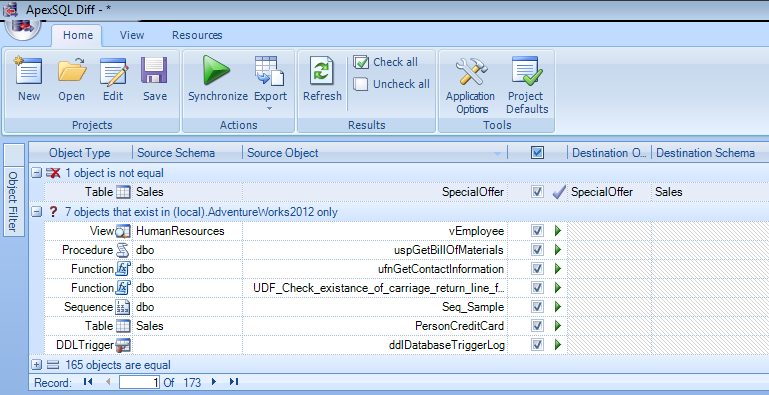
Once you select source and destination databases to compare, just press Compare button at the bottom of the screen. It takes a while and it will give you all schema differences between both databases. It supports new object shipped with SQL Server 2012 as well, as shown in the image below.
apexsqldiff.1.2

It also provides additional sorting, formatting (alignment & grouping) and filter options like object filter, difference filter & script difference view to give you full control over differences, as shown in the image below.

apexsqldiff.1.2.1

STEP 3:
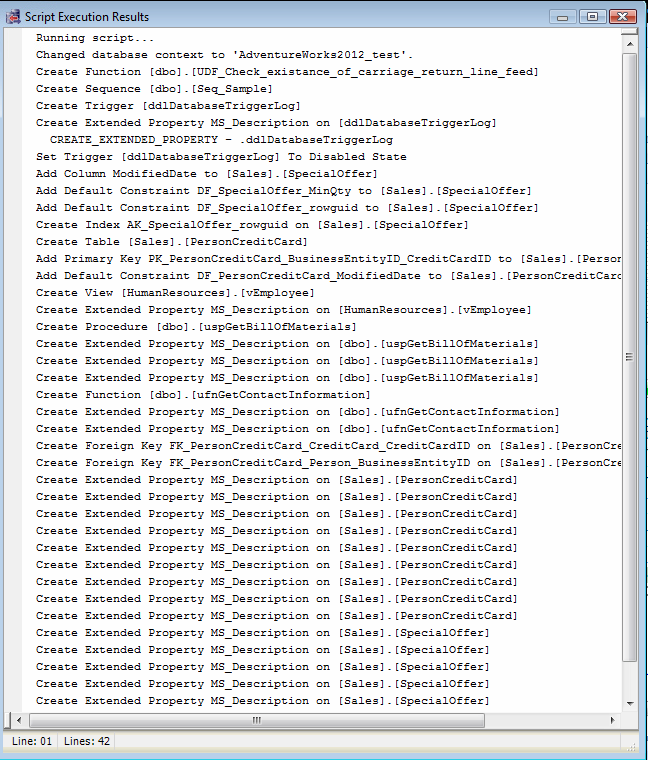
Once you have the differences, just press Sync button and it can sync both databases and can give you the script also (in case you want to deploy by yourself), as shown in the picture below.

apexsqldiff.1.3

Last but not least, it does not stop working here, it syncs again to check if you missed to upgrade/update any scripts and gives you the difference (if any).
I like this product and I also recommend that you should try and view its results by yourself. Its trial version is available here.
You can get further details about the product from http://blog.apexsql.com/category/apexsql-diff/.  Let me know your opinions whether positive or not.

Read Full Post »

We usually use temporary table to keep temporary data in the stored procedure, it can be local, global or a table variable. Recently, I was working on the stored procedures’ metadata in a client database using sp_describe_first_result_set (a new system stored procedure shipped with SQL Server 2012). Ooopps….. there’s an error, let me explain the error in detail. This error message is available in SQL Server 2012 and above.

Message Number: 11526

Severity : 16

Error Message: The metadata could not be determined because statement ‘%.*ls’ in procedure ‘%.*ls’ uses a temp table.

Error Generation:
Let me create a stored procedure to demonstrate this error.

USE tempdb
GO
--DROP PROCEDURE [dbo].[usp_sample]
--GO
CREATE PROCEDURE [dbo].[usp_sample]
AS
BEGIN
CREATE TABLE #temp_Sample
(
[ID] INT,
[NAME] VARCHAR(32)
)
INSERT INTO #temp_Sample VALUES (1,'Bob')

SELECT * FROM #temp_Sample
END
GO

EXEC [dbo].[usp_sample]
GO
--OUTPUT

error_message_11526.1.1

You can see that I have created a stored procedure and executed it as well and got the result set. Now I would like to view the metadata of the above stored procedure. Given below is the script to view the metadata using sp_describe_first_result_set

USE tempdb
GO
Sp_describe_first_result_set @tsql =N'usp_sample'
GO
--OUTPUT

Msg 11526, Level 16, State 1, Procedure sp_describe_first_result_set, Line 1
The metadata could not be determined because statement ‘INSERT INTO #temp_Sample VALUES (1,’Bob’)’ in procedure ‘usp_sample’ uses a temp table.

Ooopps…… I am unable to execute it.

Resolution:
The reason behind this error is, you used a local temporary table in the stored procedure and you cannot view the metadata using sp_describe_first_result_set. So what to do ? Very simple guys, just convert local temporary table to table variable and view its metadata.
Given below is the correct script.

USE tempdb
GO
--DROP PROCEDURE [dbo].[usp_sample]
--GO
CREATE PROCEDURE [dbo].[usp_sample]
AS
BEGIN
DECLARE @temp_Sample TABLE
(
[ID] INT,
[NAME] VARCHAR(32)
)
INSERT INTO @temp_Sample VALUES (1,'Bob')

SELECT * FROM @temp_Sample
END
GO

Sp_describe_first_result_set @tsql =N'usp_sample'
GO
--OUTPUT

error_message_11526.1.2

Conclusion :
Remember, whenever you use temporary table in the stored procedure and would like to view the metadata of that stored procedure using sp_describe_first_result_setalways convert local temporary table to table variable.

Read Full Post »

I came across this query when I was automating one of my services for a customer and it had to run on first Sunday of every month. I already had this solution earlier and utilized it in many places, but as my customer is using SQL Server 2012, I would like to write this script in a different way with less no of codes. So I started scripting and finally developed it using EOMONTH function. (A new function shipped with SQL Server 2012).

Let me create a sample to demonstrate the solution.

USE tempdb
GO
--DROP TABLE tbl_Sample
--GO
CREATE TABLE tbl_Sample
(
[ID] INT,
[Date] DATETIME
)
GO
INSERT INTO tbl_Sample VALUES (1,'2013-01-05')
INSERT INTO tbl_Sample VALUES (2,'2013-02-01')
INSERT INTO tbl_Sample VALUES (3,'2013-05-05')
INSERT INTO tbl_Sample VALUES (4,'2013-07-20')
INSERT INTO tbl_Sample VALUES (5,'2013-08-28')

GO

SOLUTION 1 : Using EOMONTH
Given below is the script.

USE tempdb
GO
SELECT DATEADD(DAY,8-
DATEPART(WEEKDAY,DATEADD(DAY,1,EOMONTH([Date])))
,EOMONTH([Date])) AS [First Sunday of the next month]
FROM tbl_Sample
GO
--OUTPUT

firstsundayofthemonth.1.1

SOLUTION 2 : Using Traditional Method
Given below is the script.

USE tempdb
GO
SELECT CONVERT(DATE,DATEADD(DAY,8-
DATEPART(WEEKDAY,DATEADD(MONTH,DATEDIFF(MONTH, 0, [Date])+1,0))
,DATEADD(MONTH,DATEDIFF(MONTH, 0, [Date])+1, -1)))
AS [First Sunday of the next month]
FROM tbl_Sample
GO
--OUTPUT

firstsundayofthemonth.1.1

Read Full Post »

SQL Server database Maintenance plays an important role to improve database performance. One of the important aspects of maintenance is SQL Server log, even if you configured it properly, you should keep an eye on it and time to time, you should do its maintenance. To do the maintenance, you need to know the size of SQL Server log, used size and its percentage as well. There are multiple ways to achieve it. One of the famous methods of DBCC command is DBCC SQLPERF to find these details. I also have been using this DBCC Command since SQL Server 2005. It works fine but the only problem with this DBCC command is that if you need to manipulate its result set further, you need to place its result set in the temporary table and manipulate.

A few days ago, I was working on database log size and looking for some alternate solution. After some research, I found one undocumented dynamic management view that is shipped with SQL Server 2012 namely dm_db_log_space_usage. It gives the log size of the database and other details in bytes, you can convert it in MBs and manipulate its result set further (no need for temporary table) as well. Given below is the script to demonstrate how it works.

USE AdventureWorks2012
GO
SELECT
DB_NAME(database_id) AS [Database Name],
ROUND(CONVERT(FLOAT,total_log_size_in_bytes/1024)/1024,2) AS [Log Size (MB)],
ROUND(CONVERT(FLOAT,used_log_space_in_bytes/1024)/1024,2) AS [Log Used size (MB)],
ROUND(used_log_space_in_percent,2) AS [Log Used % (MB)]
FROM
sys.dm_db_log_space_usage

--OUTPUT

SQL Server log size.1.1

Read Full Post »

Generating Serial number is something that is very usual for a SQL Server developer, either it is for report or any result set. I would not be wrong if I said that it is something that we need to use every now and then. I usually use ROW_NUMBER to generate the serial number in most of the places unless otherwise any compatibility issues. However, I wanted to generate it in new ways and recently, I found a new method to generate serial number while playing with Sequence Object.
Given below are scripts to generate a serial number using ROW_NUMBER & SEQUENCE Object.

  • Using ROW_NUMBER
--This script is compatible with SQL Server 2005 and above.
USE AdventureWorks2012
GO
SELECT
ROW_NUMBER() OVER(ORDER BY Name) AS [S.No]
, ProductID
, Name
, ProductNumber
FROM Production.Product
GO
--OUTPUT

serial number using sequence.1.1

  • Using SEQUENCE Object 
--This script is compatible with SQL Server 2012 and above.
USE AdventureWorks2012
GO
--DROP SEQUENCE dbo.Seq_Sample
--GO
--Create Sequence Object
CREATE SEQUENCE dbo.Seq_Sample
AS int     START WITH 1
INCREMENT BY 1 ;
GO
--Generate serial number using Sequence object
SELECT
NEXT VALUE FOR dbo.Seq_Sample OVER (ORDER BY Name) AS [S.No]
, ProductID
, Name
, ProductNumber
FROM Production.Product
GO
--Reset Sequence object to 1, So it will start from 1
--in the next result set.
ALTER SEQUENCE [dbo].Seq_Sample RESTART WITH 1
GO
--OUTPUT

serial number using sequence.1.1

Read Full Post »

A Few days ago, I was working on resource governor implementation on my test server. Once I implemented & tested, I had to delete the resource governor settings from the test server. But Unfortunately, I got stuck because of the given below error. It did not allow me to delete the resource governor properly. Let me explain the error and its solution in details.

Message Number: 10920

Severity : 16

Error Message: Cannot %S_MSG user-defined function ‘%.*ls’. It is being used as a resource governor classifier.

Error Generation:

Given below is the script that I tried to execute but it resulted with the following error.

 DROP FUNCTION dbo.rgclassifier_MAX_CPU

Msg 10920, Level 16, State 1, Line 1
Cannot drop user-defined function ‘rgclassifier_MAX_CPU’. It is being used as a resource governor classifier.

Ooopps…… I am unable to drop the above classifier function.

Resolution:
If you look at the error description, it seems that classifier function is in use of resource governor, so you cannot drop this function. Then I thought of disabling it and tried to drop after that but I could not :(.

So what is the solution? Basically, you need to assign all new sessions to the default workload by eliminating the classifier function from the resource governor configuration of your server. When there is no user defined classifier function assigned as a classifier function, you can easily drop the classifier function. Given below is the script.

ALTER RESOURCE GOVERNOR WITH (CLASSIFIER_FUNCTION = NULL);
GO
ALTER RESOURCE GOVERNOR RECONFIGURE;
GO

Now, you can easily drop the classifier function.


DROP FUNCTION dbo.rgclassifier_MAX_CPU

Read Full Post »

I was working on an SQL server tool and got stuck in a place where I had to split the the numbers into two parts, first should be before the decimal part and second should be after the decimal part. In my earlier articles, I already wrote how to get the numbers before the decimal. In this article, I will share, how to get the numbers after the decimals.

Let me create a sample, before proceeding with the solution.
Sample :

USE Tempdb
GO
--DROP TABLE tbl_sample
--GO
CREATE TABLE tbl_sample
(
[Col_ID] INT,
[Col_Decimal] decimal(18,4)
)
GO
INSERT INTO tbl_sample VALUES (1,12345.9876)
INSERT INTO tbl_sample VALUES (2,-12345.9876)
INSERT INTO tbl_sample VALUES (3,123.45)
INSERT INTO tbl_sample VALUES (4,12.90)
GO

Given below are the solutions.

Solution 1 : (Without any function)

USE Tempdb
GO
SELECT [Col_ID], [Col_Decimal]
, ([Col_Decimal]%1) As [Col_After_decimal]
FROM tbl_sample
GO
--OUTPUT

number after decimal.1.1

Solution 2 : (Using CAST & ABS function)

USE Tempdb
GO
SELECT [Col_ID], [Col_Decimal]
, ABS([Col_Decimal]) - CAST(ABS([Col_Decimal]) AS INT)
As [Col_After_decimal]
FROM tbl_sample
GO
--OUPUT

number after decimal.1.1

Read Full Post »

Sometimes, you need to define window frame within the table on the basis of certain criteria, to pick up some specific data. Today, I was developing one report for my customer and the requirement was very simple, to find the people with minimum wage in each department. We do have the solution using RANK(ROW_NUMBER) function. However, we can achieve it using FIRST_VALUE function (Shipped with SQL Server 2012) as well.

Let me create a sample to demonstrate the script.

--This script is compatible with SQL Server 2005 and above.
--Create table
Create Table [Employee]
(
[Employee ID] int,
[Employee Name] varchar(50),
[Department] varchar(50),
[Salary] int
)

GO
--Insert records into table
Insert Into [Employee] Values (1,'Ali','IT',10000)
Insert Into [Employee] Values (2,'Derek','IT',6000)
Insert Into [Employee] Values (3,'Jack','IT',9000)
Insert Into [Employee] Values (4,'Simon','Marketing',5000)
Insert Into [Employee] Values (5,'Monica','Marketing',7500)
Insert Into [Employee] Values (6,'Sandra','Marketing',8000)
GO

Given below are the solutions :

SOLUTION 1 :
This is an old method and we have been using it since SQL Server 2005. We use a Ranking Function namely ROW_NUMBER in this solution to find the minimum value in the group. Given below is the script.

--This script is compatible with SQL Server 2005 and above.
;With CTE As
(
Select
Row_Number() Over (Partition By Department Order By Salary) As [S.No]
,[Employee ID]
,[Employee Name]
,[Department]
,[Salary]
From dbo.[Employee]
)
Select
[Employee ID]
,[Employee Name]
,[Department]
,[Salary]
from CTE
Where [S.No]=1
--OUTPUT

minimum value in the group.1.1

SOLUTION 2 :
We will use a new analytic function namely FIRST_VALUE in this solution to find the minimum value in the group. Given below is the script.

--This script is compatible with SQL Server 2012 and above.
;WITH CTE As
(
Select
[Employee ID]
,[Employee Name]
,[Department]
,[Salary]
,FIRST_Value([Salary]) Over
(Partition By [Department] Order By [Salary]) As [minimum Value]
From dbo.[Employee]
)
Select
[Employee ID]
,[Employee Name]
,[Department]
,[Salary]
From CTE
Where [Salary]=[minimum Value]
GO
--OUTPUT

minimum value in the group.1.1

Read Full Post »

« Newer Posts - Older Posts »