Feeds:
Posts
Comments

Posts Tagged ‘SQL Server’

In my earlier articles, I wrote about new enhancement of FORCESEEK table hint. It is a very handy feature when you have more than one index on the table and you want to select not only the index but also the column name of the index in FORCESEEK table hint. But you should be very careful about the syntax and parameters of this table hint. Recently, I came across a new error message related to FORCESEEK table hint.

Let me explain this error in detail :

Message Number: 365

Severity : 16

Error Message: The query processor could not produce a query plan because the FORCESEEK hint on table or view ‘%.*ls’ specified more seek columns than the number of key columns in index ‘%.*ls’.

Error Generation:

Let me create a NONCLUSTERED INDEX to demonstrate this error.

USE [AdventureWorks2012]
GO
CREATE NONCLUSTERED INDEX [IX_PurchaseOrderDetail_Sample]
ON Purchasing.[PurchaseOrderDetail]
([PurchaseOrderID]
,[ProductID] ASC)
WITH (DROP_EXISTING = OFF) ON [PRIMARY]

Once you create the index, lets write a query using the above index and forceseek table hint.

USE [AdventureWorks2012]
GO
SELECT * FROM Purchasing.PurchaseOrderHeader AS H
INNER JOIN Purchasing.PurchaseOrderDetail AS D
WITH (FORCESEEK
(IX_PurchaseOrderDetail_Sample
(PurchaseOrderID
,ProductID
,OrderQty
)))
ON H.PurchaseOrderID =D.PurchaseOrderID
WHERE
D.ProductID>100
AND D.PurchaseOrderID>10
AND D.OrderQty>0

Msg 365, Level 16, State 1, Line 1
The query processor could not produce a query plan because the FORCESEEK hint on table or view ‘PurchaseOrderDetail’ specified more seek columns than the number of key columns in index ‘IX_PurchaseOrderDetail_Sample’.

Ooopps…… I am unable to execute it.

Resolution:

If you look at the above query, you will realize that there are two key columns ([PurchaseOrderID], [ProductID]) available in IX_PurchaseOrderDetail_Sample index. But what you are trying to do in the above query is that you included an additional column [OrderQty] that is not part of the index.

Lets remove the Order Qty (line # 7) column from the FORCESEEK table hint and execute the query again.

USE [AdventureWorks2012]
GO
SELECT * FROM Purchasing.PurchaseOrderHeader AS H
INNER JOIN Purchasing.PurchaseOrderDetail AS D
WITH (FORCESEEK
(IX_PurchaseOrderDetail_Sample
(PurchaseOrderID
,ProductID

)))
ON H.PurchaseOrderID =D.PurchaseOrderID
WHERE
D.ProductID>100
AND D.PurchaseOrderID>10
AND D.OrderQty>0
--OUTPUT

erromessage365.1.1

Conclusion :

Remember, whenever you use FORCESEEK hint on a table and define the index name and column name as well, the column name must be part of the Index key columns.

Read Full Post »

How to convert Gregorian date format to simple Hijri date format? Doesn’t it sound a very simple question? Yes,  because in the earlier versions of SQL Server you could convert Gregorian dates to simple Hijri date format (dd mon yyyy hh:mi:ss:mmmAM). But if you need to convert Gregorian dates to any specific Hijri date format, then comes the problem. Basically, the earlier version of SQL Server supports very limited type of Hijri date formats but in SQL Server 2012, you can convert Gregorian dates to ANY Hijri date format using FORMAT function.

Let me convert it using different methods :

Method 1 : Using Convert Function

--This script is compatible with SQL Server 2005 and above.
--This Method can convert into very limited format of Hijri dates.
DECLARE @DateTime AS DATETIME
SET @DateTime=GETDATE()
SELECT @DateTime AS [Gregorian Date]
, CONVERT(VARCHAR(11),@DateTime,131) AS [Gregorian date to Hijri date]
GO
--OUTPUT

gregorian dates1.0

Method 2 : Using Format Function

--This script is compatible with SQL Server 2012 and above.
DECLARE @DateTime AS DATETIME
SET @DateTime=GETDATE()

SELECT @DateTime AS [Gregorian Date]
,FORMAT(@DateTime,'dd-MM-yyyy','ar')
AS [Gregorian date to Hijri date]

UNION ALL

SELECT @DateTime AS [Gregorian Date]
,FORMAT(@DateTime,'dd/MM/yyyy','ar')
AS [Gregorian date to Hijri date]

UNION ALL

SELECT @DateTime AS [Gregorian Date]
,FORMAT(@DateTime,'yyyy-MM-dd','ar')
AS [Gregorian date to Hijri date]

UNION ALL

SELECT @DateTime AS [Gregorian Date]
,FORMAT(@DateTime,'dddd/MMMM/yyyy','ar')
AS [Gregorian date to Hijri date]

UNION ALL

SELECT @DateTime AS [Gregorian Date]
,FORMAT(@DateTime,'dd-MM-yyyy','ar')
AS [Gregorian date to Hijri date]
GO
--OUTPUT

gregorian dates1.1

Let me know if you know any better way.

Read Full Post »

“How to find outdated Statistics ?” is an old topic being discussed on different forums but what encourages me to write this article is the way we usually find outdated statistics using sys.sysindexes will be obsolete soon.
As per MSDN sys.sysindexes will be removed in the future version of Microsoft SQL Server. Avoid using this feature in new development work.

Given below are both approaches.

Old Approach using sys.sysindexes :
Given below is an old approach using sys.sysindexes to find the outdated statistics of tables.
In the given below script, I filtered all the statistics those are updated the previous day or the day before and their actual data is being modified.

--This script is compatible with SQL Server 2005 and above.
SELECT
id			        AS [Table ID]
, OBJECT_NAME(id)		AS [Table Name]
, name			        AS [Index Name]
, STATS_DATE(id, indid)	AS [LastUpdated]
, rowmodctr				AS [Rows Modified]
FROM sys.sysindexes
WHERE STATS_DATE(id, indid)<=DATEADD(DAY,-1,GETDATE())
AND rowmodctr>0 AND (OBJECTPROPERTY(id,'IsUserTable'))=1
GO
--OUTPUT

outdatedstats1.1

New Approach Using sys.dm_db_stats_properties :
Given below is the new approach using sys.dm_db_stats_properties and sys.stats to find the outdated statistics of tables.
In the given below script, I filtered all the statistics those are updated the previous day or the day before  and their actual data is being modified.

--This script is compatible with SQL Server 2008 R2 and above.
USE AdventureWorks2012
GO
SELECT
st.object_id				            AS [Table ID]
, OBJECT_NAME(st.object_id)	            AS [Table Name]
, st.name		                        AS [Index Name]
, STATS_DATE(st.object_id, st.stats_id) AS [LastUpdated]
, modification_counter			        AS [Rows Modified]
FROM
sys.stats st
CROSS APPLY
sys.dm_db_stats_properties(st.object_id, st.stats_id) AS sp
WHERE
STATS_DATE(st.object_id, st.stats_id)<=DATEADD(DAY,-1,GETDATE())
AND modification_counter > 0
AND OBJECTPROPERTY(st.object_id,'IsUserTable')=1
GO
--OUTPUT

outdatedstats1.2

Conclusion :
As you can see that both approaches give the same result but Old approach will be removed from the future version of SQL Server. So, it is recommended to use the new approach.

Reference: MSDN

Read Full Post »

In Part 1 of Semantic Search Implementation that I published yesterday, I wrote about how to install and configure semantic search in SQL Server 2012. Today in Part 2, we will learn how to implement semantic search and will demonstrate how beneficial it is.

Prerequisite :

Given below are the two articles that you should read to have clear understanding about Semantic Search Implementation.

  1. Install & Configure Semantic Search
  2. File Table

Lets Implement it step by step.

Step 1: Create database

USE master
GO
CREATE DATABASE [SampleDB]
ON PRIMARY
( NAME = N'SampleDB',
FILENAME = N'C:\DATA\SampleDB.mdf'
),
FILEGROUP SampleFileGroup CONTAINS FILESTREAM
(NAME = SampleFileTableFS,
FILENAME='C:\Data\SampleFileTable'
)
LOG ON
( NAME = N'SampleDB_log',
FILENAME = N'C:\DATA\SampleDB_log.ldf'
)
WITH FILESTREAM
( NON_TRANSACTED_ACCESS = FULL,
DIRECTORY_NAME = N'SampleFileTableDB'
)
GO

Step 2: Create FileTable

USE SampleDB
GO
CREATE TABLE CVBank AS FileTable
WITH
(
FileTable_Directory = 'CVFileTable_Dir'
);
GO

Step 3: Populate data into FileTable
In this step, we will insert few Cvs in the file table.

USE SampleDB
GO
INSERT INTO [dbo].[CVBank] ([name],[file_stream])
SELECT'Muhammad Imran -CV.doc',
* FROM OPENROWSET
(
BULK N'C:\Cv\Muhammad Imran -CV.doc', SINGLE_BLOB
) AS FileData
GO

INSERT INTO [dbo].[CVBank] ([name],[file_stream])
SELECT 'Salman Tahir -CV.doc',
* FROM OPENROWSET
(
BULK N'C:\Cv\Salman Tahir -CV.doc', SINGLE_BLOB
) AS FileData
GO

INSERT INTO [dbo].[CVBank] ([name],[file_stream])
SELECT 'Syed Kamran Ali -CV.doc',
* FROM OPENROWSET
(
BULK N'C:\Cv\Syed Kamran Ali -CV.doc', SINGLE_BLOB
) AS FileData
GO

Step 4: Create full text search on FileTable

Right click on the file table point to full-Text index then select Define Full-Text Index… Further details to create Full Text Index is available here
semantic_search_part2.1.1

Now, we are prepared to use semantic search. Lets create few examples.

Example 1: Search Sharepoint Developer CVs
As I mentioned above that, I populated some CVs in the file table, now it is time to search Cvs with certain criteria using semantic search.
In this example, I will search candidates having knowledge of sharepoint.

USE SampleDB
GO
SELECT
D.name
,KEYP_TBL.score
,KEYP_TBL.Keyphrase
FROM dbo.CVBank D
INNER JOIN SEMANTICKEYPHRASETABLE
(
dbo.CVBank,(name,file_stream)
) AS KEYP_TBL
ON D.path_locator = KEYP_TBL.document_key
WHERE KEYP_TBL.keyphrase like '%sharepoint%'
ORDER BY KEYP_TBL.score DESC
--OUTPUT

semantic_search_part2.1.2

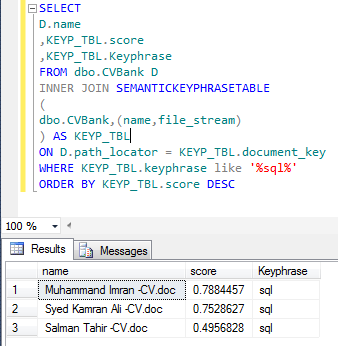
Example 2: Search SQL Developer CVs
In this example, I will search candidates having knowledge of SQL.

USE SampleDB
GO
SELECT
D.name
,KEYP_TBL.score
,KEYP_TBL.Keyphrase
FROM dbo.CVBank D
INNER JOIN SEMANTICKEYPHRASETABLE
(
dbo.CVBank,(name,file_stream)
) AS KEYP_TBL
ON D.path_locator = KEYP_TBL.document_key
WHERE KEYP_TBL.keyphrase like '%sql%'
ORDER BY KEYP_TBL.score DESC
--OUTPUT

semantic_search_part2.1.3
Conclusion :
Semantic Search is very handy if you need to develop some solution on the basis of unstructured document. Shall post another nice feature of semantic search in my upcoming post.

Read Full Post »

In the earlier versions of SQL Server, it was very difficult to view the unstructured documents placed in the SQL Server. But in SQL Server 2012, with the solution shipped namely Semantic Search not only can you easily look inside in the unstructured documents but also you can create phrase table to find key phrases, similar documents, related documents as well. This feature gave boost to another newly introduced feature namely File Table in SQL Server 2012. You must install and configure Semantic Search before you use it.
Let’s install / configure it Step by Step.

Step 1:
In order to install Semantic Search, first of all you need to check whether FULL TEXT SEARCH feature is installed in your SQL Server or not. Because Semantic search feature is based on Full text search feature.
Given below is the script to check this.

USE master
GO
SELECT SERVERPROPERTY('IsFullTextInstalled') AS [Result]
GO
--OUTPUT

Result
1

(1 row(s) affected)

Step 2:
If result of step 1 is 1 then you should not do anything in Step 2. But if the result is 0, you must run the SQL Server setup again, go to Feature Selection option, select Full-Text and Semantic Extractions for search and install this feature (as shown in the picture below).

Install Semantic 1.2

Step 3:
Once you install the Full-Text and Semantic Extractions for search feature, you need to check whether Semantic Language Statistics Database (One of the core dependency of Semantic searches) is installed or not. Given below is the script to check.

USE master
GO
SELECT * FROM
sys.fulltext_semantic_language_statistics_database
GO
--OUTPUT

Install Semantic 1.3

Ooooppss……… as you can see, the output says blank; it means semantic language statistics database is not yet installed. So you need to install it.

Step 4:

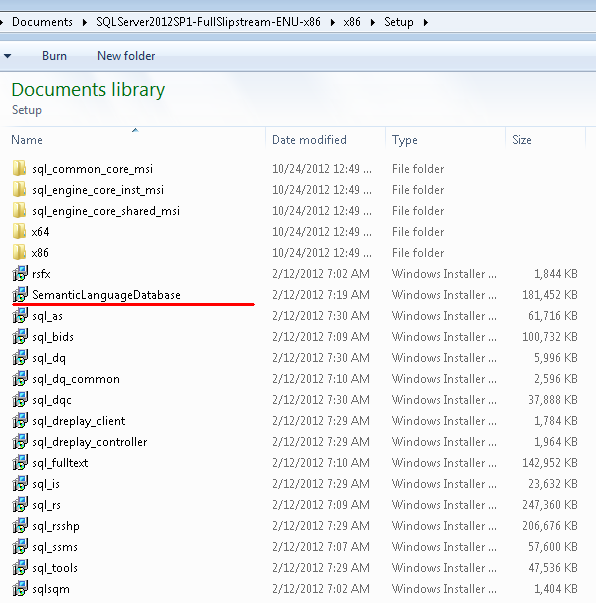
To install semantic language statistics database, you need to go to SQL Server installation media and browse the given below folder and run SemanticLanguageDatabase.msi

• For x86 : …\x86\Setup\SemanticLanguageDatabase.msi
• For x64 : …\x64\Setup\SemanticLanguageDatabase.msi

Given below is the screen image.

Install Semantic 1.4

Step 5:

Once you execute the above SemanticLanguageDatabase.msi and install it properly, it will give you two database files (semanticsDB, semanticsdb_log) in a location (C:\Program Files\Microsoft Semantic Language Database), in case you install it in the default location. Now you have database files, just attach these files in your SQL Server.

Install Semantic 1.5

Step 6:
Once you attach these database files in your SQL Server, then you have to register semantic language database. Given below is the script.

EXEC sp_fulltext_semantic_register_language_statistics_db
@dbname = N'semanticsdb'
GO

Step 7:
Again, you need to check whether the semantic language statistics database is installed or not. Given below is the script.

SELECT * FROM
sys.fulltext_semantic_language_statistics_database
GO
--OUTPUT

Install Semantic 1.6

Now, you can see that the semantic language statistics database is installed.

In my next article, I will discuss how to implement semantic search on file tables and make your life easier.

Reference : MSDN

Read Full Post »

SQL Server 2012 came up with many new features and enhancements. Insert Snippet is one of the new features introduced in it. This feature reduces the development time and increases productivity. How ? It basically generates the code snippet for the most frequently used objects in SQL Server instantly (with few clicks or key strokes).  But it is not limited to the frequently used objects, custom code snippet template can also be added in it and can generate it at any point of time, to make life easier. How to create custom code snippet will be demonstrated in my up coming article.

Given below are the object’s code snippet available in SQL Server as a standard template :

  • Function 
  • Index
  • Login
  • Role
  • Schema
  • Stored Procedure
  • Synonym
  • Table
  • Trigger
  • User
  • User Defined Data Type
  • User Defined Table Type
  • User Defined Type
  • View

Let me insert a Create Table code snippet step by step using Insert snippet .

Step 1:

Open a new query window in the Database Engine and place the cursor where the code snippet has to be inserted.

Step 2:

In this step, launch snippet picker to insert Snippet. It can be done using three different methods. Given below are the details of these methods.

Method 1:

Press CTRL+K, CTRL+X to launch snippet picker.

 Method 2:

Go to the Edit Menu then point to IntelliSense and then select Insert Snippet to launch snippet picker as shown in the picture below .

insertsnippet1.1

Method 3:

Right click and select Insert Snippet to launch snippet picker as shown in the picture below.

insertsnippet1.2

Step 3:

Once the snippet picker is launched, select table from the list as shown in the picture below.

insertsnippet1.3

Step 4:

After selecting the Table press TAB or Enter key to proceed as shown in the picture below.

insertsnippet1.4

Step 5:

After selecting the Create Table script as show in the above picture then again press TAB or Enter key to generate the code snippet as shown below.

insertsnippet1.5

Step 6:

Notice that the create table code snippet in the above image has been generated. Now just change the highlighted area to create desired customized table.  Additional columns as well can be added.

insertsnippet1.6

Conclusion :

Insert Snippet is a very nice feature introduced in SQL Server 2012. Time saving tool. The example discussed above took less than 10 seconds to create it. Also it is not limited to create table code snippet alone, any object code snippet can be created in less than 10 seconds.

Will post how to create the customized code snippet in my upcoming post.

Read Full Post »

I came across this issue, how to get month name while only month number is stored in the database ?

Given below are the different solutions to the above concern.

Let me create a sample to demonstrate it.

USE tempdb
GO
CREATE TABLE tbl_MonthNumber
(
[ID] INT IDENTITY(1,1),
[MONTH_NUMBER] INT
)
GO

INSERT INTO tbl_MonthNumber
SELECT 1 UNION ALL
SELECT 2 UNION ALL
SELECT 3 UNION ALL
SELECT 4 UNION ALL
SELECT 5 UNION ALL
SELECT 6 UNION ALL
SELECT 7 UNION ALL
SELECT 8 UNION ALL
SELECT 9 UNION ALL
SELECT 10 UNION ALL
SELECT 11 UNION ALL
SELECT 12

GO
SELECT * FROM tbl_MonthNumber
GO
--OUTPUT

Convert_Month_no_to_Name.1.1

Given below are two different methods to convert month number to month name.

Method 1:
This method is compatible with SQL Server 2005 and above.

USE tempdb
GO
SELECT [MONTH_NUMBER]
,DATENAME(MONTH,DATEADD(MONTH, [MONTH_NUMBER] , 0 )-1)
AS [MONTH_NAME]
FROM tbl_MonthNumber
GO
--OUTPUT

Convert_Month_no_to_Name.1.2

Method 2:
This method is compatible with SQL Server 2012 and above.

USE tempdb
GO
SELECT [MONTH_NUMBER]
,DATENAME(MONTH,DATEFROMPARTS(1900, [MONTH_NUMBER] , 1 ))
AS [MONTH_NAME]
FROM tbl_MonthNumber
--OUTPUT

convert_monthno_to_name1.3

Read Full Post »

Problem :
Maintaining format is sometimes very critical when data is copied from one source to another. Yesterday when I was working on an excel report I faced this problem.  When I copied a formatted ID (“0001“) with leading zeros from MS SQL Server and pasted it in MS Excel it became 1 only.

Solution :

Lets Fix it step by step :

Step 1 :
Let me create a sample to demonstrate the error.

USE tempdb
GO
CREATE TABLE [dbo].[tbl_Employee](
[Employee ID] [varchar](5) NULL,
[Employee Name] [varchar](50) NOT NULL
) ON [PRIMARY]

GO
INSERT [dbo].[tbl_Employee] ([Employee ID], [Employee Name])
VALUES (N'00001', N'A. Scott')

INSERT [dbo].[tbl_Employee] ([Employee ID], [Employee Name])
VALUES (N'00002', N'Alan')

INSERT [dbo].[tbl_Employee] ([Employee ID], [Employee Name])
VALUES (N'00003', N'Alejandro')

INSERT [dbo].[tbl_Employee] ([Employee ID], [Employee Name])
VALUES (N'00004', N'Alex')

INSERT [dbo].[tbl_Employee] ([Employee ID], [Employee Name])
VALUES (N'00005', N'Alice')
GO
SELECT [Employee ID], [Employee Name] FROM [tbl_Employee]
GO
--OUTPUT

Remove_zeros_in_excel.1.1

Step 2 :
Open an excel sheet and copy the data from SQL Server and paste it in excel and view the result. This step is just to demonstrate the problem.
Remove_zeros_in_excel.1.2

Can you observe that leading zeros has been removed and only numbers are left ?  Lets fix it.

Step 3 :
Open a new excel sheet and right click on the column where you want to paste (place) leading zeros column and select format cell.
Remove_zeros_in_excel.1.3

It will open ‘Format Cells’ window. Select Text in it and Press OK to close it.
Remove_zeros_in_excel.1.4

Step 4 :
Now, copy the data from SQL Server and paste it in the excel.

Remove_zeros_in_excel.1.5

Let me know if you know any better solution.

Read Full Post »

“How to implement LIMIT in SQL Server?” (How to pick up certain rows after certain rows in SQL SERVER), I came across this question many times in multiple forums and the common solution is, to use common table expression and ROW_NUMBER. However, this is an old approach. A new approach has been introduced in SQL Server 2012 using OFFSET ROWS FETCH NEXT ROWS.

Let me create a sample script to explain both approaches.

USE AdventureWorks2012;
GO
Select
FirstName
,Jobtitle
From [HumanResources].[vEmployee]
Order By FirstName,Jobtitle
--OUTPUT

limitrows1.1

Lets discuss both approaches with examples :

Old Approach:
In this approach, we will pick 10 rows after row number 10 (meaning row number 11 till 20) from [HumanResources].[vEmployee]. Given below is the script.

--This script is compatible with SQL Server 2005 and above.
USE AdventureWorks2012;
GO
;With CTE_Employee_List As
(
Select ROW_NUMBER() Over
(Order By[FirstName],[JobTitle]) As [Row Number],
FirstName
,Jobtitle
From [HumanResources].[vEmployee]
)
Select FirstName,Jobtitle
From CTE_Employee_List
Where [Row Number] Between 11 And 20;
GO
--OUTPUT

limitrows1.2-1

New Approach:
In the new approach too, we will select 10 rows after row number 10 (meaning row number 11 till 20) from [HumanResources].[vEmployee] and the script goes as follows :

--This script is compatible with SQL Server 2012 and above.
USE AdventureWorks2012;
GO
Select
FirstName
,Jobtitle
From [HumanResources].[vEmployee]
Order By FirstName,Jobtitle
Offset 10 Rows
Fetch Next 50 Rows Only;
--OUTPUT

limitrows1.4

As we can see, the output is exactly same but a lot of other parameters are different that can impact the performance.
Given below is the summary of both approaches.

S.No

Type

Old Approach

New Approach

1

Common Table Expression

Yes (required)

N/A

2

ROW_NUMBER

Yes (required)

N/A

3

CPU time

15 ms

15 ms

4

Elapsed time

1387 ms

375 ms

5

Query Cost (relative to the batch)

53%

47%

Conclusion :
If you are using SQL Server 2012, I would recommend to use the new approach. It not only boosts the performance but reduce the line of code as well.

Read Full Post »

« Newer Posts - Older Posts »