Feeds:
Posts
Comments

Archive for the ‘SQL SERVER’ Category

At times we come across some cases where we need to extract date and time for a certain period of time (year, month, day, hour, minutes, seconds etc.). In earlier version of SQL Server (earlier than 2022), we use multiple functions like DATEADD, DATEDIFF etc. to achieve it.

In SQL Server 2022, a new function namely DATETRUNC() shipped which solved this problem. Now, we can just use DATETRUNC() function to extract date and time till any date and time parts.

In the given below diagram, you can see the different date & time parts which can be easily extracted by DATETRUNC() function.

Example:

Let me demonstrate the functionality of DATETRUNC() function by giving below example.

DECLARE @DateTime DATETIME2
SET @DateTime = '2022-10-27 12:02:31.9033333';
SELECT @DateTime                    AS [Current Date]
      , DATETRUNC(YEAR,@DateTime)   AS [DateTrunc Function]
      ,'Extract Date Till The YEAR' AS [Description]
UNION
SELECT @DateTime                      AS [Current Date]
     , DATETRUNC(QUARTER,@DateTime)   AS [DateTrunc Function]
     ,'Extract Date Till The QUARTER' AS [Description]
UNION
SELECT @DateTime                    AS [Current Date]
     , DATETRUNC(MONTH,@DateTime)   AS [DateTrunc Function]
     ,'Extract Date Till The MONTH' AS [Description]
UNION
SELECT @DateTime                    AS [Current Date]
     , DATETRUNC(WEEK,@DateTime)    AS [DateTrunc Function]
     ,'Extract Date Till The WEEK'  AS [Description]
UNION
SELECT @DateTime                    AS [Current Date]
     , DATETRUNC(DAY,@DateTime)     AS [DateTrunc Function]
     , 'Extract Date Till The DAY'  AS [Description]
UNION
SELECT @DateTime                    AS [Current Date]
     , DATETRUNC(HOUR,@DateTime)    AS [DateTrunc  Function]
     , 'Extract Date Till The HOUR' AS [Description]
UNION
SELECT @DateTime                      AS [Current Date]
      , DATETRUNC(MINUTE,@DateTime)   AS [DateTrunc  Function]
      , 'Extract Date Till The MINUTE'AS [Description]
UNION 
SELECT @DateTime                       AS [Current Date]
      , DATETRUNC(SECOND,@DateTime)    AS [DateTrunc  Function]
      , 'Extract Date Till The SECOND' AS [Description]
UNION
SELECT @DateTime                            AS [Current Date]
      , DATETRUNC(MILLISECOND,@DateTime)    AS [DateTrunc  Function]
      , 'Extract Date Till The MILLISECOND' AS [Description]
UNION
SELECT @DateTime                            AS [Current Date]
      , DATETRUNC(MICROSECOND,@DateTime)    AS [DateTrunc  Function]
      , 'Extract Date Till The MICROSECOND' AS [Description];
GO
--OUTPUT

Conclusion:

I found the DATETRUNC() function very useful; earlier we used multiple functions to extract date and time till whichever time period we needed, but now we can achieve it with the help of this function.

Read Full Post »

History of query becomes very important when you really need the earlier version of your query, in case you do not have backups or you want to know which queries have been executed earlier in your respective database.

In SQL Server Management Studio, you can achieve it by running given below query but as per SQL Server documentation, the lifetime of the given below rows are tied to the plan itself. When a plan is removed from the cache, the corresponding rows are eliminated from this view and you cannot find the query in the history. Also, if your administrator restarts the server, you will lose the entire history. There is also a limitation that you can only get the queries executed successfully; failed queries will not be there in the history.

  • Query History in SQL Server Management Studio

USE AdventureWorks2019
GO

SELECT last_execution_time
     , text 
FROM sys.dm_exec_query_stats stats 
CROSS APPLY sys.dm_exec_sql_text(sql_handle)  
ORDER BY 
       last_execution_time DESC 
GO
--OUTPUT

  • Query History in Azure Data Studio

Fortunately, there is an extension available in Azure Data Studio to get the history of query and there is no limitation like I mentioned above.

Query History Extension Installation:

Let’s install the extension step by step.

Step 1: First of all, please click on View menu which is on the left top of the screen, then click on Extensions as shown below. You can also use the shortcut Ctrl+Shift+X to open Extensions window.


Step 2: Extensions window is now open. Let’s search the Query History extension as shown below and click on Install button.

Step 3: As you can see the Query History extension is installed as shown below.

Query History Extension Application:

Since, we have installed query history extension successfully, let’s use it step by step.

Step 1: Next step is to view the Output window, let’s go to View menu and then click on Output menu as shown below. Or you can also use the shortcut Ctrl+Shift+U.

Step 2: Output window has appeared as shown below.

Step 3: Now, let’s open a New Query window to run some queries and see the query history. To do this you need to go to File menu and then click on New Query, or you can use shortcut Ctrl+N.

Step 4: New Query window is opened as shown below. Please connect the respective database to run queries.

Step 5: Now, we need to execute some queries on Azure Data Studio to see the query history, as shown in the Query History window.

Sections of Query History window:

There are four sections in query history as shown below.

  1. Status icon: This section shows the status of query.
    If a query has executed successfully, we can see a green tick on it.
    If a query has error, we can see a cross sign in red which shows that the query has failed.
  2. Query Text: This section shows the actual query.
  3. Connection Info: This section shows the conection info like Server and Database name.
  4. TimeStamp: This section shows the timestamp when you executed the query.

Options in Query History:

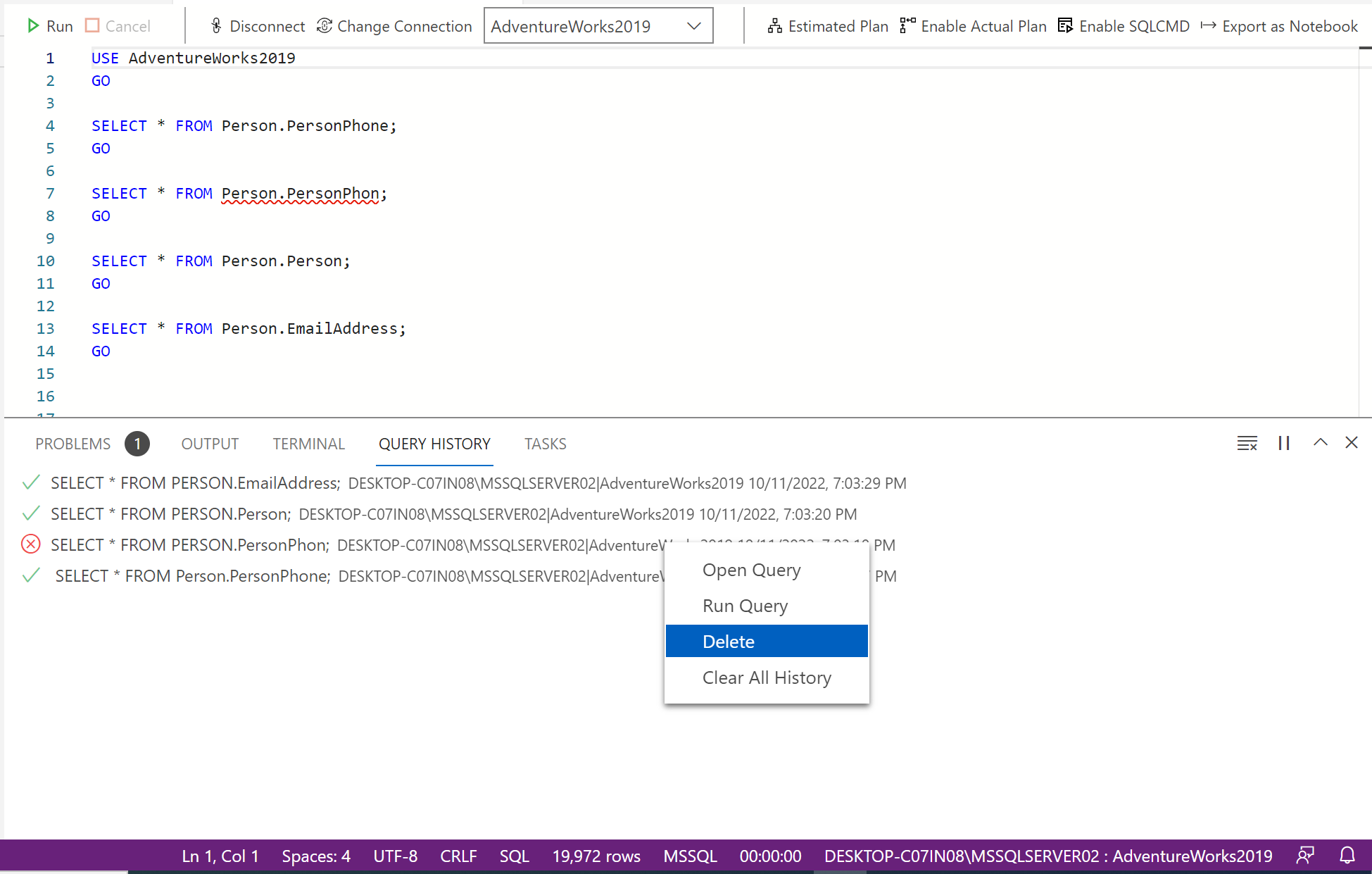
Query history provides multiple options when you right-click on the query. You get the following options on the context menu:

  • Open Query.
  • Run Query.
  • Delete.
  • Clear History.

    Let’s discuss these options in detail.
  • Open Query:

The Open Query option opens the selected query from query history in a new query widow using the same connection as shown below.

  • Run Query:

The Run Query option opens the selected query from query history in a new query widow using the same connection and execute it immediately as shown below.

  • Delete:

The Delete option permanently deletes the selected row from query history.

  • Clear History:

The Clear History option clears the entire query history.

Query Window: Play / Pause options:

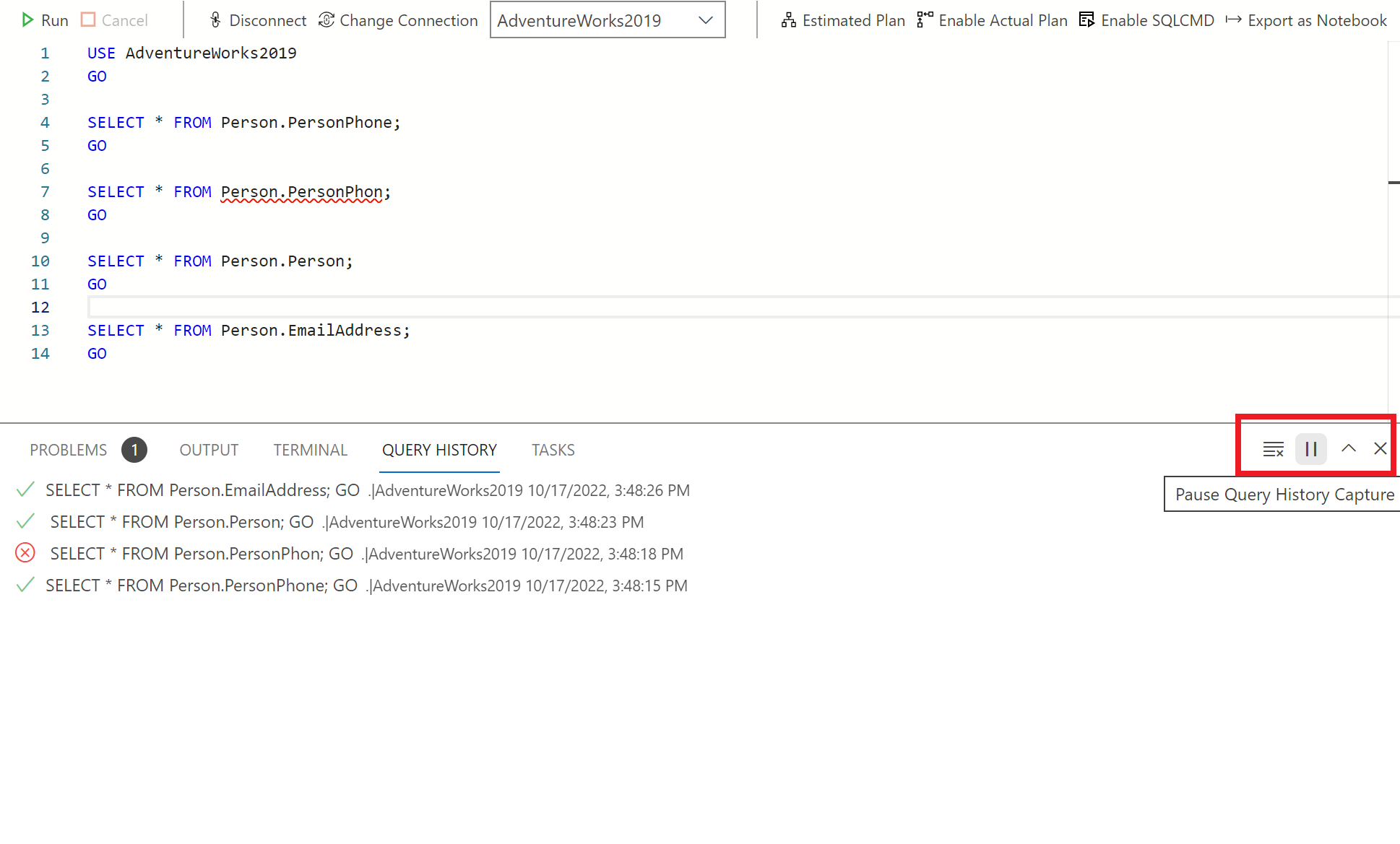
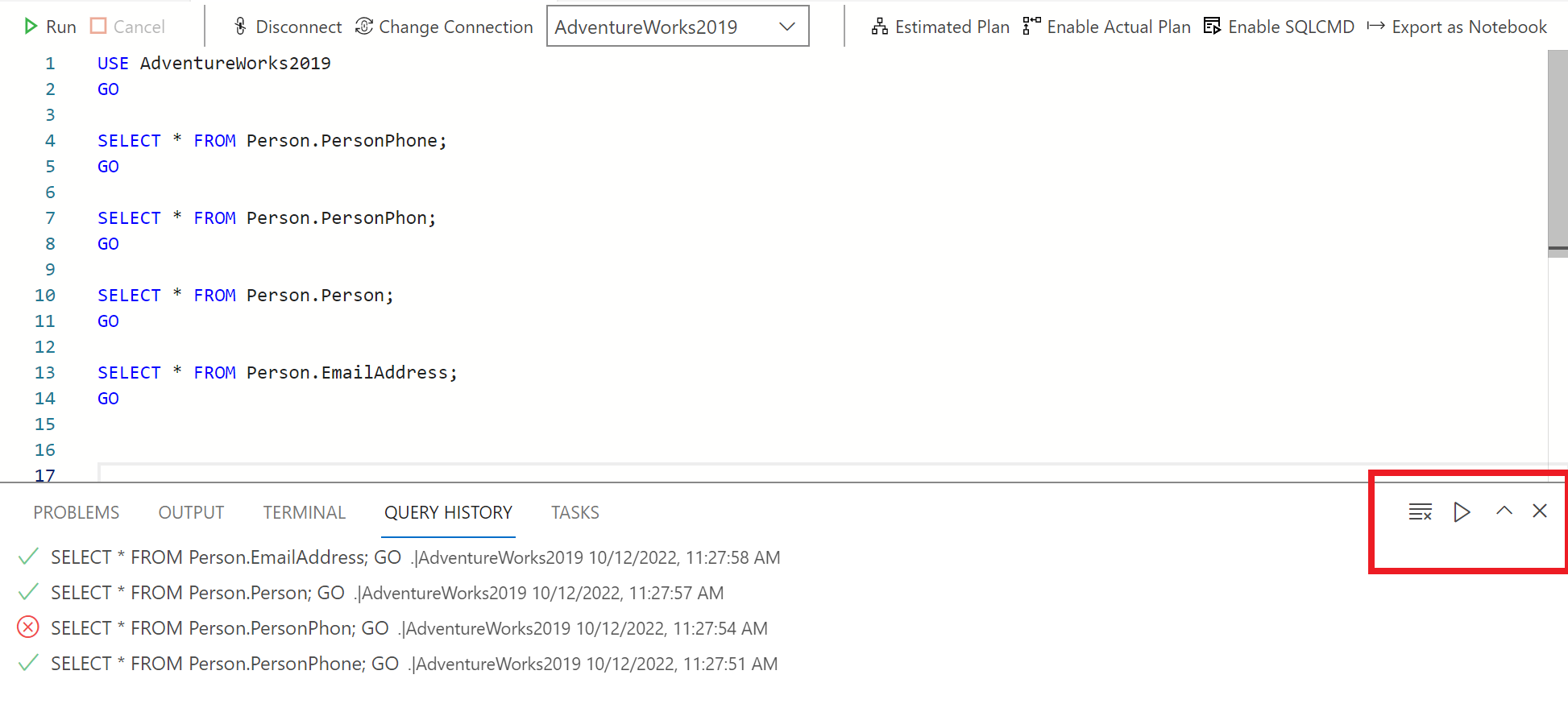
On the right top of the Query window, you can see a play / pause button. This feature gives us the flexibity to stop or start recording query history.

Conclusion:

Query History extension is very useful; you can view query history without much effort in Azure Data Studio.

Let me know if you use this extension and how user friendly you found it.

Read Full Post »

‘Verbose Truncation Warnings’ is one of the greatest features launched in SQL Server 2019. I have been waiting for this feature for quiet a long time because troubleshooting was a nightmare in such cases. This feature can literally save a lot of time while importing, inserting & updating huge amount of data. Let me cut short the story.

Let me create a sample database and a table to demonstrate the issue in earlier version (Any older version than SQL Sever 2019) of SQL Server Step by Step.

Step 1 : 

Let’s create a database and set the compatibility to 140 (SQL Server 2017).

USE [master]
GO
--Create Sample Database
CREATE DATABASE [Sample DB 2017]
GO
ALTER DATABASE  [Sample DB 2017]
SET COMPATIBILITY_LEVEL = 140  -- SQL Server 2017
GO

Step 2 : 

Let’s create a sample table and insert few records.

USE [Sample DB 2017]
GO
CREATE TABLE [dbo].[tbl_Color](
	[Color ID] [int] IDENTITY(1,1) NOT NULL,
	[Color Name] [varchar](3) NULL
) ON [PRIMARY]
GO

INSERT INTO [dbo].[tbl_Color]
           ([Color Name])
     VALUES
	       ('Red'),
	       ('Blue'),
	       ('Green')
GO
--OUTPUT


Now, you should not worry anymore because this issue has been fixed in SQL Server 2019. 

Let me demonstrate step by step. How it’s fixed in SQL Server 2019 and make it very simple for us.

Step 1 : 

Let’s create a database in SQL Server 2019 by default the compatibility is 150.

USE [master]
GO
--Create Sample Database
CREATE DATABASE [Sample DB 2019]
GO

Step 2 : 

Let’s create a sample table and insert few records

 
USE [Sample DB 2019]
GO
CREATE TABLE [dbo].[tbl_Color](
	[Color ID] [int] IDENTITY(1,1) NOT NULL,
	[Color Name] [varchar](3) NULL
) ON [PRIMARY]
GO

INSERT INTO [dbo].[tbl_Color]
           ([Color Name])
     VALUES
		   ('Red'),
		   ('Blue'),
		   ('Green')
GO
--OUTPUT

Verbose Truncation Warnings-2

Read Full Post »

SQL Server 2016 shipped with a lot of TSQL Enhancements and one of them is DROP IF EXISTS. It actually minimizes the size of the script which you can use to drop any object (AGGREGATE, ASSEMBLY, COLUMN, CONSTRAINT, DATABASE, DEFAULT, FUNCTION, INDEX, PROCEDURE, ROLE, RULE, SCHEMA, SECURITY POLICY, SEQUENCE, SYNONYM, TABLE, TRIGGER, TYPE, USER, and VIEW). In other words, you DO NOT need to write long IF EXISTS Statements anymore to drop any object.
The beauty of this TSQL is that if it fails (in case, if object does not exist), it DOES NOT give you error message.

Lets me create a sample table to demonstrate how it works but as I mentioned earlier you can use this script to drop any object.

SAMPLE:


USE tempdb
GO
--Create Sample table
CREATE TABLE dbo.tbl_Sample
(
[ID] INT,
[Name] NVARCHAR(50)
)
GO

OLD METHOD:
Given below methods are compatible with SQL Server 2005 and above.

--Method 1
USE tempdb
GO
IF OBJECT_ID('dbo.tbl_Sample', 'U') IS NOT NULL
DROP TABLE dbo.tbl_Sample
GO

--Method 2
USE tempdb
GO
IF EXISTS (SELECT * FROM sys.tables WHERE name = 'tbl_Sample')
DROP TABLE dbo.tbl_Sample
GO

NEW METHOD:
Given below method is compatible with SQL Server 2016 and above.

USE tempdb
GO
DROP TABLE IF EXISTS tbl_Sample;
GO

Reference : MSDN

Read Full Post »

2015 in review

The WordPress.com stats helper monkeys prepared a 2015 annual report for this blog.

Here’s an excerpt:

The Louvre Museum has 8.5 million visitors per year. This blog was viewed about 490,000 times in 2015. If it were an exhibit at the Louvre Museum, it would take about 21 days for that many people to see it.

Click here to see the complete report.

Read Full Post »

EXECUTE statement failed because its WITH RESULT SETS clause specified a non-nullable type for column #%d in result set #%d, and the corresponding value sent at run time was nullΒ is one of the new error messages noticedΒ in SQL Server 2012 and above. This error message is due to the invalid use of new feature EXEC WITH RESULT SETS shipped with SQL Server 2012.

Lets discuss this in detail:
Message Number: 11553

Severity : 16

Error Message:Β EXECUTE statement failed because its WITH RESULT SETS clause specified a non-nullable type for column #%d in result set #%d, and the corresponding value sent at run time was null.

Error Generation:
Let me create a sample stored procedure to generate this error.

Use AdventureWorks2014
GO
--DROP PROCEDURE usp_Sample
--GO
CREATE PROCEDURE usp_Sample
AS
SELECT  
  [BusinessEntityID]
, [FirstName]
, [MiddleName]
, [LastName]
FROM [HumanResources].vEmployee ORDER BY BusinessEntityID 
GO
EXEC usp_Sample
GO

Error number 11553.1.1

You can see that the above stored procedure is executed successfully and it has ONE result set.

Lets try to execute it using WITH RESULT SETS clause.

USE AdventureWorks2014 
GO
EXEC usp_Sample
WITH RESULT SETS
(
( [BusinessEntityID] int NOT NULL,
  [First Name] Name NOT NULL,
  [MiddleName] Name NOT NULL,
  [LastName] Name NOT NULL
));
GO
--OUTPUT
Msg 11553, Level 16, State 1, Procedure usp_Sample, Line 22
EXECUTE statement failed because its WITH RESULT SETS clause specified a non-nullable type for column #3 in result set #1, and the corresponding value sent at run time was null.

Ooops…… I am unable to execute it properly. It returned the error message.

Error number 11553.1.2

Resolution:
Why this error ? Because, I specifically mentioned in the RESULT SETS that none of the columns should return NULL and I did not realizeΒ that stored procedures return some NULL values in the middle name column and due to this I got this error. So, when you mention any column as a NOT NULL in RESULT SETS, please make sure that the stored procedure must NOT return NULL VALUE for that particular column. Lets re-write the RESULT SET and this time we need to mention, middle name column is NULL as shown below.

USE AdventureWorks2014 
GO
EXEC usp_Sample
WITH RESULT SETS
(
( [BusinessEntityID] int NOT NULL,
  [First Name] Name NOT NULL,
  [MiddleName] Name NULL,
  [LastName] Name NOT NULL
));
GO
--OUTPUT

Error number 11553.1.3

Conclusion :
Remember, whenever you use any stored procedure using WITH RESULT SETS clause, along with the nullable type, make sure that the data that comes from stored procedure should match with theΒ nullableΒ type. In other words, if you define any column in RESULT SETS clause as NOT NULL column then make sure that stored procedure MUST NOT return NULL value in that particular column to avoid such errors.

Read Full Post »

Resource Governor is one of the best features shipped with SQL Server 2008. We use this feature to handle SQL Server workload and resource allocation. However, if you go into further details of this feature, you will be shocked to see the level of control it gives you to control over CPU, memory on the basis of incoming requests from the application/user etc. But I have been hearing a very common QUESTION since SQL Server 2008 and that is, can we control physical IO using resource governor and the ANSWER is YES, you can do it in SQL SERVER 2014 & Above. But How ?

In SQL Server 2014, we have an additional control in resource governor namely CONTROL PHYSICAL IO. In other words, if you would like to restrict a user/application to use limited physical IO, you can restrict it with this additional control. You can implement this additional control in resource governor by just setting up two options which is MIN_IOPS_PER_VOLUME & MAX_IOPS_PER_VOLUME.

Let me demonstrate how to control physical IO in SQL Server 2014 step by step.

Step 1:
First of all, lets create a pool as usual and restrict its MAX_IOPS_PER_VOLUME limit to 50 ONLY, which means that whatever set of users / applications will be used, this pool cannot exceed 50 Physical IO.

USE master
GO
--DROP RESOURCE POOL Sample_Pool_Restrict_IO;
--GO
CREATE RESOURCE POOL Sample_Pool_Restrict_IO WITH
(
MAX_IOPS_PER_VOLUME = 50,
MIN_IOPS_PER_VOLUME = 1
);
GO

Step 2:
Once we created the pool, lets create the workload group. This is also a usual step while configuring resource governor.

USE master
GO
--DROP WORKLOAD GROUP Sample_Workload_Group_Restrict_IO
--GO
CREATE WORKLOAD GROUP Sample_Workload_Group_Restrict_IO
USING Sample_Pool_Restrict_IO;
GO

Step 3:
Let’s, create a test user, later on I will demonstrate how resource governor will restrict physical IO for this test user.

USE master
GO
CREATE LOGIN dba WITH PASSWORD = 'imran.1234@';
GO
ALTER SERVER ROLE [sysadmin] ADD MEMBER [dba]
GO

Step 4:
Create a classifier function and define if the above created user is the current user. Then classifier will assign the restricted IO workload group to this user. Then each time this user tries to use physical IO, it  CAN’T go beyond 50. SQL Server will restrict this user up to 50.

USE MASTER;
GO
--DROP FUNCTION dbo.fnIOClassifier
GO
CREATE FUNCTION dbo.fnIOClassifier()
RETURNS SYSNAME WITH SCHEMABINDING
AS
BEGIN
DECLARE @GroupName SYSNAME
IF SUSER_NAME() = 'dba'
BEGIN
SET @GroupName = 'Sample_Workload_Group_Restrict_IO'
END
ELSE
BEGIN
SET @GroupName = 'default'
END
RETURN @GroupName;
END
GO

Step 5:
Let’s assign the classifier function (created in the above step) to resource governor and reconfigure the resource governor to implement new settings.

USE master;
GO
ALTER RESOURCE GOVERNOR WITH (CLASSIFIER_FUNCTION = dbo.fnIOClassifier);
ALTER RESOURCE GOVERNOR RECONFIGURE;
GO

Step 6:
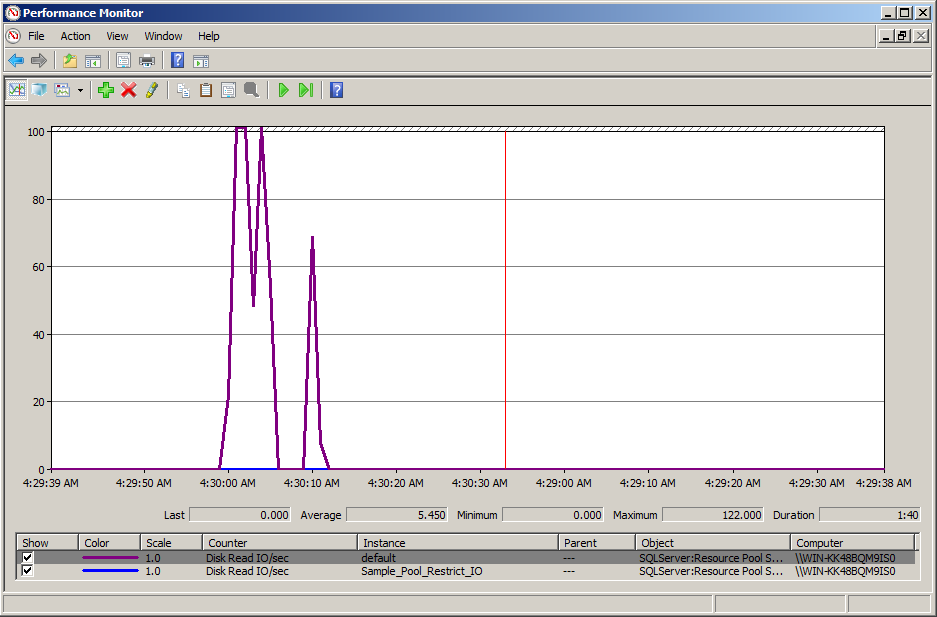
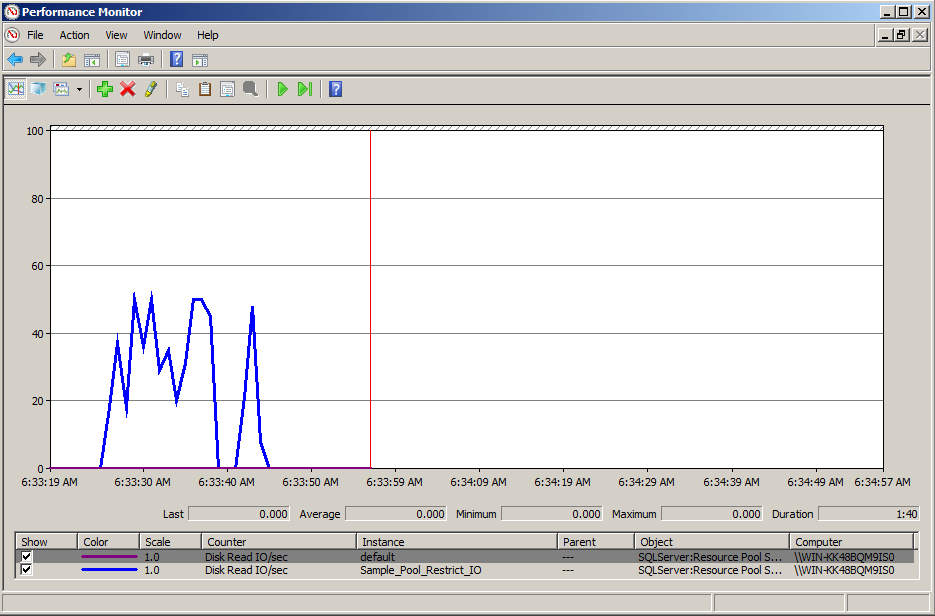
Now, we are ready to test the new feature (Control Physical IO). To test the feature, let’s open performance monitor, add counter and then select resource pool stats object, further select Disk read IO/sec and add default and custom Pool (Sample_Pool_Restrict_IO) created in step 1 and press ADD BUTTON as shown below.

Resource Governor 1.0

Step 7:
Now, we setup performance monitor to test the physical IO control feature via resource governor. Lets login with any user except the one created in step 3 and run the given below script and view the results in performance monitor. In my case, I logged in with sa and executed the script.

USE AdventureWorks2014
GO
DBCC DROPCLEANBUFFERS
GO
EXEC sp_MSforeachtable 'SELECT * FROM ?'
GO

Resource Governor 1.1

Note: In the above results, you can easily view that the DISK READ IO/SEC reached the maximum of 122 and it may go far from it as well because we did not restrict DISK READ IO/SEC for sa user.

Step 8:
This time lets login with ‘dba’ user which we created in step 3 and execute the same script which we executed in the above step.

USE AdventureWorks2014
GO
DBCC DROPCLEANBUFFERS
GO
EXEC sp_MSforeachtable 'SELECT * FROM ?'
GO

Resource Governor 1.2

Note: In the above results, you can easily view that the DISK READ IO/SEC reached the maximum of 50 and why is it not going beyond 50 is because dba user has been restricted by resource governor using physical IO control feature.

Conclusion:
As you can see above that this feature really gives DBA’s more control on physical IO and it would be very handy for the DBA’s where they have serious problems with I/O which can be from users / applications.

Read Full Post »

Earlier, I have written a blog post about how to split a single row data into multiple rows using XQuery. Today, I came across a situation where I had to split a single column data into multiple columns using delimiter.

Lets me create a sample to demonstrate the solution.

Sample :

USE TEMPDB
GO
DROP TABLE [dbo].[tbl_Employee]
GO
CREATE TABLE [dbo].[tbl_Employee](
[Employee ID] INT IDENTITY(1,1) ,
[Employee Name] VARCHAR (100) NOT NULL)
GO
INSERT INTO dbo.[tbl_Employee] ([Employee Name])
VALUES ('Andreas Berglund T')
GO
INSERT INTO dbo.[tbl_Employee] ([Employee Name])
VALUES ('Sootha Charncherngkha T')
GO
INSERT INTO dbo.[tbl_Employee] ([Employee Name])
VALUES ('Peng Wu')
GO

--Browse the data
SELECT * FROM dbo.[tbl_Employee]
GO

Split single column into multiple columns.1.0

Solution :
Given below is the solution, where we need to convert the column into xml and then split it into multiple columns using delimiter. You can use any delimiter in the given below solution. In my sample, I used a blank space as a delimiter to split column into multiple columns.

USE TEMPDB
GO

DECLARE @delimiter VARCHAR(50)
SET @delimiter=' '  -- <=== Here, you can change the delimiter.
;WITH CTE AS
(
SELECT
[Employee ID],
[Employee Name],
CAST('' + REPLACE([Employee Name], @delimiter , '') + '' AS XML)
AS [Employee Name XML]
FROM  [tbl_Employee]
)
SELECT
[Employee ID],
[Employee Name],
[Employee Name XML].value('/M[1]', 'varchar(50)') As [First Name],
[Employee Name XML].value('/M[2]', 'varchar(50)') As [Last Name],
[Employee Name XML].value('/M[3]', 'varchar(50)') As [Middle Name]

FROM CTE
GO

Split single column into multiple columns.1.1

Let me know if you come across this situation and its solution.

Read Full Post »

Earlier this week, my team & I were working on financial reports and we developed some giant scripts in order to generate report data. Once we were done with the report, we came to know that we did not implement dynamic sorting in the report. Ooopssss !!!. Now do we need to re-write the query and convert into dynamic query ? 😦 Of course NOT.
What you can actually do is, write a conditional case and make it dynamic sort but it will increase the size of your query depending upon how many conditions you have.

In today’s post I will implement the dynamic sorting using CHOOSE function & CASE Statement. First of all, I will find the column number using CASE Statement and then pass the Column order number to CHOOSE function to actually sort the column. It will actually reduce the size of your query.

Given below is the script which will dynamically sort the query.

Use AdventureWorks2014
GO

DECLARE @SortCoulmnName VARCHAR(50) = 'OrderDate';
DECLARE @SortColumnNumber AS INT

SET @SortColumnNumber = CASE
When @SortCoulmnName='SalesOrderID' THEN 0
WHEN @SortCoulmnName='OrderDate' THEN 1
WHEN @SortCoulmnName='DueDate' THEN 2
WHEN @SortCoulmnName='ShipDate' THEN 3
ELSE 0
END
-- By Default, it will sort on first column

SELECT SalesOrderID
,OrderDate
,DueDate
,ShipDate
,Status
FROM
Sales.SalesOrderHeader
ORDER BY
CHOOSE(@SortColumnNumber,SalesOrderID,OrderDate,DueDate,ShipDate) DESC
GO

dynamic order by 1.1

Let me know if you came across this issue and its solution as well.

Read Full Post »

« Newer Posts - Older Posts »