Feeds:
Posts
Comments

Archive for the ‘Solutions’ Category

Resource Governor is one of the best features shipped with SQL Server 2008. We use this feature to handle SQL Server workload and resource allocation. However, if you go into further details of this feature, you will be shocked to see the level of control it gives you to control over CPU, memory on the basis of incoming requests from the application/user etc. But I have been hearing a very common QUESTION since SQL Server 2008 and that is, can we control physical IO using resource governor and the ANSWER is YES, you can do it in SQL SERVER 2014 & Above. But How ?

In SQL Server 2014, we have an additional control in resource governor namely CONTROL PHYSICAL IO. In other words, if you would like to restrict a user/application to use limited physical IO, you can restrict it with this additional control. You can implement this additional control in resource governor by just setting up two options which is MIN_IOPS_PER_VOLUME & MAX_IOPS_PER_VOLUME.

Let me demonstrate how to control physical IO in SQL Server 2014 step by step.

Step 1:
First of all, lets create a pool as usual and restrict its MAX_IOPS_PER_VOLUME limit to 50 ONLY, which means that whatever set of users / applications will be used, this pool cannot exceed 50 Physical IO.

USE master
GO
--DROP RESOURCE POOL Sample_Pool_Restrict_IO;
--GO
CREATE RESOURCE POOL Sample_Pool_Restrict_IO WITH
(
MAX_IOPS_PER_VOLUME = 50,
MIN_IOPS_PER_VOLUME = 1
);
GO

Step 2:
Once we created the pool, lets create the workload group. This is also a usual step while configuring resource governor.

USE master
GO
--DROP WORKLOAD GROUP Sample_Workload_Group_Restrict_IO
--GO
CREATE WORKLOAD GROUP Sample_Workload_Group_Restrict_IO
USING Sample_Pool_Restrict_IO;
GO

Step 3:
Let’s, create a test user, later on I will demonstrate how resource governor will restrict physical IO for this test user.

USE master
GO
CREATE LOGIN dba WITH PASSWORD = 'imran.1234@';
GO
ALTER SERVER ROLE [sysadmin] ADD MEMBER [dba]
GO

Step 4:
Create a classifier function and define if the above created user is the current user. Then classifier will assign the restricted IO workload group to this user. Then each time this user tries to use physical IO, it  CAN’T go beyond 50. SQL Server will restrict this user up to 50.

USE MASTER;
GO
--DROP FUNCTION dbo.fnIOClassifier
GO
CREATE FUNCTION dbo.fnIOClassifier()
RETURNS SYSNAME WITH SCHEMABINDING
AS
BEGIN
DECLARE @GroupName SYSNAME
IF SUSER_NAME() = 'dba'
BEGIN
SET @GroupName = 'Sample_Workload_Group_Restrict_IO'
END
ELSE
BEGIN
SET @GroupName = 'default'
END
RETURN @GroupName;
END
GO

Step 5:
Let’s assign the classifier function (created in the above step) to resource governor and reconfigure the resource governor to implement new settings.

USE master;
GO
ALTER RESOURCE GOVERNOR WITH (CLASSIFIER_FUNCTION = dbo.fnIOClassifier);
ALTER RESOURCE GOVERNOR RECONFIGURE;
GO

Step 6:
Now, we are ready to test the new feature (Control Physical IO). To test the feature, let’s open performance monitor, add counter and then select resource pool stats object, further select Disk read IO/sec and add default and custom Pool (Sample_Pool_Restrict_IO) created in step 1 and press ADD BUTTON as shown below.

Resource Governor 1.0

Step 7:
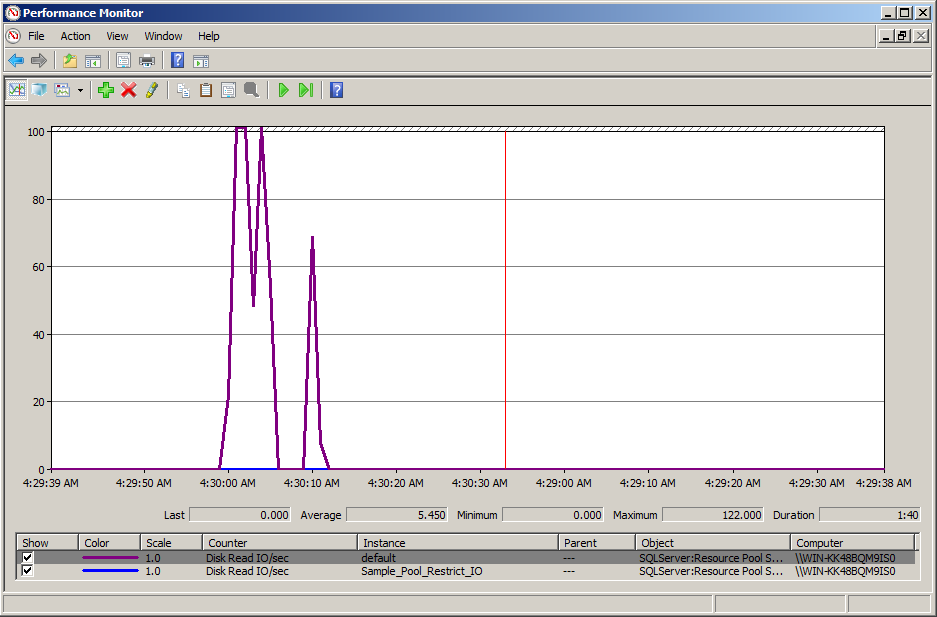
Now, we setup performance monitor to test the physical IO control feature via resource governor. Lets login with any user except the one created in step 3 and run the given below script and view the results in performance monitor. In my case, I logged in with sa and executed the script.

USE AdventureWorks2014
GO
DBCC DROPCLEANBUFFERS
GO
EXEC sp_MSforeachtable 'SELECT * FROM ?'
GO
Resource Governor 1.1

Note: In the above results, you can easily view that the DISK READ IO/SEC reached the maximum of 122 and it may go far from it as well because we did not restrict DISK READ IO/SEC for sa user.

Step 8:
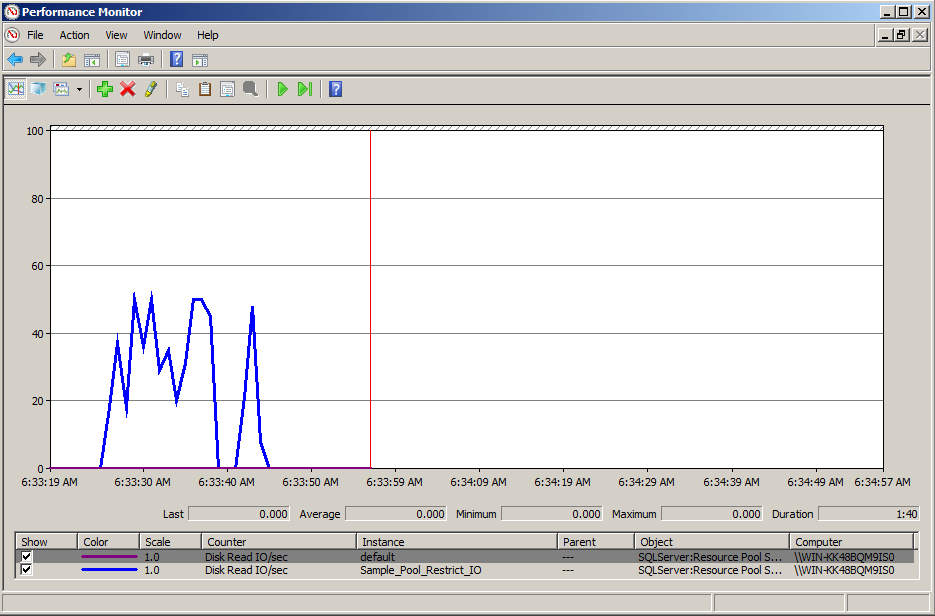
This time lets login with ‘dba’ user which we created in step 3 and execute the same script which we executed in the above step.

USE AdventureWorks2014
GO
DBCC DROPCLEANBUFFERS
GO
EXEC sp_MSforeachtable 'SELECT * FROM ?'
GO
Resource Governor 1.2

Note: In the above results, you can easily view that the DISK READ IO/SEC reached the maximum of 50 and why is it not going beyond 50 is because dba user has been restricted by resource governor using physical IO control feature.

Conclusion:
As you can see above that this feature really gives DBA’s more control on physical IO and it would be very handy for the DBA’s where they have serious problems with I/O which can be from users / applications.

Read Full Post »

Earlier, I have written a blog post about how to split a single row data into multiple rows using XQuery. Today, I came across a situation where I had to split a single column data into multiple columns using delimiter.

Lets me create a sample to demonstrate the solution.

Sample :

USE TEMPDB
GO
DROP TABLE [dbo].[tbl_Employee]
GO
CREATE TABLE [dbo].[tbl_Employee](
[Employee ID] INT IDENTITY(1,1) ,
[Employee Name] VARCHAR (100) NOT NULL)
GO
INSERT INTO dbo.[tbl_Employee] ([Employee Name])
VALUES ('Andreas Berglund T')
GO
INSERT INTO dbo.[tbl_Employee] ([Employee Name])
VALUES ('Sootha Charncherngkha T')
GO
INSERT INTO dbo.[tbl_Employee] ([Employee Name])
VALUES ('Peng Wu')
GO

--Browse the data
SELECT * FROM dbo.[tbl_Employee]
GO

Split single column into multiple columns.1.0

Solution :
Given below is the solution, where we need to convert the column into xml and then split it into multiple columns using delimiter. You can use any delimiter in the given below solution. In my sample, I used a blank space as a delimiter to split column into multiple columns.

USE TEMPDB
GO

DECLARE @delimiter VARCHAR(50)
SET @delimiter=' '  -- <=== Here, you can change the delimiter.
;WITH CTE AS
(
SELECT
[Employee ID],
[Employee Name],
CAST('' + REPLACE([Employee Name], @delimiter , '') + '' AS XML)
AS [Employee Name XML]
FROM  [tbl_Employee]
)
SELECT
[Employee ID],
[Employee Name],
[Employee Name XML].value('/M[1]', 'varchar(50)') As [First Name],
[Employee Name XML].value('/M[2]', 'varchar(50)') As [Last Name],
[Employee Name XML].value('/M[3]', 'varchar(50)') As [Middle Name]

FROM CTE
GO

Split single column into multiple columns.1.1

Let me know if you come across this situation and its solution.

Read Full Post »

Earlier this week, my team & I were working on financial reports and we developed some giant scripts in order to generate report data. Once we were done with the report, we came to know that we did not implement dynamic sorting in the report. Ooopssss !!!. Now do we need to re-write the query and convert into dynamic query ? 😦 Of course NOT.
What you can actually do is, write a conditional case and make it dynamic sort but it will increase the size of your query depending upon how many conditions you have.

In today’s post I will implement the dynamic sorting using CHOOSE function & CASE Statement. First of all, I will find the column number using CASE Statement and then pass the Column order number to CHOOSE function to actually sort the column. It will actually reduce the size of your query.

Given below is the script which will dynamically sort the query.

Use AdventureWorks2014
GO

DECLARE @SortCoulmnName VARCHAR(50) = 'OrderDate';
DECLARE @SortColumnNumber AS INT

SET @SortColumnNumber = CASE
When @SortCoulmnName='SalesOrderID' THEN 0
WHEN @SortCoulmnName='OrderDate' THEN 1
WHEN @SortCoulmnName='DueDate' THEN 2
WHEN @SortCoulmnName='ShipDate' THEN 3
ELSE 0
END
-- By Default, it will sort on first column

SELECT SalesOrderID
,OrderDate
,DueDate
,ShipDate
,Status
FROM
Sales.SalesOrderHeader
ORDER BY
CHOOSE(@SortColumnNumber,SalesOrderID,OrderDate,DueDate,ShipDate) DESC
GO

dynamic order by 1.1

Let me know if you came across this issue and its solution as well.

Read Full Post »

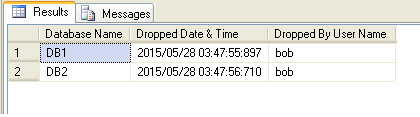
Sometimes, it is very important to know when your database has been dropped as well who dropped it. Obviously, if you setup the database backup properly, you can easily recover it from the last backup but how to find who dropped/ deleted the database ? Today, I came across this issue and I started my research and found some solutions to recover this info using trace, however, I developed a script that will help you find who dropped database, at what time, by using SQL Server Log.

Note : Please do not use this script for any negative purpose.

Script :

--This script is compatible with SQL Server 2005 and above.
USE master
GO
DROP PROCEDURE Recover_Dropped_Database_Detail_Proc
GO
CREATE PROCEDURE Recover_Dropped_Database_Detail_Proc
@Date_From DATETIME='1900/01/01',
@Date_To DATETIME ='9999/12/31'
AS
;WITH CTE AS (
Select REPLACE(SUBSTRING(A.[RowLog Contents 0],9
,LEN(A.[RowLog Contents 0])),0x00,0x) AS [Database Name]
,[Transaction ID]
FROM fn_dblog(NULL,NULL) A
WHERE A.[AllocUnitName] ='sys.sysdbreg.nc1'AND
A.[Transaction ID] IN (
SELECT DISTINCT [TRANSACTION ID] FROM  sys.fn_dblog(NULL, NULL)
WHERE Context IN ('LCX_NULL') AND Operation IN ('LOP_BEGIN_XACT')
AND [Transaction Name] LIKE '%dbdestroy%'
AND CONVERT(NVARCHAR(11),[Begin Time]) BETWEEN @Date_From AND @Date_To))

SELECT
A.[Database Name]
,B.[Begin Time] AS [Dropped Date & Time]
,C.[name] AS [Dropped By User Name]
FROM CTE A
INNER JOIN fn_dblog(NULL,NULL) B
ON A.[Transaction ID] =B.[Transaction ID]
AND Context IN ('LCX_NULL') AND Operation IN ('LOP_BEGIN_XACT')
AND [Transaction Name] LIKE '%dbdestroy%'
INNER JOIN sys.sysusers C ON B.[Transaction SID]=C.[Sid]

GO
EXEC Recover_Dropped_Database_Detail_Proc
GO

1

Let me know if you came across this issue and its solution as well.

Read Full Post »

On 26th May, we had a very informative session presented by Mr. Mohammed Owais (CTO at CAZAR) in SQL Server User Group meetup about Backups – not as simple as you think. He covered almost each and every aspect from full backup till tail log backup, however, a very nice question has been raised by an audience – ‘how to check the status of the backup / recovery along with the percentage via TSQL ?’. Because in most cases we have more than one DBA in an organization and sometimes they are geographically dispersed and if one of them takes backup / restore, how the others will come to know that he is performing any backup / restore using T-SQL.

Given below is the script which will give you the backup / restore progress along with the exact percentage and the user name (who is taking the backup).

USE master
GO
SELECT
A.session_id As [Session ID]
, login_name As [Login Name]
, [command] As [Command]
, [text] AS [Script]
, [start_time] As [Start Time]
, [percent_complete] AS [Percentage]
, DATEADD(SECOND,estimated_completion_time/1000, GETDATE())
as [Estimated Completion time]
, [program_name] As [Program Name]
FROM sys.dm_exec_requests A
CROSS APPLY sys.dm_exec_sql_text(A.sql_handle) B
INNER JOIN sys.dm_exec_sessions C ON A.session_id=C.session_id
WHERE A.command in ('BACKUP DATABASE','RESTORE DATABASE')
GO

1 : While Taking Backup

USE master;
GO
BACKUP DATABASE AdventureWorks2012
TO DISK = 'C:\Data\AdventureWorks2012.Bak'
WITH FORMAT,
MEDIANAME = 'SQLServerBackups',
NAME = 'Full Backup of AdventureWorks2012';
GO

raresql-Backup-Restore.1.2

2 : While Restoring Backup

USE master;
GO
RESTORE DATABASE AdventureWorks2012
FROM DISK = 'C:\Data\AdventureWorks2012.BAK'
WITH NORECOVERY
GO

raresql-Backup-Restore.1.1

Let me know if you came across this issue and its solution as well.

Read Full Post »

Paging became quite simpler & easy to script and manage by using OFFSET & FETCH NEXT keywords in SQL Server 2012 & above. I have written quite a detailed article earlier about it and implemented it in my most of the solutions wherever required. However, when you implement/use paging in your script, you face a big challenge, that is, to find the total number of records in that particular result-set.

Given below are the three methods which you can use to get the total row count from OFFSET / FETCH NEXT.
Before proceeding with the solutions, let me create a sample.

Sample :

USE AdventureWorks2014
GO
-- Create Sample Table Table
CREATE TABLE [dbo].[SalesOrderDetail](
[SalesOrderID] [int] NOT NULL,
[SalesOrderDetailID] [int] NOT NULL,
[CarrierTrackingNumber] [nvarchar](25) NULL,
[OrderQty] [smallint] NOT NULL,
[ProductID] [int] NOT NULL,
[SpecialOfferID] [int] NOT NULL,
[UnitPrice] [money] NOT NULL,
[UnitPriceDiscount] [money] NOT NULL,
[LineTotal] [numeric](38, 6) NOT NULL,
[rowguid] [uniqueidentifier] NOT NULL,
[ModifiedDate] [datetime] NOT NULL
) ON [PRIMARY]
GO

-- Insert bulk data into sample table
-- It may take few minutes depends upon the server performance
INSERT INTO [dbo].[SalesOrderDetail]
SELECT * FROM [SALES].[SalesOrderDetail]
GO 100

-- Verfiy the data
Select * from [dbo].[SalesOrderDetail]
GO

Method 1 : Using COUNT(*) OVER()

USE AdventureWorks2014
GO
DECLARE
@PageSize INT = 10,
@PageNum  INT = 1;

SELECT
[SalesOrderID]
, [SalesOrderDetailID]
, [CarrierTrackingNumber]
, [OrderQty]
, [ProductID]
, [SpecialOfferID]
, [TotalCount]= COUNT(*) OVER()
FROM [dbo].[SalesOrderDetail]
ORDER BY SalesOrderID
OFFSET (@PageNum-1)*@PageSize ROWS
FETCH NEXT @PageSize ROWS ONLY;
GO
--OUTPUT

row count using Offset 1.1

Method 2 : Using Common Table Expression

USE AdventureWorks2014
GO
DECLARE
@PageSize INT = 10,
@PageNum  INT = 1;

;WITH Main_CTE AS(
SELECT [SalesOrderID]
, [SalesOrderDetailID]
, [CarrierTrackingNumber]
, [OrderQty]
, [ProductID]
, [SpecialOfferID]
FROM [dbo].[SalesOrderDetail]
)
, Count_CTE AS (
SELECT COUNT(*) AS [TotalCount]
FROM Main_CTE
)
SELECT *
FROM Main_CTE, Count_CTE
ORDER BY Main_CTE.SalesOrderID
OFFSET (@PageNum-1)*@PageSize ROWS
FETCH NEXT @PageSize ROWS ONLY
GO
--OUTPUT

row count using Offset 1.1

Method 3 : Using Cross Apply

USE AdventureWorks2014
GO
DECLARE @PageSize INT = 10,
@PageNum  INT = 1;

SELECT
[SalesOrderID]
, [SalesOrderDetailID]
, [CarrierTrackingNumber]
, [OrderQty]
, [ProductID]
, [SpecialOfferID]
, [TotalCount]
FROM [dbo].[SalesOrderDetail]

CROSS APPLY (SELECT COUNT(*) TotalCount
FROM [dbo].[SalesOrderDetail] ) [Count]
ORDER BY SalesOrderID
OFFSET (@PageNum-1)*@PageSize ROWS
FETCH NEXT @PageSize ROWS ONLY
GO
--OUTPUT

row count using Offset 1.1

All of the above methods give you the same result-sets. Lets view their performance given below.

S.No

Method

CPU Time

Elapsed Time

1

COUNT(*) OVER()

30654 ms

40372 ms

2

Common Table Expression

11762 ms

7665 ms

3

Cross Apply

11794 ms

7373 ms

Conclusion :
On the basis of above results, I would recommend that you either use Common Table Expression or Cross Apply to get the faster results.

Note : The above queries have been tested on ~12 Million records.

Read Full Post »

SQL Server 2014 is shipped with lots of exciting features and enhancements, which I usually share with you in my blog from time to time. Today, I will discuss a new enhancement that will minimize your code. This enhancement is actually in the CREATE TABLE (Transact-SQL). Now you can actually create NONCLUSTERED index within the create statement and you do not need to alter table to add NONCLUSTERED index anymore. However, if you want to follow the old method, you can continue doing it. The old method has NOT been discontinued.

Given below are both methods, demonstrating the enhancement.

NEW Method : (Create NONCLUSTERED index within the create table statement)
In this method, we will create NONCLUSTERED index within create table statement. This script is compatible with SQL SERVER 2014 and above.

USE AdventureWorks2014
GO
--DROP TABLE Employee
--GO
CREATE TABLE Employee
(
[Emp_ID] int NOT NULL,
[LastName] varchar(255) NOT NULL,
[FirstName] varchar(255),
[Address] varchar(255),
[City] varchar(255),
[PostalCode] nvarchar(15),
CONSTRAINT pk_Emp_ID PRIMARY KEY ([Emp_ID]),
INDEX IX_Employee_PostalCode NONCLUSTERED (PostalCode)
);

GO
--OUTPUT

How to create a nonclustered index within the create table.1.1

OLD Method : (Create NONCLUSTERED index after creation of the table)
In this method, we will create NONCLUSTERED index AFTER table creation. This script is compatible with SQL SERVER 2005 and above.

USE AdventureWorks2012
GO
--DROP TABLE Employee
--GO
CREATE TABLE Employee
(
[Emp_ID] int NOT NULL,
[LastName] varchar(255) NOT NULL,
[FirstName] varchar(255),
[Address] varchar(255),
[City] varchar(255),
[PostalCode] nvarchar(15),
CONSTRAINT pk_Emp_ID PRIMARY KEY ([Emp_ID])
)
GO

CREATE NONCLUSTERED INDEX IX_Employee_PostalCode
ON dbo.Employee (PostalCode)
GO

How to create a nonclustered index within the create table.1.1

Conclusion
As you can see above, both methods will give you the same output, however, new method will reduce the line of code. Let me know your feedback about new enhancement.

Read Full Post »

How to convert hexadecimal to binary became very interesting when I was trying to read SQL Server log. Most part of SQL Server log data is in Hexadecimal so you need to convert it from hexadecimal to multiple formats to read it properly. Generally, programmers use the hexadecimal table to convert it into binary. But I developed this solution using remainder method and used it in almost all my solutions, wherever I used SQL Server log. Given below is the script.

Script :

--DROP FUNCTION dbo.[UDF_Convert_Hex_to_Binary]
--GO
CREATE FUNCTION dbo.[UDF_Convert_Hex_to_Binary]
(
@HEX VARBINARY(MAX)
)
RETURNS VARCHAR(MAX)
BEGIN

DECLARE @BINARY VARCHAR(MAX)

;WITH N1 (n) AS (SELECT 1 UNION ALL SELECT 1),
N2 (n) AS (SELECT 1 FROM N1 AS X, N1 AS Y),
N3 (n) AS (SELECT 1 FROM N2 AS X, N2 AS Y),
N4 (n) AS (SELECT ROW_NUMBER() OVER(ORDER BY X.n)
FROM N3 AS X, N3 AS Y)

SELECT @BINARY=ISNULL(@BINARY,'')
+ CONVERT(NVARCHAR(1), (SUBSTRING(@HEX, Nums.n, 1) / 128) % 2)
+ CONVERT(NVARCHAR(1), (SUBSTRING(@HEX, Nums.n, 1) / 64) % 2)
+ CONVERT(NVARCHAR(1), (SUBSTRING(@HEX, Nums.n, 1) / 32) % 2)
+ CONVERT(NVARCHAR(1), (SUBSTRING(@HEX, Nums.n, 1) / 16) % 2)
+ CONVERT(NVARCHAR(1), (SUBSTRING(@HEX, Nums.n, 1) / 8) % 2)
+ CONVERT(NVARCHAR(1), (SUBSTRING(@HEX, Nums.n, 1) / 4) % 2)
+ CONVERT(NVARCHAR(1), (SUBSTRING(@HEX, Nums.n, 1) / 2) % 2)
+ CONVERT(NVARCHAR(1), SUBSTRING(@HEX, Nums.n, 1) % 2)

FROM N4 Nums
WHERE Nums.n<=LEN(@HEX)

RETURN @BINARY
END
GO

Example :

Select dbo.[UDF_Convert_Hex_to_Binary](0x1cFEEE) AS [Hex to Binary]
GO
Select dbo.[UDF_Convert_Hex_to_Binary](0x2efd) AS [Hex to Binary]
GO
--OUTPUT

How to convert hexadecimal to binary.1.1

Read Full Post »

SQL Server Management Studio is a handy tool that gives us the control to easily manage SQL Server. However, in Azure SQL Server, you can use its own query windows, where you can pass query against database. In today’s article, I will explain how to connect Azure SQL Server using your (on premises) SQL Server Management Studio (SSMS).

Pre-Requisite :

Given below is a step by step approach, demonstrating how to CONNECT Azure SQL using SSMS in simple steps.

Step 1 : (Create SQL Server in Azure)
First of all, you need to create/ setup a Server in Azure SQL Server using pre-requisite article.

Note : If you already have Setup Azure SQL Server, skip this step.

Step 2 : (Configure IP Address)
Once you have setup the Azure SQL Server in the above step, you just need to select that particular Server then further select Configure to add your local Server IP address from where you want to connect Azure using SSMS. This step is most important step because if you bypass this step and unable to add IP address of your local Server here, Azure will not allow your SSMS to connect Azure SQL Server.

Connect Azure SQL using SSMS.1.1

Connect Azure SQL using SSMS.1.2

Note : If you already configured the IP address of your local SQL Server machine, skip this step.

Step 3 : (Open SSMS)
Lets open SQL Server Management Studio and try to connect Azure SQL Server. Given below is the info that you must pass at the time of connectivity as shown below and Press Connect Button. Make sure your caps lock key should be turned on/ off accordingly ;).

Server Name : Azure SQL Server Name.database.windows.net (gx8icm0cm.database.windows.net)
Login : The login name which we created in pre-requisite article step 3.
Password : The password which we created in pre-requisite article step 3.

Connect Azure SQL using SSMS.1.3

Step 4 : (Azure SQL Server Connected in SSMS)
Now, you have connected Azure SQL Server using SQL Server Management Studio as shown below.

Connect Azure SQL using SSMS.1.4

Read Full Post »

Remove-Duplicate-WordsI have been asked this question how to remove the duplicate words in a sentence, when my team and I were busy in messaging legacy application data and we had to migrate it to SQL Server 2012. Also, we had to check and clean the data if there was any duplicate word in a sentence. So I started scripting and checking multiple options to develop this solution including loop & XML, but I usually prefer XML. So I finally developed the solution using XML.

Before proceeding with the solution, I would like to create an example to demonstrate the solution.

--DROP TABLE tbl_Sample
--GO
CREATE TABLE tbl_Sample
(
[ID] INT IDENTITY(1,1),
[Sentence] VARCHAR(MAX)
)
GO
INSERT INTO tbl_Sample
VALUES ('This is the the test test script from from raresql.com')
GO
INSERT INTO tbl_Sample
VALUES ('This should should remove duplicates')
GO

The script of this solution is given below. and can be downloadable from here.

--DROP FUNCTION dbo.[UDF_Remove_Duplicate_Entry]
--GO
CREATE FUNCTION dbo.[UDF_Remove_Duplicate_Entry]
(
@Duplicate_Word VARCHAR(MAX)
)
RETURNS VARCHAR(MAX)
BEGIN
DECLARE @Xml XML
DECLARE @Removed_Duplicate_Word VARCHAR(MAX)
SET @Xml = CAST(('<A>'+REPLACE(@Duplicate_Word,' ','</A><A>')+'</A>') AS XML)

;WITH CTE AS (
SELECT
ROW_NUMBER() OVER(ORDER BY A) AS [Sno],
A.value('.', 'varchar(max)') AS [Column]
FROM @Xml.nodes('A') AS FN(A) )

SELECT @Removed_Duplicate_Word =(SELECT Stuff((SELECT '' + ' ' + '' + A.[Column] FROM CTE A
LEFT JOIN CTE B ON A.[Sno]+1=B.[Sno]
WHERE (A.[Column]<>B.[Column] Or B.[Sno] is NULL)
FOR XML PATH('') ),1,1,''))

RETURN @Removed_Duplicate_Word
END
GO

SELECT
[ID]
,[Sentence] As [Before Duplicate removal]
,dbo.[UDF_Remove_Duplicate_Entry]([Sentence]) As [After Duplicate removal]
FROM tbl_Sample
GO
--OUTPUT

How to remove the duplicate words in the sentence.1.1

Let me know if you come across this scenario and its solution.

Read Full Post »

« Newer Posts - Older Posts »