Feeds:
Posts
Comments

Archive for the ‘Tips’ Category

SQL Server assigns each object (tables, view, stored procedure, functions etc) a unique ID and that ID we call as an Object_ID. In simple words, we can say that it creates uniqueness between two objects.
In this article, we will learn how it works, what is the next counter, etc.

What will be the first object_ID in the new database ?
If you create a new object in the database, the first ID will always be 2073058421 in SQL SERVER 2005 and 245575913 in SQL SERVER 2012.
The difference between both versions is due to some new internal tables introduced in SQL SERVER 2012 and got the new ID 2073058421 (filestream_tombstone_2073058421) once you create a database in 2012.

How to get this Object_ID from SQL ?
You just need to use a function OBJECT_ID, to retrieve object ID of any object. For example :

Select Object_ID('test_table');

What will be the object_ID increment counter for user defined objects ?
It will add 16000057 + Last user defined object_ID and will give you a new ID.

What will be the object_ID increment counter for system objects ?
It varies from 1 onwards.

If we drop an object and create the same object, does SQL assign the same object_ID ?
No, SQL will assign a new ID every time.

Why some object IDs are in negative and some IDs are in positive ?

select * from sys.all_objects

If you execute above query, you can see Some IDs are in positive and some are in negative. All user defined objects are assigned a positive object ID plus system tables. Apart from these objects, the rest of the system objects are assigned negative object IDs.

All the above facts and figures can vary in different versions of SQL. If you know something new about Object_ID do share with me.

Read Full Post »

Web browser has been launched in sql server since SQL Server 2005. And it is available in Menu (View >> Other windows >> Web Browser). And this sql server browser uses the same internet explorer setting on windows server except home page. Whatever home page you setup in windows internet explorer, it will not impact in SQL server web browser settings.

This functionality is same in all sql server from SQL server 2005 and above. In addition to this, SQL Server 2012 provided a functionality to set up internet explorer setting from SQL Server as well and you can setup separate home page for SQL SERVER browser also.

Given below is the path to configure this setting in SQL Server 2012.
Tools >> Options >> Environment >> Web browser

ie_settings1.1

Read Full Post »

SQL server 2012 introduced a new feature namely “Surrounded With” that can reduce the development time and increase the accuracy level in SQL SERVER.

In the previous version of SQL server (2005 & 2008), if we had to do a customization/development in any procedure/function and add few conditions in it, we had to first insert the condition with BEGIN in a certain place and then had to insert an END at an appropriate place.
If both were placed wrongly, then script would not work properly.

The solution is now available in SQL Server 2012 and it is very simple.
Let me explain it Step by Step.

Step 1 :

Write the code where you need to place “If condition , While condition or Begin End” .

Step 2 :

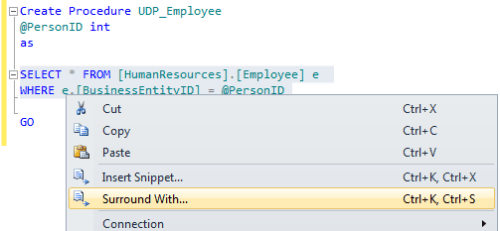
Select the code and right click and select “Surround With”

Step 3 :

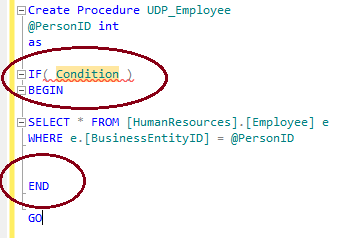
Select the appropriate condition either it is “If condition”,“while condition” or “Begin End”.

Step 4 :

SQL server automatically generate the appropriate code in appropriate place, Now just write the condition and run the code.

Let me know if this technique is helpful for you.

Read Full Post »

Color plays a very important role is our life. I would like to discuss this important role with respect to SQL SERVER MANAGEMENT STUDIO.

Lets do it step by step.

Step 1 :
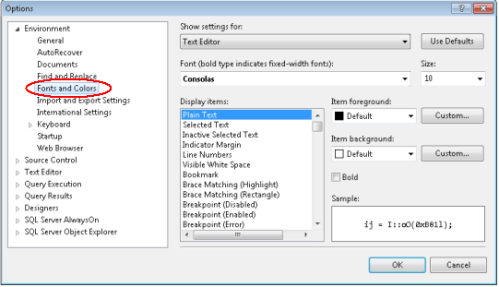
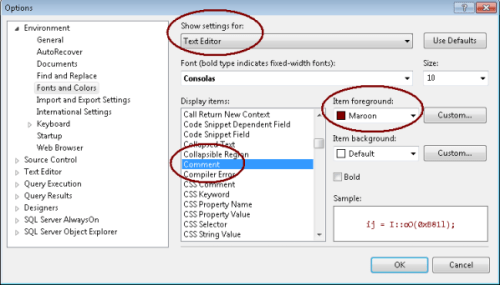
Open your SSMS and go to Tools \ Options \ Environment \ Fonts and Colors.

Step 2 :
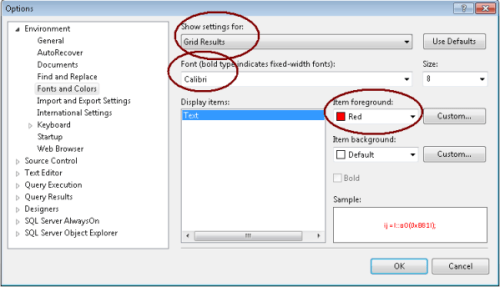
First, we will change the color of Gird Results and Font.

Step 3 :
In this step, we need to change the color of comments.

Step 4 :
Close your SSMS and open it again.

Step 5 :
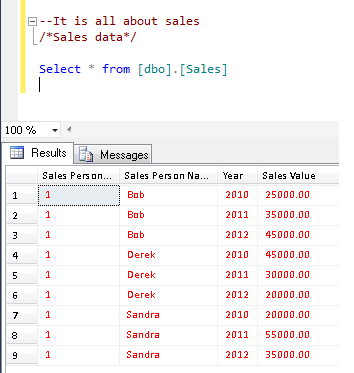
Lets write the query, comment it and view the difference in results and comments color.

Note : If you would like to reset these changes, press the “Use Defaults” button (on top right).

Read Full Post »

Today, we will discuss about the Do’s and Don’ts of SQL SERVER- System Stored Procedure -“sp_rename”. This procedure is used to change the name of any object created by user.

Syntax :

sp_rename [ @objname = ] 'object_name' , [ @newname = ] 'new_name'
[ , [ @objtype = ] 'object_type' ]

Do’s for Sp_Name :
Given below are the transactions that you can do via sp_rename.

  • Rename a table
  • Rename a column
  • Rename an index
  • Rename constraints

Don’ts for Sp_Name :
Given below are the transactions that you must not do via sp_rename.

  • Donot Rename a stored procedure
  • Donot Rename a function
  • Donot Rename a view
  • Donot Rename a trigger

Syntax and example of Do’s of Sp_rename are available here.

Lets discuss why we must not rename stored procedure,function,view & trigger via sp_rename.

Lets create a table and view to demonstrate.

Create table tbl_Sample
([Sno] int,
[Dept_Name] varchar(50)
)
Go
Create View vw_Sample
As
Select * from tbl_Sample

Lets run the given below query to check that each and every references are updated.

Select A.[object_id],B.[object_id],A.[name],[Definition]
from sys.Objects  A
Inner Join sys.sql_modules B on A.[object_id]=B.[object_id]
And A.[Type]='V'

You can see that name and definition column matched with respect to name.
Now, lets rename the view.

USE Test
GO
--Syntax sp_rename 'Old View name', 'New view Name'
EXEC sp_rename 'dbo.vw_Sample', 'vw_Sample2';

Lets check again if the references are updated.

Select A.[object_id],B.[object_id],A.[name],[Definition]
from sys.Objects  A
Inner Join sys.sql_modules B on A.[object_id]=B.[object_id]
And A.[Type]='V'

You can see that if you rename view the reference(Definition column of sys.sql_modules) is not updated because of this SQL Server recommends not to rename these objects via sp_rename. Always use drop and create to rename these objects.

Read Full Post »

Today, I received a task to alter a number of stored procedures and create its “alter” script. So if you need to alter the script, you need to either right click on database>> stored procedure and filter the stored procedure and then create its alter script or add sp_helptext before any stored procedure to get its script. I normally prefer to go with the second option.

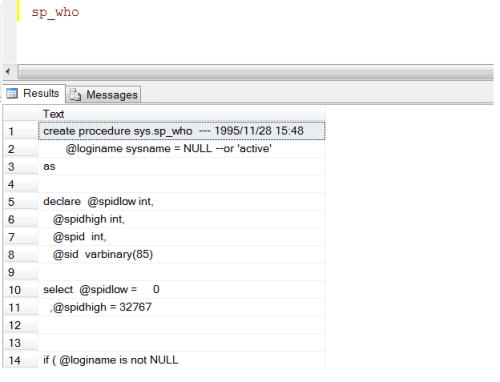
However, if you need to get the script of stored procedure, you need to write “sp_helptext” as many times as you need the script of stored procedure. Here is the solution.

You simply need to add a shortcut in SQL Server and have fun.

But the question is how to do it?

Lets proceed step by step.

Step 1 :
Go to Tools >> Options >> and in the Options you need to go to Environment >> Keyboard
and set “Sp_helptext” in front of “Ctrl+F1”. Meaning, whenever you press “Ctrl+F1” it will work like “Sp_helptext”

Step 2 :
Now, write any stored procedure and press “Ctrl+F1”. Ooops….. It’s not working.
So, it will not work in the already opened window. Open a new window, then connect the SSMS again and try to use it. This time it will work.

For example : Write any stored procedure and press “Ctrl+F1”. It will give you its script.

Now, my purpose is resolved but I was thinking that whenever I need to browse a table I need to write “Select * from” + TableName.
So why not we add this one also in the shortcut.

Lets do it and review the impact.
Now add “Select * from” in front of “Ctrl+3”

Now, open a new window again and type any table name and press “Ctrl+3”

Now you can browse any table without writing “Select * from”

Read Full Post »

« Newer Posts