Feeds:
Posts
Comments

It is but a common practice to migrate data from Excel to SQL Server; mostly so, when we implement a new system and the initial data is required from the customer.
I mostly use OPENROWSET to migrate data instead of import/export tool to avoid multiple steps.

Given below is the script to migrate data from Excel 2003:

SELECT * FROM  OPENROWSET('Microsoft.Jet.OLEDB.4.0'
,'Excel 4.0;Database=D:\test.xls','SELECT * FROM [sheet1$]')

But, when the same code is used for Excel 2007 & above, it gives the following error:

SELECT * FROM  OPENROWSET('Microsoft.Jet.OLEDB.4.0'
,'Excel 4.0;Database=D:\test.xlsx','SELECT * FROM [sheet1$]')

Msg 7399, Level 16, State 1, Line 1
The OLE DB provider “Microsoft.Jet.OLEDB.4.0” for linked server “(null)” reported an error. The provider did not give any information about the error.
Msg 7303, Level 16, State 1, Line 1
Cannot initialize the data source object of OLE DB provider “Microsoft.Jet.OLEDB.4.0” for linked server “(null)”.

Lets solve this issue step by step.

Step 1 :
Download Microsoft Access Database Engine 2010

Step 2 :
Install Microsoft Access Database Engine 2010 in your machine.

Step 3 :
Open SQL Server Management Studio. (If already open, close and re-open)

Step 4 :
Enable Ad hoc queries.

sp_configure 'show advanced options', 1;
RECONFIGURE;
sp_configure 'Ad Hoc Distributed Queries', 1;
RECONFIGURE;
GO

Step 5 :
Close the excel sheet that you need to import (if open).

Step 6 :
Give the correct path, file name and excel sheet name with $ sign in the script given below and execute the query.
This information must be correct.

SELECT * FROM OPENROWSET ('Microsoft.ACE.OLEDB.12.0',
'Excel 12.0;Database=E:\test.xlsx;HDR=YES;IMEX=1',
'SELECT * FROM [sheet1$]');

If your first row has a column name then “HDR=YES“, else it should be No.

In case you need this query result in temporary tables, given below is the script to insert Excel records into temp table.

SELECT * into Temp FROM OPENROWSET ('Microsoft.ACE.OLEDB.12.0',
'Excel 12.0;Database=E:\test.xlsx;HDR=YES;IMEX=1',
'SELECT * FROM [sheet1$]');

Note : You can use the same technique for Excel 2003 files as well.

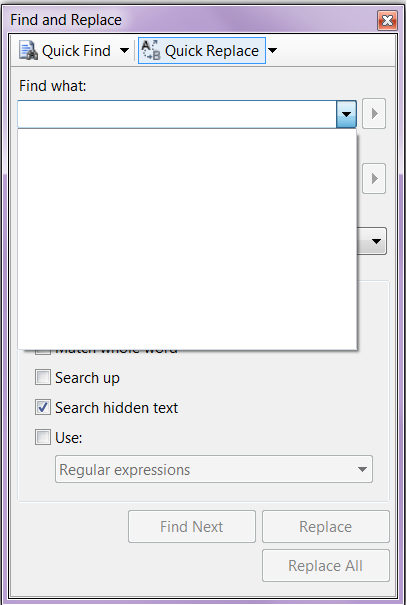
In Find and Replace window, sometimes you find a long history (normally it keeps 20 items at a time) in it and by mistake you may replace with some incorrect word. So I was looking for the solution to clear the Find & Replace window history.

Note : This solution is not recommended for live servers, you can use it in your development and testing machines.

Lets proceed step by step :
Step 1:
First lets go to our Find and Replace window and view the history records. Given below is the Find and Replace window history.

find_and_replace1.1

find_and_replace1.2

Step 2:
Close the SSMS and go to Start >> Run >> type Regedit

Step 3:
Now you need to locate the given below location in registry, where SQL Server keeps its Find and Replace history but it varies with different versions of SQL Server.

For SQL Server 2005 :
HKEY_CURRENT_USER\Software\Microsoft\Microsoft SQL Server\90\Tools\Shell\Find

For SQL Server 2008 :
HKEY_CURRENT_USER\Software\Microsoft\Microsoft SQL Server\100\Tools\Shell\Find

For SQL Server 2012 :
HKEY_CURRENT_USER\Software\Microsoft\SQL Server Management Studio\11.0\Find

Step 4:
Here, you can find keys from Find till Find19 and Replace till Replace19. Now you need to delete these keys to remove it from Find and Replace window.

find_and_replace1.3

find_and_replace1.4

Step 5:
Now that you deleted the keys, lets open SSMS and go to view Find and Replace window history. It is cleared now.
find_and_replace1.5

In this article we will discuss about an error message (DROP ASSEMBLY failed because ‘%ls’ is referenced by object ‘%ls’) related to Assembly.

Let’s discuss this in detail:
Message Number: 6590

Severity : 16

Error Message: DROP ASSEMBLY failed because ‘%ls’ is referenced by object ‘%ls’.

Error Generation:
I was working on CLR functions development and implementations in SQL, using Visual Studio 2005. After sometime, I had to go to SSMS to drop assembly to create a new one. So I went to SQL Server and wrote a query.

Drop assembly CLRExcelFV
--OUTPUT

Msg 6590, Level 16, State 1, Line 1
DROP ASSEMBLY failed because ‘CLRExcelFV’ is referenced by object ‘FV’.

Ooopps…… I am unable to drop it.

Resolution:

SELECT A.assembly_id,A.name as [Assembly Name],
B.object_id, C. name as [Object Name], C.type, C.type_desc
FROM Sys.Assemblies A
INNER JOIN SYS.ASSEMBLY_MODULES B oN a.assembly_id=B.assembly_id
INNER JOIN SYS.OBJECTS C ON B.object_id = C.object_id
--OUTPUT

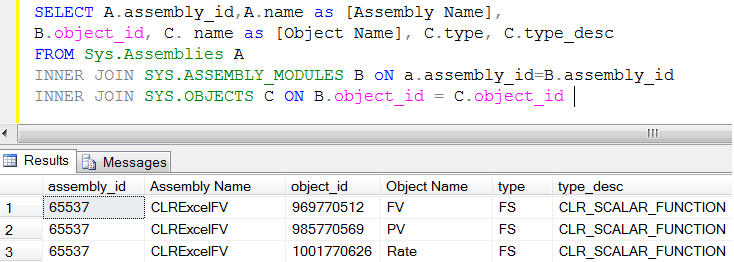
dropassembly1.2

Now, in the above result set, you have the assembly name along with its dependent’s objects names (CLR functions).
First lets drop CLR functions and then drop Assembly.

Drop Function FV
Drop Function PV
Drop Function Rate
Drop assembly CLRExcelFV
--OUTPUT

Conclusion :
You cannot drop assembly without dropping its object. Preferably, you should alter the assembly not to drop. But if you need to drop, first drop  all its objects and then you can drop Assembly.

I came across a question in the Forum, how to calculate the growth of all databases in a server.
So, I set out with my research for the best solution.

Given below are the two methods to calculate the growth of all databases in the server:

  • Via sp_MSforeachdb
  • Via sys.master_files

Given below is the workout that will help you understand the best way to calculate.

  • sp_MSforeachdb

Lets execute sp_MSforeachdb and view the statistics time.

SET STATISTICS TIME ON
exec sp_MSforeachdb 'use [?]; EXEC sp_helpfile'
--OUTPUT

autogrowthsettings1.1

After executing the above statement, I saw few server executions of sp_MSforeachdb. Given below is one of the server executions.
SQL Server Execution Times:
CPU time = 343 ms, elapsed time = 10050 ms.

  • sys.master_files

Given below is the query that  I copied from MS SQL Server profiler & modified it. (Just view growth from SSMS; you can find this query in the profiler)

SELECT
S.[name] AS [Logical Name]
,S.[file_id] AS [File ID]
, S.[physical_name] AS [File Name]
,CAST(CAST(G.name AS VARBINARY(256)) AS sysname) AS [FileGroup_Name]
,CONVERT (varchar(10),(S.[size]*8)) + ' KB' AS [Size]
,CASE WHEN S.[max_size]=-1 THEN 'Unlimited' ELSE CONVERT(VARCHAR(10),CONVERT(bigint,S.[max_size])*8) +' KB' END AS [Max Size]
,CASE s.is_percent_growth WHEN 1 THEN CONVERT(VARCHAR(10),S.growth) +'%' ELSE Convert(VARCHAR(10),S.growth*8) +' KB' END AS [Growth]
,Case WHEN S.[type]=0 THEN 'Data Only'
WHEN S.[type]=1 THEN 'Log Only'
WHEN S.[type]=2 THEN 'FILESTREAM Only'
WHEN S.[type]=3 THEN 'Informational purposes Only'
WHEN S.[type]=4 THEN 'Full-text '
END AS [usage]
,DB_name(S.database_id) AS [Database Name]
FROM sys.master_files AS S
LEFT JOIN sys.filegroups AS G ON ((S.type = 2 OR S.type = 0)
AND (S.drop_lsn IS NULL)) AND (S.data_space_id=G.data_space_id)
--OUTPUT

autogrowthsettings1.2
After executing the above query, I saw server execution of sys.master_files and I was really impressed.

SQL Server Execution Times:
CPU time = 0 ms, elapsed time = 3 ms.

Conclusion :
Why there is a vast difference between two methods even though the output is almost the same ? Because sp_MSforeachdb runs sp_help against each database but on the other hand sys.master_files has all the data and you just need to present it.
The second difference between both is, if you need to modify sp_MSforeachdb result set, you need to insert it into temporary table and use it but in sys.master_files result set, you can do whatever you want without using any temporary table.

Let me know if you know other sound method to check auto growth settings of all databases.

Auto Recovery Scripts is also one of the helpful features introduced in SQL SERVER 2012. It is GOOD NEWS for those who generally forget to save the scripts in SQL Server Management Studio (SSMS) or for some reason could not save the script or close the SSMS abnormally with scripts. By default in SQL SERVER 2012 (SSMS), this feature is turned on with default settings.

Location of Auto Recovery Option in SSMS :
This option is available in Tools >> Options >> Environment >> AutoRecover

Settings available in Auto Recovery :
Given below are the settings available in Auto Recovery.

  • Save Recovery Information :
    • You can set after how many minutes your script should be saved automatically. By default it is after 5 minutes.
  • Keep auto recovered information :
    • You can also set for how many days SSMS should keep those files. By default it is 7 days.

autorecovery 1.1

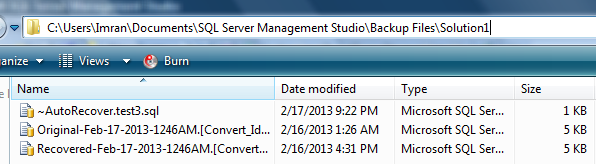
You can find the recovery files here :C:\Users\windows user\Documents\SQL Server Management Studio\Backup Files\Solution1

Given below are the images of recovered files :

autorecovery 1.3

autorecovery 1.4

In this article we will discuss about a new error message (A TOP cannot be used in the same query or sub-query as an OFFSET) introduced in SQL SERVER 2012.

Let’s discuss it in detail:

Message Number: 10741

Severity : 15

Error Message: “A TOP cannot be used in the same query or sub-query as an OFFSET.”

Error Generation:
Let me create an example to generate this error:

USE AdventureWorks2012
GO
Select top 5 BusinessEntityID,[FirstName]
, [LastName],[JobTitle] as [JT]
from HumanResources.vEmployee A
Order By [JobTitle]
OFFSET 10 ROWS
FETCH NEXT 10 ROWS ONLY
--OUTPUT

Msg 10741, Level 15, State 2, Line 4
A TOP cannot be used in the same query or sub-query as an OFFSET.

Resolution:

In the above example, you can see, I upgraded my query from sql server 2008 to 2012 and used new data paging technique introduced in SQL Server 2012, but I did not (deliberately) remove TOP Keyword from the query. Remember, whenever you use data paging  (OFFSET ROWS), make sure you don’t use TOP keyword in the query to avoid this error. According to MSDN : TOP cannot be combined with OFFSET and FETCH in the same query expression (in the same query scope).

Reference : MSDN

In my last article, I had discussed how to convert a table from identity to sequence (manually). In this article, I would be sharing a script that I developed for one of my customers, to convert identity to sequence automatically. I presume that identity column belongs to integer data type family (small int, int, big int).
Note: Please test the script first on test database.

Given below is the example that we need to create, to understand the conversion:

Create table dbo.[Student]
(
[StudentID] int identity(1,1),
[StudentName] varchar(50)
CONSTRAINT PK_Student_StudentID PRIMARY KEY CLUSTERED
([StudentID] ASC)
)
GO
Insert into dbo.Student values ('Imran'),('Bob'),('Sandra')
GO
Select * from dbo.Student

identity_2_sequence1.1

Now, create the given below stored procedure to convert it automatically.

CREATE PROCEDURE Convert_Identity_To_Sequence_Proc
@Scheme_And_TableName nvarchar(Max)
AS

DECLARE @SQL AS NVARCHAR(MAX)
DECLARE @OBJECTID AS BIGINT
DECLARE @IDENTITY_COLUMN_NAME AS NVARCHAR(MAX)
DECLARE @DATA_TYPE_NAME AS SYSNAME
DECLARE @CONSTRAINT_NAME AS NVARCHAR(MAX)
DECLARE @Max_identity_ID AS BIGINT
DECLARE @ParmDefinition AS NVARCHAR(MAX)
DECLARE @TABLE_NAME AS NVARCHAR(MAX)

--Pick up object ID of the table
SELECT @OBJECTID=OBJECT_ID(@Scheme_And_TableName)
--Seperate Table name from the schema
SET @TABLE_NAME =SUBSTRING(@Scheme_And_TableName,CHARINDEX('.',@Scheme_And_TableName)+1,LEN(@Scheme_And_TableName))
Print @TABLE_NAME

--Check if the table has an identity table
If (Select Count(*) from sys.identity_columns where object_id =@OBJECTID)=0
BEGIN
RAISERROR('Could not found the identity column in this table',16,1)
RETURN
END
Print @OBJECTID

-- Pick identity column name , contraint name and data type name from the table.
SELECT @IDENTITY_COLUMN_NAME=A.name,@CONSTRAINT_NAME=B.name, @DATA_TYPE_NAME=D.name FROM sys.columns A
INNER JOIN sys.types D ON A.system_type_id =D.system_type_id
LEFT JOIN sys.indexes B ON A.object_id =B.object_id
LEFT JOIN sys.index_columns C ON B.object_id =C.object_id
AND B.index_id =C.index_id
AND A.column_id =C.column_id
WHERE A.is_identity =1 And A.object_id =@OBJECTID

Print @IDENTITY_COLUMN_NAME
Print @CONSTRAINT_NAME
Print @DATA_TYPE_NAME

-- Add a new column in the table that does not have the IDENTITY property with the same data type
SET @SQL ='ALTER TABLE ' + @Scheme_And_TableName +' ADD ' +@IDENTITY_COLUMN_NAME + 'New ' + @DATA_TYPE_NAME + ' NULL'
Print @SQL
EXEC (@SQL)

-- Copy values from the old column and update into the new column
SET @SQL ='UPDATE ' + @Scheme_And_TableName +' SET ' + @IDENTITY_COLUMN_NAME + 'New' + ' =' + @IDENTITY_COLUMN_NAME
Print @SQL
EXEC (@SQL)

-- Drop the primary key constraint from the old identity column
SET @SQL ='ALTER TABLE ' + @Scheme_And_TableName + ' DROP CONSTRAINT ' + @CONSTRAINT_NAME
Print @SQL
EXEC (@SQL)

-- Drop the old identity column
SET @SQL =' ALTER TABLE ' + @Scheme_And_TableName + ' DROP COLUMN ' + @IDENTITY_COLUMN_NAME
Print @SQL
EXEC (@SQL)

-- Rename the new column to the old columns name
SET @SQL ='EXEC sp_rename ' + ''''+ @Scheme_And_TableName + '.'+ @IDENTITY_COLUMN_NAME+'New' + '''' + ',' + ''''+ @IDENTITY_COLUMN_NAME + '''' + ',' + '''COLUMN'''
Print @SQL
EXEC (@SQL)

-- Change the new column to NOT NULL
SET @SQL ='ALTER TABLE ' + @Scheme_And_TableName + ' ALTER COLUMN ' + @IDENTITY_COLUMN_NAME + ' ' + @DATA_TYPE_NAME + +' NOT NULL'
Print @SQL
EXEC (@SQL)

-- Add the unique primary key constraint again with the same name
IF @CONSTRAINT_NAME IS NOT NULL
BEGIN
SET @SQL ='ALTER TABLE ' + @Scheme_And_TableName + ' ADD CONSTRAINT ' + @CONSTRAINT_NAME +' PRIMARY KEY CLUSTERED (' + @IDENTITY_COLUMN_NAME +' ASC)'
Print @SQL
EXEC (@SQL)
END
ELSE
BEGIN
PRINT 'NO CONSTRAINT'
END
-- Get the highest current value from the column
-- to use it for sequence creation.
SET @SQL ='SELECT @Max_ID=MAX(' + @IDENTITY_COLUMN_NAME + ') FROM ' + @Scheme_And_TableName
SET @ParmDefinition = N'@Max_ID ' + @DATA_TYPE_NAME + ' OUTPUT'
Print @SQL
Print @ParmDefinition
EXECUTE sp_executesql @SQL, @ParmDefinition,@Max_ID=@Max_identity_ID OUTPUT;
Print @Max_identity_ID

-- Use the next Identity value as the START WITH VALUE;
SET @SQL ='CREATE SEQUENCE ' + @Scheme_And_TableName + 'Seq' +
' AS ' + @DATA_TYPE_NAME +
' START WITH ' + try_Convert(varchar(max),@Max_identity_ID+1) +
' INCREMENT BY 1 ' ;
Print @SQL
EXEC (@SQL)

-- Add a default value of sequence to the column
SET @SQL ='ALTER TABLE ' + @Scheme_And_TableName + ' ADD CONSTRAINT Def' + @TABLE_NAME + ' DEFAULT (NEXT VALUE FOR ' + @Scheme_And_TableName + 'Seq)
FOR ' + @IDENTITY_COLUMN_NAME;
Print @SQL
EXEC (@SQL)

GO
--Execute the stored procedure and provide schema and table name as a parameter.
EXEC Convert_Identity_To_Sequence_Proc 'dbo.Student'

Insert few records and check whether the table is properly converted from identity to sequence or not.

Insert into Student (StudentName) Values ('Mark')
Insert into Student (StudentName) Values ('Peter')
Select * from dbo.Student
--OUTPUT

identity_2_sequence1.2

Reference : MSDN

In my earlier article, I wrote about sequence. In this article, we will learn how to convert an identity column to sequence, step by step. Original script is available here (MSDN)
Given below is the example that we need to create, to understand the steps :

Create table dbo.[Student]
(
[StudentID] int identity(1,1),
[StudentName] varchar(50)
CONSTRAINT PK_Student_StudentID PRIMARY KEY CLUSTERED
([StudentID] ASC)
)
GO
Insert into dbo.Student values ('Imran'),('Bob'),('Sandra')
GO
Select * from dbo.Student

identity_2_sequence1.1

Step :1
First of all, we need to add another column in the table with the same data type as identity column.

ALTER TABLE dbo.Student ADD StudentIDNew int NULL
GO

Step :2
Update the IDs from identity column to the newly added column.

UPDATE dbo.Student
SET [StudentIDNew] = [StudentID]
GO

Step :3
Drop the primary key constraint from the identity column of the table.

ALTER TABLE dbo.Student
DROP CONSTRAINT PK_Student_StudentID;
GO

Step :4
Drop the identity column from the column.

ALTER TABLE dbo.Student
DROP COLUMN [StudentID] ;
GO

Step :5
Rename the new column name to the old identity column name.

EXEC sp_rename 'dbo.Student.StudentIDNew',
'StudentID', 'COLUMN';
GO

Step :6
Change the new identity column to NOT NULL.

ALTER TABLE dbo.Student ALTER COLUMN [StudentID] int NOT NULL ;
GO

Step :7
Add primary key constraint back to the table.

ALTER TABLE dbo.Student
ADD CONSTRAINT PK_Student_StudentID PRIMARY KEY CLUSTERED
([StudentID] ASC) ;
GO

Step :8
Now, we need to create the sequence but before sequence creation, we need to know the last ID of the identity column.

SELECT MAX(StudentID) FROM dbo.Student ;
GO

Step :9
Create the sequence using the maximum ID +1 and the same data type of the identity column.

CREATE SEQUENCE dbo.StudentSeq
AS int
START WITH 4
INCREMENT BY 1 ;
GO

Step :10
Make the sequence as a default value of the column.

ALTER TABLE dbo.Student
ADD CONSTRAINT Const_StudentSeq DEFAULT (NEXT VALUE FOR dbo.StudentSeq)
FOR StudentID;
GO

Step :11
Insert few records and check whether the table is properly converted from identity to sequence or not.

Insert into Student (StudentName) Values ('Mark')
Insert into Student (StudentName) Values ('Peter')
Select * from dbo.Student
--OUTPUT

identity_2_sequence1.2

Shall discuss how to change a table from identity to sequence automatically in my next post.

SQL Server profiler is a very handy tool when it comes to tracing queries and trouble shooting etc. But if you run the sql server profiler with default settings, it will show you all the tracing going on in the SQL Server.Then you need to further filter it to achieve whatever you are exactly looking for with different filters.
Today, I will share a shortcut that can help you to trace query that you are doing with your session. Because mostly SQL developers / QA are interested to debug their own activities (in their own sessions) via SQL Server Profiler.
Note : This feature is available in SQL SERVER 2008 and above.

Lets do it step by step :

Step 1 :
Open a new query window and right click on it.

Step 2 :
Click on the Trace Query in SQL Server Profiler or press Ctrl+Alt+P.

sql server profiler1.1

Step 3 :
It will open SQL Server Profiler.

Step 4 :
Now, whatever you will perform in this query window it will show you in this profiler. But if you open a new query window it will not trace it in this profiler. This is very handy for short term tracing or trouble shooting.

sql server profiler1.2

Reason
The reason behind this is if you open the property window (File menu \ properties …) of this sql server query profiler, and go to events selection and the click on column filters button, you can see that it automatically filters your sessions. So whatever you do in your session only that will be traced.

sql server profiler1.3

sql server profiler1.4

Will post how filters work in SQL Server profiler in my upcoming post.

In this article, we will discuss another important analytical function introduced in SQL SERVER 2012 namely PERCENTILE_CONT. Lets discuss PERCENTILE_CONT syntax, purpose, return type with simple examples.

Syntax

PERCENTILE_CONT ( numeric_literal )
WITHIN GROUP ( ORDER BY order_by_expression [ ASC | DESC ] )
OVER ( [ <partition_by_clause> ] )

Purpose
The purpose of this function is to calculate the percentile based on a continuous distribution of the field. In other words you can say that it also calculates the median but just to base it on the median, is not correct.

Return Type
The return type is float(53) and the value of percentile should be between 0 and 1.

Formula
Given below is the formula that will help you to understand how it works.
If (CRN = FRN = RN) then the result is
(value of expression from row at RN)
Otherwise the result is
(CRN – RN) * (value of expression for row at FRN) +
(RN – FRN) * (value of expression for row at CRN)

Where
RN = Row number
CRN = Ceiling of RN
FRN = Floor of RN

Lets implement this formula in the examples :
Example 1 : When PERCENTILE_CONT is 0.5
Lets take gold rate as an example to check their percentile based on a continuous distribution of the gold rate in one week.

Create table [Daily_Gold_Rate]
(
[S.No] int,
[Date] datetime,
[Carat] int,
[Gold Rate] numeric(18,2)
)

Insert into [Daily_Gold_Rate] values(1,'2013-01-03',18,155.00)
Insert into [Daily_Gold_Rate] values(2,'2013-01-03',22,190.50)
Insert into [Daily_Gold_Rate] values(3,'2013-01-03',24,202.23)

Insert into [Daily_Gold_Rate] values(4,'2013-01-04',18,153.00)
Insert into [Daily_Gold_Rate] values(5,'2013-01-04',22,191.00)
Insert into [Daily_Gold_Rate] values(6,'2013-01-04',24,202.25)

Insert into [Daily_Gold_Rate] values(7,'2013-01-05',18,150.00)
Insert into [Daily_Gold_Rate] values(8,'2013-01-05',22,190.00)
Insert into [Daily_Gold_Rate] values(9,'2013-01-05',24,203.25)

Insert into [Daily_Gold_Rate] values(10,'2013-01-06',18,158.00)
Insert into [Daily_Gold_Rate] values(11,'2013-01-06',22,189.50)
Insert into [Daily_Gold_Rate] values(12,'2013-01-06',24,201.50)

Select
[Date]
,[Carat]
,[Gold Rate]
,PERCENTILE_CONT(0.5) WITHIN GROUP (ORDER BY [Gold rate])
OVER (PARTITION BY [Carat]) AS MedianCont
from [Daily_Gold_Rate]

percent_cont1.1

Lets calculate the formula in excel and view the results.
if Percentile is 0.5 then RN is not equal to CRN and is not equal to FRN. Therefore the formula will be
(CRN – RN) * (value of expression for row at FRN) +
(RN – FRN) * (value of expression for row at CRN)

percent_cont_excel1.1

Example 2 : When PERCENTILE_CONT is 1

Select
[Date]
,[Carat]
,[Gold Rate]
,PERCENTILE_CONT(1) WITHIN GROUP (ORDER BY [Gold rate])
OVER (PARTITION BY [Carat]) AS MedianCont
from [Daily_Gold_Rate]

percent_cont1.3-1

Lets calculate the formula in excel and view the results.
if Percentile is 1 then RN=CRN=FRN and the formula will be
If (CRN = FRN = RN) then the result is
(value of expression from row at RN)

percent_cont_excel1.2

Reference :MSDN