Feeds:
Posts
Comments

Posts Tagged ‘SQL Server’

Filetable is one of the new features shipped with SQL Server 2012. I have discussed its core functionality earlier in my articles. Today, I was trying to open one of the filetables using Explorer File Table Directory and it gave me given below error message.

file location cannot be opened.1.1

Let me explain the error and its solution in detail.

Error Message: The File location cannot be opened. Either access is not enabled or you do not have permissions for the same.

Solution:
If you look at the error description, it seems that either your access to this filetable is not enabled by the administrator or you do not have the permission to access this filetable. And I am a bit surprised because I logged in as an administrator, what next then ?

Let me explain the solution step by step.

Step 1 :
Click on the Start >>All Programs >>Microsoft SQL Server 2012 >>Configuration Tools >> SQL Server Configuration Manager, as shown in the image below.

filestream_disabled.1.1

Step 2 :
Once you click on SQL Server configuration manager, it will open SQL Server configuration manager options. It has two panes. Now you need to select SQL Server Services from the left hand pane and select the SQL Server Instance, right click on it and select Properties as shown in the image below.

filestream_disabled.1.2

Step 3 :
Once you select the Properties, it will open SQL Server Properties dialogue box. Now you need to find FILESTREAM Tab and select it.
Once you select it, you will find given below options as shown in the image.

    1. Enable FILESTREAM for Transact-SQL access.
    2. Enable FILESTREAM for file I/O access. 
    3. Allow remote clients to have streaming access to FILESTREAM data. 

file location cannot be opened.1.2

As you can see, the 2nd option (Enable FILESTREAM for file I/O access) has NOT been ENABLED and due to this reason, you cannot access filtable from SQL Server Management Studio (SSMS). Just enable this option and click Apply as shown in the picture below.

file location cannot be opened.1.3

Step 4 : 
Once you are done with SQL Server Configuration Manager, open SQL Server Management Studio and go to the same filetable and open it using Explorer FileTable Directory. This time it will not give you this error.

file location cannot be opened.1.4

Read Full Post »

Taking & maintaining back up is one of the core responsibilities of any Database Administrator. However, I came across some DBA’s that usually take the backup but not on a regular basis because it is a manual process. I strongly recommend that you start taking the backup even from day one after your deployment at the client site. Today, I handed over a SQL Server to the client after installation and immediately scheduled an automated backup as well. So thought of sharing this solution.

Let me schedule an automated backup to demonstrate step by step.

STEP 1 :
First of all, open the SQL Server Management Studio (SSMS) and check if SQL Server Agent is running or not. In my case it is not running due to this, it is showing red color sign in the icon of SQL Server Agent. Just right click on SQL Server Agent and select Start as shown in the image below.

schedule autobackup.1.1

Once you start, SQL Server Agent icon will be changed to green as shown below.

schedule autobackup.1.2

STEP 2 :
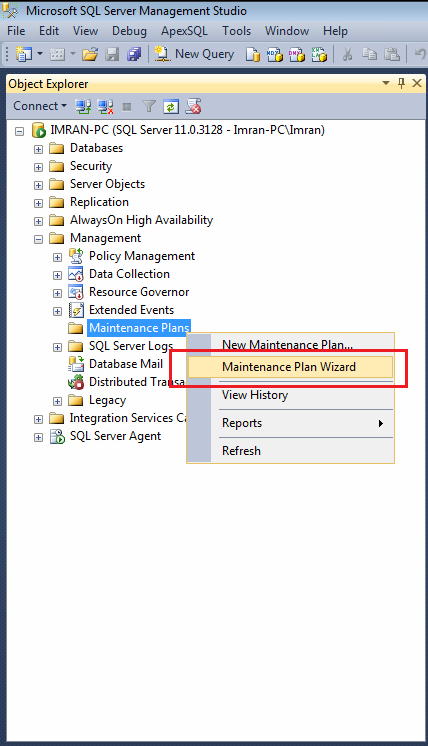
Remain in the SSMS, drill down Management and select Maintenance Plans, further right click on Maintenance Plans and select Maintenance Plan Wizard as shown in the image below.

schedule autobackup.1.3

STEP 3 :
Once you click on Maintenance Plan Wizard, it will pop up an information dialogue box. Click Next Button as shown below.

schedule autobackup.1.4

STEP 4 :
Once you click on Next Button, Plan Properties screen will open as shown below. Enter the maintenance plan name and press Change Button as shown in the image below.

schedule autobackup.1.5

STEP 5 :
Once you press Change Button, it will open a New Job Schedule Window, where you need to define the frequency, schedule date/ time & start date/ end date (no end date) as shown in the image below. Once you are done with the job schedule window press OK button and Next Button respectively.
Note : Always select the off peak time (after office working hours) for scheduler.

schedule autobackup.1.6

STEP 6 :
Now, you are at maintenance task window, here you need to select what type of maintenance you need to do. In our case we need to schedule a FULL database backup. Select the Back Up Database (Full) and press Next button as shown in the image below.

schedule autobackup.1.7

STEP 7 :
It is task order screen but you only select one task (Back Up Database (Full)). There is no need to do any thing in this screen. Just press Next button as shown below.

schedule autobackup.1.8

STEP 8 :
In this step you need to define the parameters of back up; mainly selection of database, location of database & verify integrity of database and press Next button as shown below.

schedule autobackup.1.9

STEP 9 :
Now, you are at report option that you probably need to view the results of this scheduler. This option is very helpful when it comes to debugging as shown below. Press Next Button.

schedule autobackup.1.10

STEP 10 :
Once you press Next button, the summary window will pop up and displays the summary of all configurations as shown below.

schedule autobackup.1.11

Once you press Finish Button, it will process your maintenance plan and will give you the status as shown below.

schedule autobackup.1.12

In addition to this, you can find your maintenance plan on your left hand side as shown below.

schedule autobackup.1.13

STEP 11 :
It seems that your maintenance plan has been done. Only one last step and that is, you need to rename the job. Just select SQL Server Agent and browse jobs, you will find one Backup.Maintenance.Subplan_1, right click on it and select properties as shown below.

schedule autobackup.1.14

STEP 12 :
You are in the job property window, you just need to rename your job name and press OK button as shown below.

schedule autobackup.1.15

Once you are done with all 12 steps you will find a daily backup at the defined time in a dedicated folder. In fact, it took me 5 minutes to configure but eventually it will make my life easier. Let me know how you guys are handling back ups.

Read Full Post »

Last Sunday, my support team received a backup from one of our customers and customer requested some activities for their backup. Once we saved the backup it was named testing backup.  The problem was, we deployed lots of databases for different applications at this client and we did not know that which database backup is he referring to. First of all it is not a best practice to name a backup like this, it must be proper naming conversion. However if you come across situation like this, there is a workaround to find the details about the backup without restoring it. But how ?

Given below is the script that will give you the details about the backup without restoring it to any database.

--This script is compatible with SQL Server 2005 and above.
USE master
GO
RESTORE FILELISTONLY
FROM DISK = N'C:\data\Testing Backup.bak'
GO

metadata of backup.1.1

In addition to the above information, if you need further details about the backup without restoring, you can use RESTORE HEADERONLY & RESTORE LABELONLY

Reference : MSDN

Read Full Post »

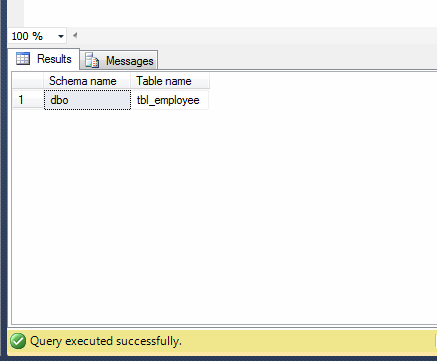
Today, I was searching for some script from my library and I came across this script (How do I find all the tables that do not have a primary key?) . I usually use this script, once I complete my deployment on any SQL Server to check if I missed to create primary key on any table.  There are multiple ways to achieve it. However, I will discuss three of them in this article.

METHOD 1 :
This is the shortest method to find all the tables that do not have a primary key. In this method, we need to use OBJECTPROPERTY to check each table property and filter it.

--This script is compatible with SQL Server 2005 and above.
USE AdventureWorks2012
GO
SELECT
SCHEMA_NAME(schema_id) AS [Schema name]
, name AS [Table name]
FROM sys.tables
WHERE
OBJECTPROPERTY(object_id,'TableHasPrimaryKey') = 0
GO
--OUPUT

donot have primary key.1.1

METHOD 2 :
This is one of my favorite methods because I do not need to remember any other view name, I can browse all the data from sys.objects.

--This script is compatible with SQL Server 2005 and above.
USE AdventureWorks2012
GO
SELECT
SCHEMA_NAME(schema_id) AS [Schema name]
, name AS [Table name]
FROM
sys.objects
WHERE [type]='U' AND object_id
NOT IN (
SELECT parent_object_id FROM sys.objects
WHERE [type]='PK'
)
GO
--OUPUT

donot have primary key.1.1

METHOD 3 :
In this method, we need to use two system views (sys.tables & sys.key_constraints) to achieve it.

--This script is compatible with SQL Server 2005 and above.
USE AdventureWorks2012
GO
SELECT
SCHEMA_NAME(schema_id) AS [Schema name]
, name AS [Table name]
FROM sys.tables
WHERE object_id NOT IN
(
SELECT parent_object_id
FROM sys.key_constraints
WHERE type = 'PK'
);
GO
--OUPUT

donot have primary key.1.1

Read Full Post »

In my earlier articles, I wrote how to insert files inside the file table and this is more than enough if you maintain few files inside one filetable. But once a filetable is crowded you should maintain the files inside the folders to manage it properly. But how to create a folder inside a filetable ?

Note : I strongly recommend that you should read given below articles to have a clear understanding about FileTables.

  1. FileTables – Prerequisites
  2. FileTables – Data Definition Language (DDL)
  3. FileTables – Data Manipulation Language (DML)

There are two methods to create a folder inside file table. Given below are the details.

  • Using SQL Server Management Studio (SSMS)
  • Using T-SQL

Let me explain each method in detail.

  • Using SQL Server Management Studio (SSMS)

This is the easiest way to create a folder inside filetable. In order to follow this method we need to achieve it step by step.

Step 1 :
First of all you should select the respective filetable in which you need to create a folder and right click on it and select “Explore filetable directory” as shown in the image below.

create_folder_inside_filetable.1.1

Step 2 :
Once you select “Explore filetable directory”, it will open that particular filetable directory folder. You can create folder here, just like in windows, as shown below.

create_folder_inside_filetable.1.2

create_folder_inside_filetable.1.3

  • Using T-SQL

This method we usually use when we need to create a folder dynamically using T-SQL. Given below is the script.

--This script is compatible with SQL Server 2012 and above.
USE SampleDB
GO
INSERT INTO dbo.CVBank
(name,is_directory) VALUES ('New folder', 1);

Read Full Post »

Last weekend, my support engineer and I were at a client site to upgrade SQL Server 2005 to SQL Server 2012. Before proceeding with any activity, we tried to take a backup and got the given below error that I received it later by my support engineers as shown below.

error

Let me explain the error and its solution in details.

Message Number: 3023 

Severity : 16

Error Message: Backup and file manipulation operations (such as ALTER DATABASE ADD FILE) on a database must be serialized. Reissue the statement after the current backup or file manipulation operation is completed.

Resolution:
If you look at the error description, it seems that there is a transaction going on in the background, and due to this reason SQL Server is not allowing us to take a backup or may be the database is corrupt. So we started doing our basic testing and it seems everything is fine. Then why SQL Server is not allowing us to take a backup ?

So, I thought of executing the given below query to check whether any backup or restore operation is in progress and I found that a scheduled backup was already in progress. Ooopss……….. So we waited for a while and took the backup again.

erromessage3023.1.1

Conclusion:
Whenever you come across this error, you should check what the processes are in progress in SQL Server. It will give you a hint, why you are unable to take backup. In my case, a scheduled backup was in progress at the same time when I tried to take the backup.

Read Full Post »

Today, I came across a situation, where I had to perform an activity similar to temporary table cleaning in more than one database. So I started thinking about the shortest possible solution. After some research, I found two possible solutions and one of them was sp_MSforeachdb. It is basically an undocumented stored procedure in SQL Server and it is very handy when you need to perform / achieve some tasks in different databases at a time. However, I need to perform the above mentioed task NOT IN all databases but few of them only. So I started doing some testing to see how to achieve database filter in the sp_MSforeachdb. After couple of testings, I finally found the way to execute a set of commands on specific databases using sp_MSforeachdb.
Given below is the script.

--This Script is compatible with SQL Server 2005 and above.
EXEC sp_MSforeachdb
@command1='IF ''?''
IN (''AdventureWorks2012'',''AdventureWorks2012_test'')
BEGIN
SELECT name,object_id,modify_date
FROM ?.sys.tables WHERE [name]=''Person''
END'
--OUTPUT

sp_MSforeachdb.1.1

Let me know if you came across these situations and what was the solution ?

Note : It is not recommended to use sp_MSforeachdb on production databases.

Read Full Post »

I came across this query from one of my SQL Server developers while he was doing some  R&D in SQL Server and suddenly the SQL Server started giving him fixed number of result sets (5 rows of each table/views) as shown in the picture below.

Setrowcount.1.1png

First of all he tried all the way to fix it including the restart of development SQL Server. It seems, he had to re-install his SQL Server ;). He called me, if I can help him to fix it. I asked him few queries and started doing the troubleshooting and finally fixed the issue. Let me reproduce the same issue and fix it step by step.

Step 1 :
Open SSMS (SQL Server Management Studio) and go to Tools >> Options menu as shown in the image below.

Setrowcount.1.3

Step 2 :
Once you select options menu, an options dialogue box will pop up. Now you need to select “Query Execution” from left hand pane and make SET ROWCOUNT =0 as shown in the image below. By mistake my developer put 5 in the SET ROWCOUNT and it returns 5 number of rows in each result sets for each table and view. Once you are done press OK button.

Setrowcount.1.2

Step 3 :
Now open a new query window and execute the same queries. This time, it will give you the exact result set instead of 5 rows.

Setrowcount.1.44

Let me know if you guys came across this issue and how did you fix it ?

Read Full Post »

Sometimes, when you create a new object using SSMS (SQL Server Management Studio) and try to use that newly created object, it shows a red line underneath that object and if you move your mouse cursor on that object, it says the object does not exist, but on the other hand it manipulates the query too, as shown in the picture below.

refresh_cache.1.1

When I came across this issue earlier I thought it could be a bug. But actually it is not, so what is wrong with SQL Server ? Basically once you create a new SQL Server object, your newly created object does not get updated in the IntelliSence Local Cache and due to this, it shows red line underneath that object. So you just need to refresh SSMS IntelliSence Local Cache and once you refresh it, IntelliSence will automatically add newly created object in the cache and the red line will disappear. Now, the question is how to update it ? You can achieve in two different ways. Given below are the details.

  • Shortcut

In this method, you need to open SSMS and just need to press “Ctrl+Shift+R” and Intellisence Local Cache will be updated automatically.

  • Via Menu

In this method, you need to open SSMS then go to Edit menu and point IntelliSence and select Refresh Local Cache and once you select Refresh Local Cache, your Intellisence Local Cache will be updated automatically as shown in the picture below.

refresh_cache.1.2

Let me know, what you guys did, when you came across it first time 😉 ?

Read Full Post »

Data presentation is one of the aspects that is much more important when you need to present a report to end user. Usually, I recommend that you should do it at the presentation layer (front end). However, sometimes we need to do all the formatting at database level itself and just present it at presentation level. One of the most frequently formattings we usually come across is datetime data type formatting and to format datetime we need to convert it into varchar data type.

Given below are the solutions.

Solution 1 :
In this solution, we need to use the Traditional method using CONVERT function.

USE AdventureWorks2012
GO

SELECT PurchaseOrderID
, OrderDate
, CONVERT(VARCHAR(11),OrderDate,113)
AS [OrderDate Using Convert]
FROM Purchasing.PurchaseOrderHeader
GO
--OUTPUT

datetimetovarchar.1.1

Solution 2 :
In this solution, we need to use one of the new conversion functions shipped with SQL Server 2012 namely TRY_CONVERT function.

USE AdventureWorks2012
GO

SELECT PurchaseOrderID
, OrderDate
, TRY_CONVERT(VARCHAR(11),OrderDate,113)
AS [OrderDate Using Try_Convert]
FROM Purchasing.PurchaseOrderHeader
GO
--OUTPUT

datetimetovarchar.1.2

Solution 3 :
In this solution, we need to use one of the new formatting functions shipped with SQL Server 2012 namely FORMAT function.
I usually recommend this method because it gives you variety for formatting.

USE AdventureWorks2012
GO

SELECT PurchaseOrderID
, OrderDate
, FORMAT(OrderDate,'dd MMM yyyy')
AS [OrderDate Using Format]
FROM Purchasing.PurchaseOrderHeader
GO
--OUTPUT

datetimetovarchar.1.3

Read Full Post »

« Newer Posts - Older Posts »